Best Free Background Noise Remover 2026: What to Use and When
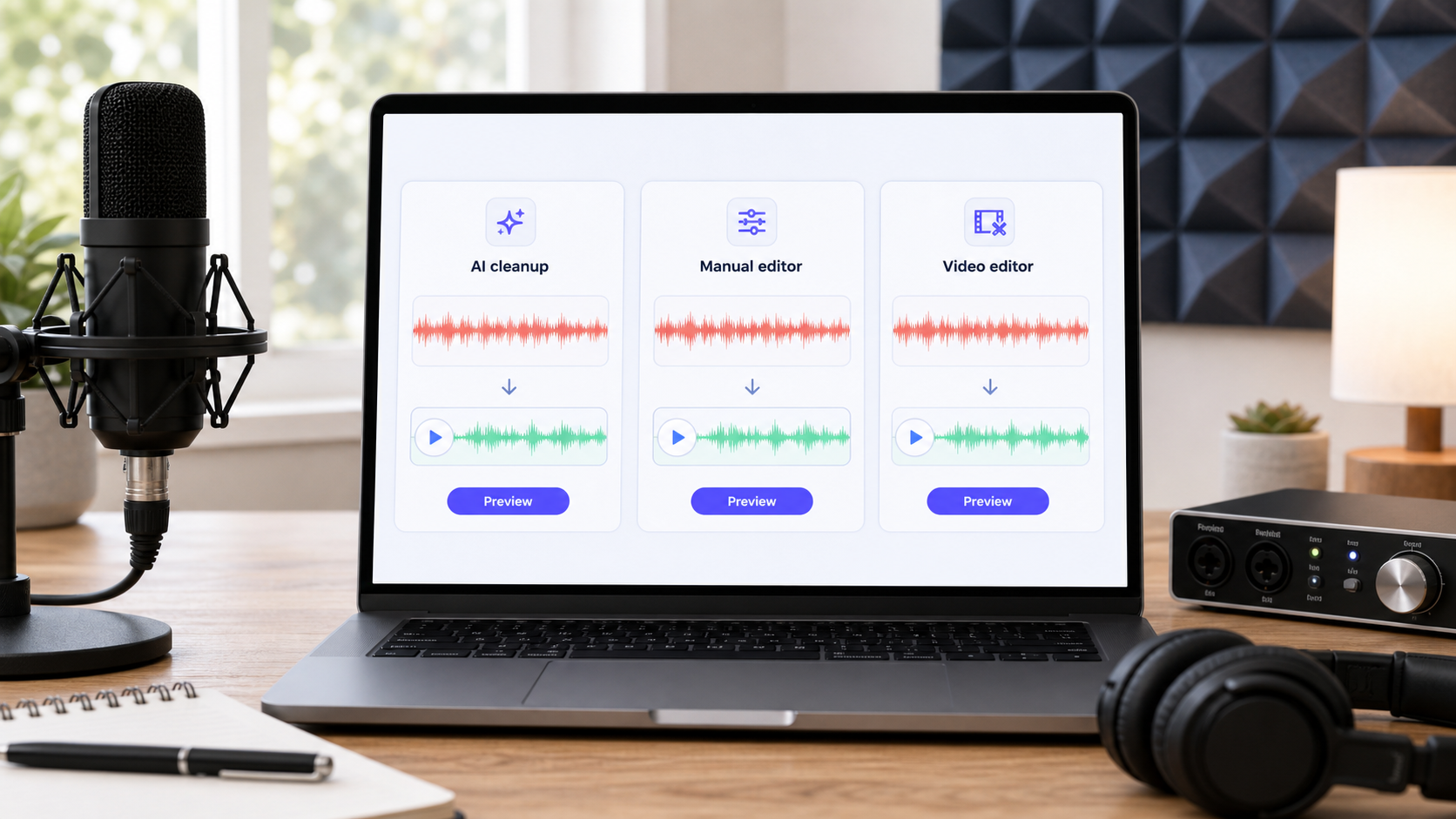
The best free background noise remover depends on the file. If you need a quick browser workflow for a voice, podcast, meeting, or video clip, start with an AI cleanup tool that lets you preview the result. If you need full manual control and have time to adjust settings, Audacity is still useful. If the audio is already inside a larger video project, a video editor may make more sense.
For a fast first pass, try CleanAudio's AI noise remover. For audio-only files, use remove background noise from audio. For video files, use remove background noise from video. If you are comparing methods, read this alongside free vs paid noise removal tools, noise removal vs noise reduction, and why noise removal can make voice sound robotic.
This updated guide is not a generic top-ten list. Background noise removal has different jobs: reducing hiss, cleaning room tone, handling wind, improving meeting audio, removing hum, or making a video interview easier to understand. A tool that works well for steady fan noise may not be the right tool for echo, keyboard clicks, traffic, or clipped speech.
Quick Recommendation by Situation
| Situation | Best first choice | Why |
|---|---|---|
| You want the fastest online cleanup | CleanAudio | browser upload, AI analysis, preview, download |
| You want free manual control | Audacity | strong for steady sampled noise if you know the workflow |
| You are already editing a video | your video editor | keeps cleanup inside the timeline |
| You have a single click, pop, or mistake | manual repair | local edits are cleaner than processing the whole file |
| You have echo or room reverb | CleanAudio echo cleanup or another dedicated echo workflow | echo is reflected voice, not a normal background bed |
| You have wind, traffic, or mixed noise | AI cleanup plus preview | mixed noise needs routing and restraint |
The main decision is not free vs paid at first. It is whether the file needs manual control, automated cleanup, or a better recording. A free workflow that damages the voice is not a win; free but disappointing cleanup can still waste the time you were trying to save.
CleanAudio: Best for Quick Browser-Based AI Cleanup
CleanAudio is the best fit when you want a productized cleanup workflow instead of building an effects chain by hand. Upload the file, let the system analyze the audio, preview the cleaned result, and download if the voice sounds better. That makes it useful for podcasts, interviews, Zoom recordings, phone videos, and creator clips where the voice is still present but the background is distracting.
The practical advantage is routing. Real files often have more than one problem: hiss plus room tone, fan noise plus keyboard clicks, wind plus traffic, or echo plus background chatter. A manual editor asks the user to identify each layer and choose a separate tool. CleanAudio's hybrid model workflow is designed to reduce that burden by analyzing mixed audio and applying a suitable cleanup approach before the preview stage.
Use CleanAudio when:
- you need a fast online workflow
- you want to clean audio or video without installing software
- the voice is understandable but distracted by background noise
- you want to preview before downloading
- you do not want to choose noise profiles, filters, and restoration settings manually
Do not expect any AI tool to recover words that were never captured clearly. Clipping, speech buried under loud noise, and overlapping speakers still create hard limits.
Audacity: Best Free Manual Noise Reduction
Audacity remains useful because it is free and gives detailed manual control. Its noise-reduction workflow is strongest when the unwanted sound is steady and sampleable, such as fan hum, room tone, or mild hiss. The basic idea is to capture a noise profile from a section that contains noise but no speech, then apply reduction carefully to the recording [1].
Manual noise-profile workflows are easier when the unwanted sound is steady. A clean noise profile for a fan does not describe a passing car, a keyboard click, a plate clink, and an echo tail. Those moments usually need more local judgment, lighter processing, or a separate repair step, so the workflow becomes slower.
Use Audacity when:
- the noise is steady
- you have time to listen and adjust
- you want offline control
- you need local edits or manual repair
- the project is audio-only and precision matters
Avoid heavy settings. The classic failure mode is not that the background remains slightly audible. The failure mode is that the voice becomes metallic, watery, or hollow because the reduction removed too much of the speech texture.
Video Editors: Best When the Cleanup Belongs Inside an Edit
Video editors are useful when the audio is one part of a bigger timeline. If you need to cut scenes, balance music, adjust voice levels, and export captions or social formats, keeping the cleanup inside the editor can be convenient. Adobe's professional audio documentation shows how restoration and noise-reduction effects can be part of a more detailed production workflow [2].
The tradeoff is that video editors are not always the fastest path for a single dirty clip. You may need to import media, open panels, choose effects, preview in context, and export. For creators who simply want to clean one interview or phone video, an online workflow may be faster.
Use a video editor when:
- you are already finishing the video
- you need scene-by-scene control
- you want manual timeline edits
- you need to combine cleanup with music, compression, and export settings
Use a browser cleanup workflow when:
- you only need cleaner dialogue
- you want to avoid setup
- you need to preserve sync without learning a full editing workflow
Free Tools Are Not All Free in the Same Way
"Free" can mean several things: open-source software, limited free preview, free trial, free export with limits, or a free feature inside a paid suite you already use. That matters because the real cost is often time, not only money.
| Free model | What you get | Hidden cost |
|---|---|---|
| Open-source editor | manual control without a subscription | learning curve and time |
| Browser AI preview | fast test before export | export or duration limits may apply |
| Video editor feature | cleanup inside a timeline | setup and editor complexity |
| Meeting-app suppression | live noise reduction during calls | not a post-production workflow |
| One-click mobile tool | simple workflow | less control for difficult files |
For CleanAudio content, do not treat free tools as a ladder where one is always "best." Treat them as different first moves. A free manual editor can be excellent for a clean, steady noise profile. AI cleanup can be better for mixed, changing files. A retake can be better than either when the speaker is buried.
What to Check Before You Export
Always listen before accepting the cleaned file. Use the worst sentence, not the best one. If the cleaned version only sounds good on the easiest line, it may not be publishable.
Check these four things:
- Is the speaker easier to understand?
- Does the voice still sound like the same person?
- Are consonants intact, especially s, t, k, f, and p sounds?
- Is the remaining background less distracting than the artifacts created by cleanup?
If the answer to any of those is no, use a lighter pass, change tools, edit only the worst sections, or keep the original. Silence is not the goal. Clearer speech is the goal.
Best Free Background Noise Remover by Use Case
| Use case | Best first workflow | Why |
|---|---|---|
| Podcast with steady hiss | Audacity or CleanAudio | both can help; manual control may be useful |
| Remote meeting recording | CleanAudio | fast cleanup and preview for voice-first files |
| Street interview video | CleanAudio video workflow | mixed traffic and speech need preview |
| YouTube video already in edit | video editor first | cleanup can stay in the timeline |
| One click or pop | manual repair | process only the problem moment |
| Echo-heavy room recording | CleanAudio echo cleanup or echo-specific workflow | normal denoise does not fully solve reverb |
| Phone video with background chatter | CleanAudio, then manual judgment | speech-like noise is difficult; preview matters |
When Paid Tools Become Worth It
Paid tools are worth considering when cleanup is part of your repeated workflow. If you publish every week, save client recordings, or process long interviews, the faster path can be worth more than a free but slow workflow. The decision should still come from the file: if your content mostly has steady hiss, a manual workflow may be enough. If every file has different noise, AI routing and preview become more valuable.
The simplest rule: use the tool that preserves the voice with the least setup. That may be free software, an online AI cleanup workflow, or the editor you already use.
FAQ
What is the best free background noise remover?
For fast online cleanup, start with CleanAudio. For free manual control, Audacity is a strong choice when the noise is steady and sampleable. The best option depends on the file, not only the feature list.
Is a manual editor better than AI noise removal?
A manual editor is better when you want detailed control and the noise is stable enough to sample carefully. AI cleanup is usually faster when the file has mixed or changing noise and you want a preview-first workflow.
Can a free background noise remover clean video audio?
Yes, but choose a video-aware workflow if sync matters. CleanAudio's video noise remover processes the audio track while keeping the video workflow simple.
Why does noise removal make voice sound robotic?
Robotic sound usually comes from overprocessing or from noise that overlaps the voice too much. Use lighter cleanup and compare the cleaned file against the original before exporting.
Sources and Further Reading
[1] Audacity Support: Noise reduction and removal
https://support.audacityteam.org/repairing-audio/noise-reduction-removal
[2] Adobe Audition: Noise Reduction / Restoration effects
https://helpx.adobe.com/audition/desktop/effects-reference/noise-reduction-restoration-effects.html
[3] CleanAudio: AI background noise remover
https://www.cleanaudio.io/
[4] CleanAudio: Remove background noise from video
https://www.cleanaudio.io/remove-background-noise-from-video