Audacity vs AI Noise Remover: Which Should You Use?
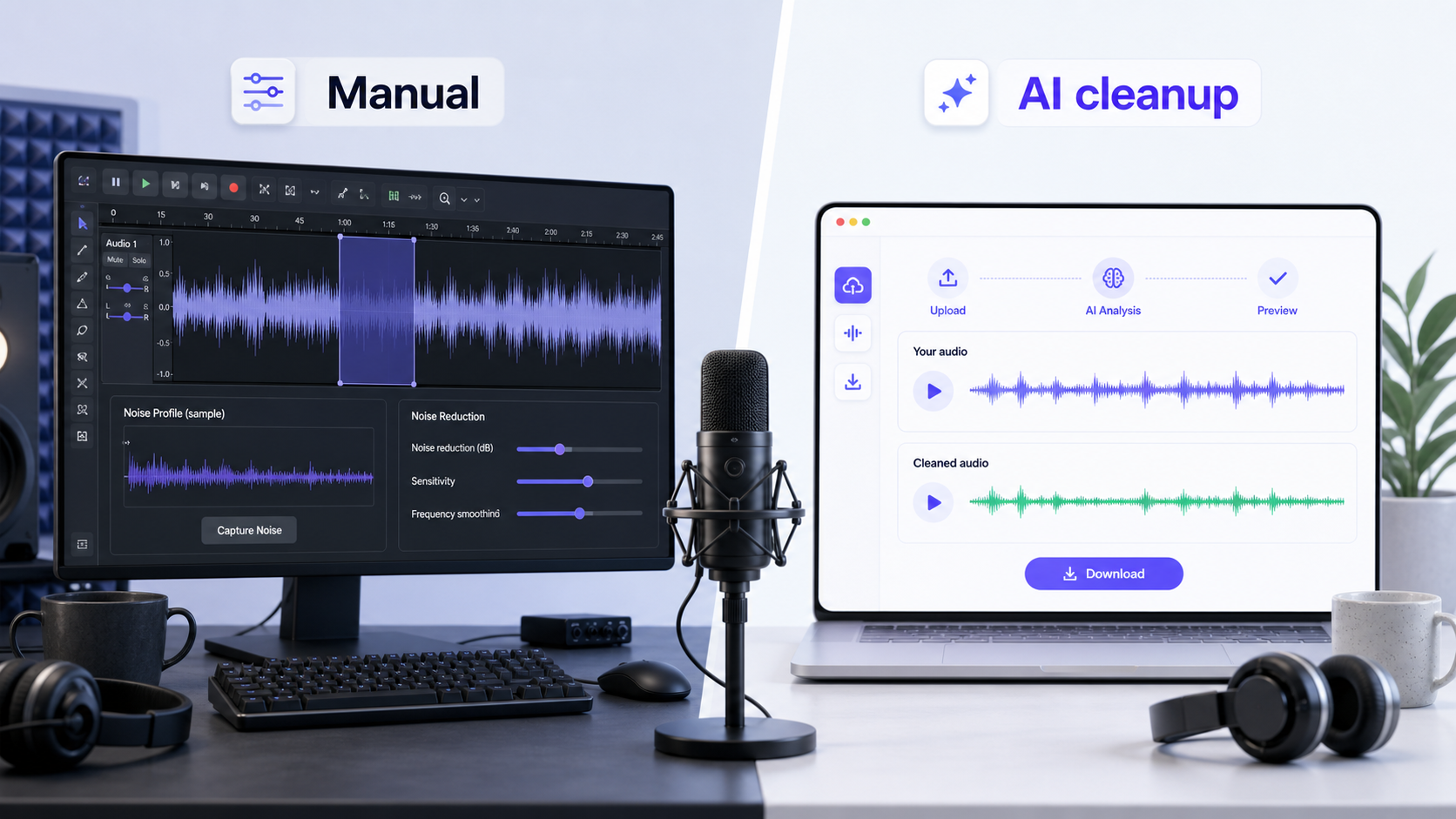
Audacity vs AI noise remover is not a simple "free tool vs AI tool" question. Audacity is strongest when you have steady background noise and a clean noise-only sample. An AI noise remover is usually faster when the recording contains mixed noise, changing noise, or creator workflow pressure.
Use Audacity when you want manual control, you can sample the noise, and you are willing to preview settings carefully. Use an AI noise remover when the voice is understandable and you want to reduce fan noise, hum, hiss, room tone, keyboard taps, or light traffic without building a manual effects chain.
If you want the manual workflow first, read Audacity Remove Background Noise: Complete Guide. If you want to clean a file now, use CleanAudio's audio noise remover. For the broader terminology, see noise removal vs noise reduction.
Quick Verdict
Audacity is better when the noise is stable and you want to tune the cleanup yourself.
CleanAudio is better when the file is voice-first, the noise is mixed, and you want a fast upload-preview-download workflow.
Neither option should be treated as magic restoration. If the voice is clipped, buried under wind, or covered by another speaker, cleanup can still help, but the file may already be damaged.
How Audacity Handles Noise
Audacity's noise reduction workflow is built around a noise profile. The user selects a short section that contains only the unwanted sound, gets a noise profile, then applies Noise Reduction to the larger recording. Audacity documents this profile-based workflow in its official support material [1].
This can work well for fan hum, microphone hiss, HVAC, electrical buzz, and other steady noise. The profile gives Audacity a reference for what to reduce.
The weakness is that a single profile may not describe the whole file. Traffic changes. Keyboard taps arrive as short hits. Wind changes shape. Room echo is delayed voice energy, not just a background layer. In those cases, Audacity may require more manual repair, lighter settings, or a different workflow.
How an AI Noise Remover Handles Noise
An AI noise remover is designed to reduce manual decision-making. Instead of asking the user to find a noise-only sample and tune settings, the workflow usually starts with upload, analysis, preview, and download.
For CleanAudio, the important product idea is the hybrid model. The system analyzes the audio in context, identifies likely noise types across different parts of the recording, and applies suitable noise reduction treatment where it can. That does not mean every file becomes perfect. It means the user does not have to manually decide whether each section is hum, hiss, keyboard noise, or room tone before trying cleanup.
This is useful for everyday creator recordings: podcasts, interviews, meetings, voice notes, tutorials, and screen recordings where the voice is present but the file is messy.
Decision Matrix
| Recording situation | Better first try | Why |
|---|---|---|
| Steady fan hum with noise-only sample | Audacity | The profile workflow matches the problem |
| Mic hiss behind clear voice | Either | Audacity gives control; AI is faster |
| Keyboard taps under narration | AI noise remover | The noise is transient and repetitive |
| Mixed fan, room tone, and clicks | AI noise remover | One manual profile may not fit the whole file |
| Need detailed manual control | Audacity | You can tune and preview settings |
| Need quick creator workflow | AI noise remover | Upload, preview, and move on |
| Echo or hollow room | Dedicated echo cleanup | Echo is reflected voice, not steady noise |
| Clipped or buried voice | Retake if possible | Missing detail cannot be reliably rebuilt |
When Audacity Is the Right Choice
Use Audacity when the recording gives you something clean to sample. A few seconds of room tone before speech starts can be enough. A steady fan behind a podcast guest can also be a good fit.
Audacity is also a good choice when you want to preserve control. You can choose a lighter reduction, listen for artifacts, and avoid over-processing. That matters when the recording already sounds decent and you only need a careful cleanup pass.
The tradeoff is time. You need to find the sample, apply the effect, listen closely, and decide whether the voice was damaged. That is reasonable for people who like editing. It is slower for users who only want a clean voice file.
When an AI Noise Remover Is the Right Choice
Use an AI noise remover when the file is voice-first and the noise is distracting but not destructive. The speaker should still be understandable. The background can be ugly, but the voice needs to be present.
This is the common middle ground: a podcast with fan noise, a Zoom recording with laptop noise, a voiceover with hiss, a screen recording with keyboard taps, or a phone memo with light traffic in the background.
CleanAudio fits this middle ground because it productizes the cleanup step. Upload the file, let the hybrid model analyze it, preview the result, and download if the voice sounds clearer. The technical analysis happens in the product workflow rather than becoming a manual editing checklist.
Where Both Workflows Can Fail
Both Audacity and AI cleanup have limits.
Clipping is one hard limit. If the microphone input was too loud and the voice distorted, the missing detail is not sitting underneath the noise waiting to be restored.
Distance is another limit. If the speaker was recorded across a hard, empty room, the voice may be baked together with room reflection. Cleanup can reduce some distraction, but the recording may still sound distant.
Background speech is also difficult. Cleanup tools usually try to preserve speech. If another voice overlaps the main speaker, the tool may not know which speech you meant to keep.
This is why preview matters. A good cleanup workflow should let you compare the original and cleaned version before committing.
Practical Workflow
If the noise is steady and you have a clean sample, try Audacity first. Use a light setting and stop as soon as the voice is easier to hear.
If the file has mixed noise or you do not want to manage settings, try CleanAudio first. This is especially sensible for creator files where the goal is clearer voice, not detailed restoration.
If the problem is echo, use remove echo from audio. If the noisy audio is inside a video file, use remove background noise from video so the cleaned audio stays aligned with the picture.
The Practical Takeaway
Audacity is a strong manual noise reduction tool when the problem is stable and sampleable. An AI noise remover is the lower-friction path when the recording is messy, voice-first, and time matters.
For most everyday files, the practical order is simple: if you want manual control, use Audacity; if you want faster voice cleanup, use CleanAudio's audio noise remover. Preview the result either way, and do not force heavy processing when the voice starts to sound worse.