How to Remove Background Noise in GarageBand
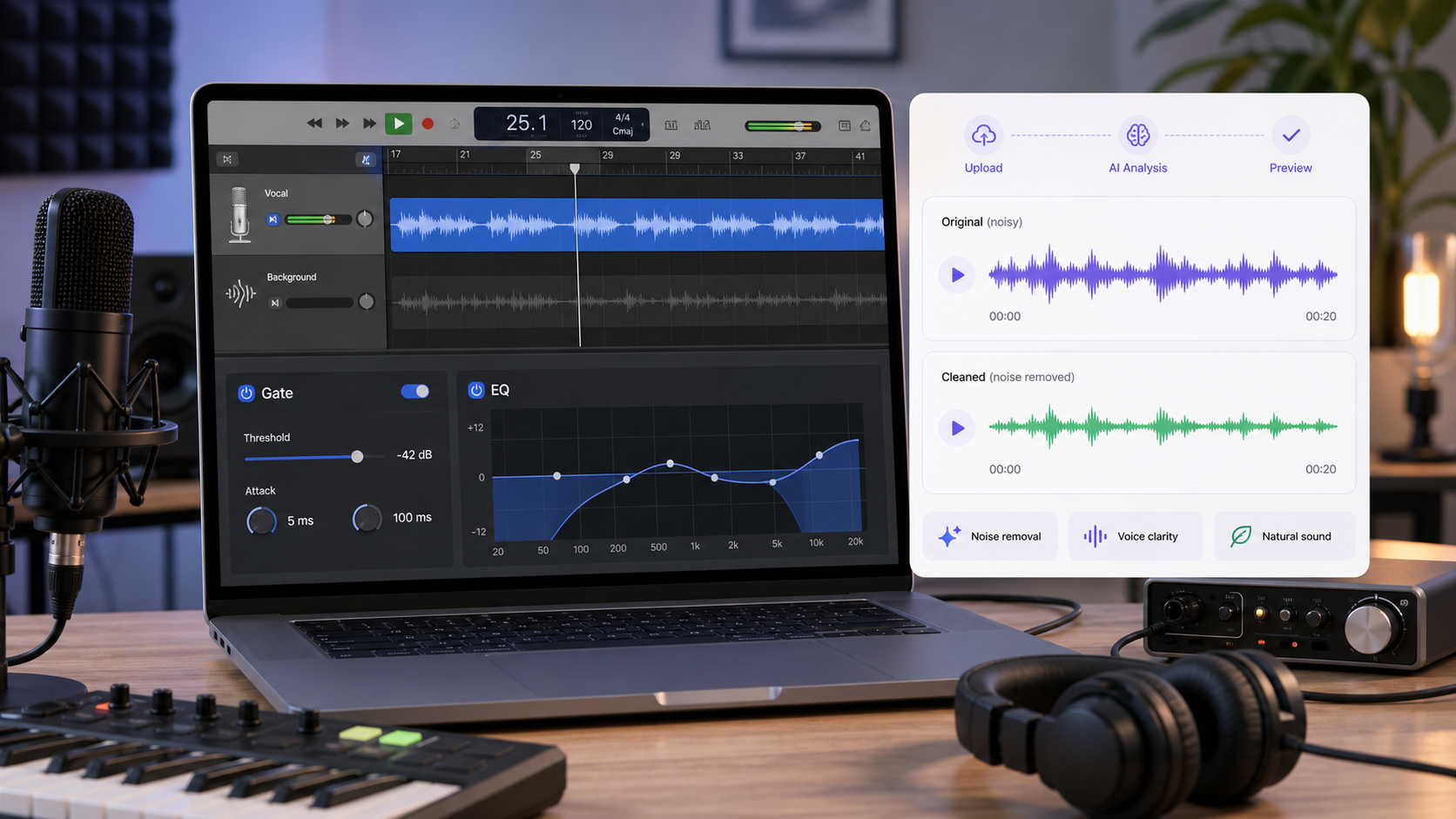
To remove background noise in GarageBand, start with the Noise Gate on the noisy track. Use it to reduce low-level noise during silent parts, then adjust the threshold until the room tone drops without cutting off the voice. If the noise sits under the speech, close the GarageBand pass first, then decide whether the file needs a dedicated cleanup workflow such as CleanAudio.
GarageBand can handle simple cleanup when the voice is already clear and the noise mostly happens between phrases. It has a natural ceiling when the noise overlaps the voice, changes across the file, or belongs to a video workflow. The point is not to replace GarageBand. The point is to know when its tools are enough.
Step 1: Find the Noisy Track
First, identify which track contains the noise. In a GarageBand project, the noise may be on a vocal track, voiceover track, imported audio file, guitar recording, or podcast-style spoken track.
Solo the track before changing anything. Listen to:
- A silent section before speech.
- A normal spoken phrase.
- The worst noisy moment.
- The end of words, where gates often cut too hard.
If the noise is mostly audible during silence, a noise gate can help. If the noise sits under every word, you need a different plan.
Step 2: Turn on Noise Gate
Apple's GarageBand documentation says you can use Noise Gate to reduce low-level noise by allowing sound above the threshold to pass while reducing sound below that threshold [1]. That is the core behavior. It is not the same as removing all background noise from speech.
Use this path in GarageBand for Mac:
- Select the audio track.
- Open the Smart Controls area.
- Find the Noise Gate control.
- Turn Noise Gate on.
- Start with a light threshold.
- Play the track from a quiet section into a spoken section.
- Raise the threshold only until the quiet noise drops.
Do not start by pushing the gate hard. A heavy gate can make the recording sound unnatural because the room disappears between phrases and speech tails get chopped.
Step 3: Set the Threshold by Ear
The threshold is the most important choice.
| What you hear | What it means | What to do |
|---|---|---|
| Noise remains during silence | Threshold is too low | Raise it slightly |
| Word endings disappear | Threshold is too high | Lower it |
| Voice fades in late | Gate opens too aggressively | Lower threshold or use less gating |
| Room sound pumps in and out | Gate is too obvious | Back off and accept a little room tone |
| Noise remains while speaking | Gate cannot solve that part | Finish GarageBand cleanup, then consider dedicated cleanup |
A good gate setting is usually modest. The goal is not a perfectly black background between words. The goal is less distraction without making the voice feel edited.
Step 4: Use EQ for Rumble or Harshness
If the noise is low rumble, a gate may reduce silent sections but leave the problem under the voice. Use EQ carefully.
Practical EQ moves:
- Reduce very low rumble if the recording has floor vibration or handling noise.
- Avoid cutting too much low-mid voice body.
- Do not boost high frequencies to "add clarity" before reducing hiss.
- Compare before and after at the same loudness.
GarageBand is a music and audio creation tool, so EQ can help shape the track. But EQ is blunt compared with noise-aware cleanup. If the unwanted sound overlaps the voice, EQ may remove part of the voice too.
Step 5: Use Automation or Edits for Isolated Noise
Some noises are not background layers. They are events.
Examples:
- A chair bump.
- One loud breath.
- A mouth click.
- A keyboard hit.
- A door closing between sentences.
For isolated noises, do not apply aggressive cleanup to the whole file. Cut, fade, or lower the specific moment if it happens outside speech. If it happens under speech, the repair becomes harder.
This closes the GarageBand part of the workflow: gate for silence noise, EQ for broad tone problems, and local edits for isolated events.
What GarageBand Handles Well
GarageBand can be enough when the noise is simple and the voice is already clear.
Good cases:
- Room tone during silent gaps.
- Light headphone bleed between phrases.
- A quiet vocal track with low-level noise.
- Simple voiceover cleanup before mixing.
- Podcast-style audio where the speaker is close to the mic.
The common thread is separation. If the noise is below the voice and mostly appears when the speaker stops, the Noise Gate has a clean job.
Where GarageBand Reaches Its Limit
GarageBand is less comfortable when the noise and voice overlap.
Harder cases:
- Fan noise under every word.
- Echo around the voice.
- Traffic changing throughout the recording.
- Keyboard clicks during speech.
- Clipped microphone peaks.
- Background voices competing with the speaker.
The issue is not that GarageBand is bad. The issue is that a gate and EQ are not the same as recorded-file noise cleanup. They operate on level and frequency. They do not analyze the file as a mixed-noise cleanup problem.
When to Use CleanAudio After GarageBand
Use CleanAudio after GarageBand when the file still has distracting noise under the speech, or when the project is better handled as a recorded-file cleanup job than as a mix.
Good CleanAudio cases after GarageBand:
- The gate helps pauses but the voice is still noisy.
- EQ reduces rumble but fan noise remains under speech.
- The recording has several noise types.
- The file is part of a video project.
- You want to preview cleanup before replacing the exported file.
The workflow is:
- Export the audio file from GarageBand.
- Upload it to CleanAudio's audio noise remover.
- Let the hybrid model analyze the recording.
- Preview the cleaned result.
- Listen to the noisiest phrase.
- Download only if the voice is clearer and still natural.
CleanAudio's advantage is not that it replaces every GarageBand edit. Its advantage is that it can treat the exported recording as a cleanup problem: mixed noise, voice preservation, preview, and a keep/reject decision. That is easier than trying to solve every noisy section with a threshold, EQ move, or manual edit.
For video projects, use remove background noise from video. For hollow room sound, use remove echo from audio.
GarageBand vs CleanAudio
| Job | GarageBand | CleanAudio |
|---|---|---|
| Reduce noise between phrases | Good with Noise Gate | Can help, but may be more than needed |
| Shape tone with EQ | Good | Not the main job |
| Clean mixed background noise | Limited | Better fit |
| Clean a video file | Not the main workflow | Better fit |
| Preview before keeping result | Manual comparison | Built into workflow |
| Fix clipped speech | Not reliable | Not reliable either; retake if possible |
Use GarageBand when you are already editing a project and the noise problem is simple. Use CleanAudio when the file needs cleanup more than mixing.
A Practical Decision Framework
| Question | If yes | If no |
|---|---|---|
| Is the noise mainly in silent gaps? | Try GarageBand Noise Gate | Go to the next question |
| Is the noise low rumble? | Try light EQ | Go to the next question |
| Is the noise under speech? | Try CleanAudio or retake | GarageBand edits may be enough |
| Is the voice clipped or missing? | Retake if possible | Cleanup may help |
| Is this part of a video? | Use video cleanup workflow | Audio export is fine |
The best workflow is the one that solves the actual noise, not the one with the most effects.
Common Questions
Can GarageBand remove background noise?
GarageBand can reduce some background noise with Noise Gate, especially low-level noise during silent parts. It is less effective for noise that overlaps the voice.
Where is Noise Gate in GarageBand?
On GarageBand for Mac, select the track and use the Smart Controls area to access Noise Gate. Apple's GarageBand documentation describes using Noise Gate to reduce low-level noise by setting a threshold [1].
Can GarageBand remove echo?
Not reliably. Echo and reverb are reflected voice, not just background noise. If the room sound is already recorded, use a dedicated echo cleanup workflow or retake in a better space.
Should I use GarageBand or CleanAudio?
Use GarageBand for simple track editing, gates, EQ, and mixing. Use CleanAudio when the file already contains distracting noise under speech and you want a preview-first cleanup workflow.
Sources and Further Reading
[1] Apple GarageBand User Guide for Mac: Reduce noise in a track using Noise Gate https://support.apple.com/guide/garageband/reduce-noise-in-a-track-gbnd4b91f8d7/mac
[2] Apple GarageBand User Guide for Mac: Adjust audio using the Smart Controls https://support.apple.com/guide/garageband/adjust-audio-using-the-smart-controls-gbnd56ae26b1/mac
[3] Apple GarageBand User Guide for Mac: Use EQ effects https://support.apple.com/guide/garageband/use-eq-effects-gbnd34b4789b/mac