How to Remove Computer Fan Noise from Audio
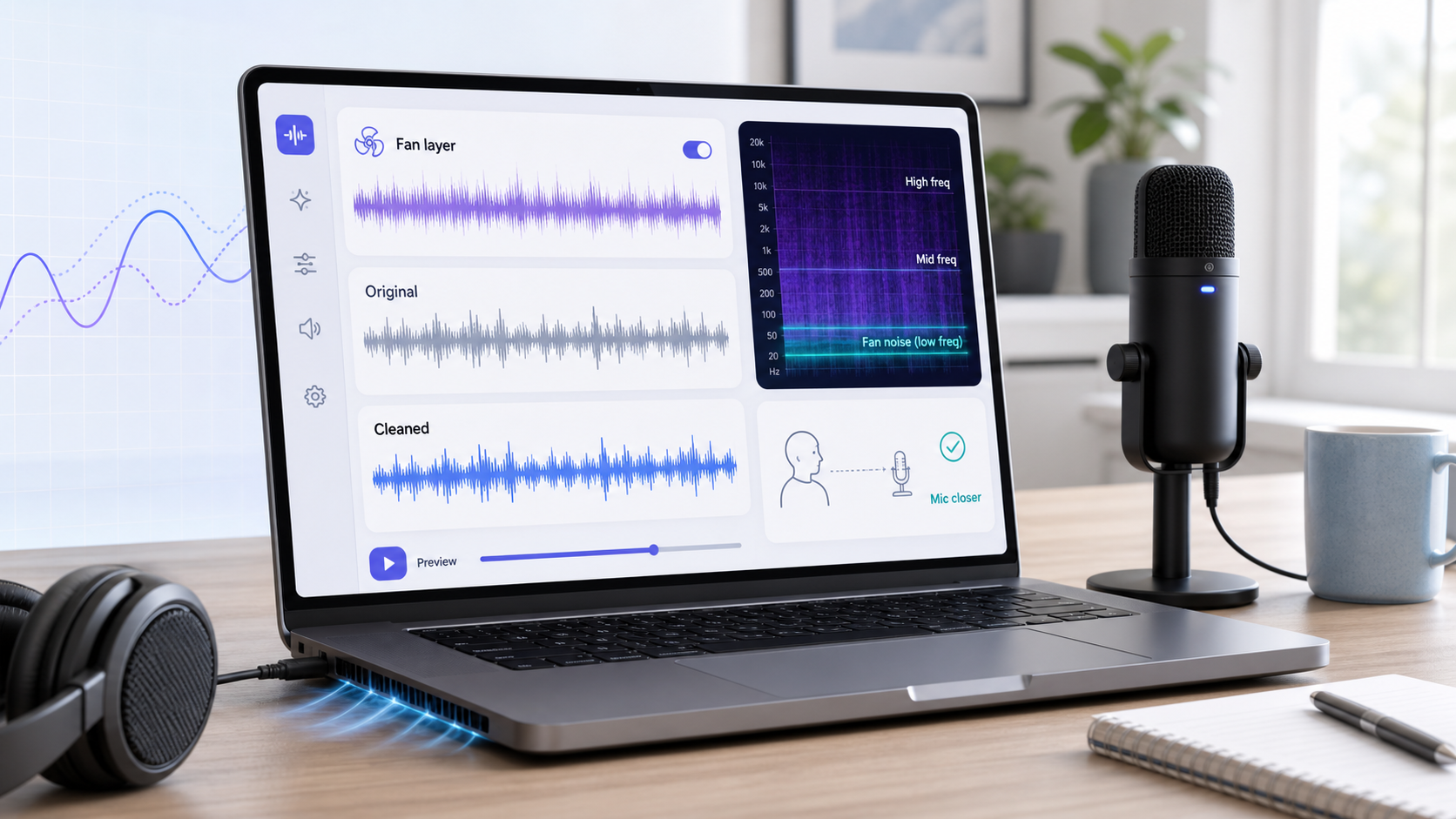
Computer fan noise is usually a steady layer behind your voice: a low whoosh from the fan, a mid-frequency whine from the laptop body, or a brighter hiss when the microphone is close to the air vent. If the voice is still clear, you can often reduce it. If the laptop fan is almost as loud as the speaker, cleanup becomes a tradeoff.
For a fast recorded-file workflow, upload the file to CleanAudio's audio noise remover, preview the cleaned voice, and keep the result only if speech still sounds natural. If you want to edit by hand, treat computer fan noise as a steady noise problem first, then check whether the mic placement made it worse.
Why Computer Fan Noise Is Different from General Room Noise
Computer fan noise is close, mechanical, and often tied to what the machine is doing. A quiet laptop may become loud when you open a game, run a screen recorder, export video, join a call, or keep too many browser tabs open. That means the noise can change during the recording.
General fan noise from across the room is often more diffuse. Laptop fan noise can be closer to the microphone, sharper, and easier to capture directly. If you record with the built-in laptop mic, the microphone may be sitting near the keyboard, vents, and desk vibrations instead of near your mouth.
| Source | What it sounds like | Cleanup implication |
|---|---|---|
| Laptop cooling fan | Low whoosh plus mid whine | Often reducible if speech is close |
| Desktop tower fan | Constant room-like bed | Good candidate for light noise reduction |
| GPU under load | Changing fan speed | Needs careful preview across sections |
| Desk vibration | Low rumble under voice | Better handled with placement and low-frequency control |
| Built-in laptop mic | Fan, keyboard, room, and voice mixed together | Harder than an external close mic |
The Technical Core: Stable Layer, Changing Load
Traditional noise reduction works best when the unwanted sound is steady enough to learn. Audacity's manual says noise reduction can reduce constant background sounds such as hum, buzz, hiss, and fan noise, but it is not suitable for irregular traffic or audience noise [1]. It also warns that removal may be unsatisfactory when noise is very loud, variable, or too similar to speech [1].
Computer fan noise sits between those two worlds. The fan bed is often steady enough to reduce, but the speed can rise and fall as CPU or GPU load changes. A single sampled noise profile may work for the quiet part and miss the loud part.
This is why the best cleanup test is not a silent gap. Preview a spoken sentence during the loudest fan section. If the voice survives there, the cleanup is probably usable.
Manual Cleanup Workflow
If you are using a manual editor, do this in order.
- Save a copy of the original file.
- Find a section where the fan is audible and no one is speaking.
- Use that section as the noise reference if your editor supports a noise profile.
- Apply light reduction to the whole file.
- Preview a sentence where the fan is loud.
- Lower the strength if consonants, breath, or voice texture disappear.
- Add a gentle low-frequency cleanup only if the recording has rumble.
- Do not keep stacking denoise passes just because the background is not silent.
Audacity's manual specifically recommends using the lowest value that reduces noise to an acceptable level, because higher values can damage the remaining audio [1]. That advice is very relevant for laptop fan noise. The voice and fan may share midrange space, especially with built-in microphones.
CleanAudio Workflow
CleanAudio is simpler when you do not want to tune filters manually.
- Upload the recording.
- Let the hybrid model analyze the file.
- Preview the cleaned voice.
- Check a section where the fan becomes louder.
- Download if the voice remains natural.
The hybrid model matters because computer fan noise can change during the file. A tutorial might start quiet, then the laptop fan gets louder during a screen-share demo. A static setting may not be ideal for the whole recording. CleanAudio keeps the work focused on review: does the cleaned version help without making the voice sound processed?
Prevention for the Next Recording
If you can fix the capture, do it. Move the microphone closer to your mouth and farther from the computer. Put the laptop to the side instead of directly under the mic. Avoid recording during exports or heavy tasks. Use an external keyboard only when you are not speaking. Put the machine on a surface that does not transmit vibration.
OBS's own noise suppression guidance says its filter can reduce mild background noise and can be effective for PC fan noise, but it is generally not effective for large amounts of background noise in a loud room [2]. That is a good expectation for live filters too: helpful, but not magic.
When Cleanup Works Best
| Recording condition | Outlook |
|---|---|
| External mic close to the speaker | Strong |
| Fan is steady behind speech | Strong |
| Laptop mic near keyboard and fan | Mixed |
| Fan speed changes often | Needs careful preview |
| Voice is quieter than the fan | Limited |
| Audio is clipped or distorted | Retake if possible |
FAQ
Can AI remove computer fan noise from audio?
Yes, AI can often reduce computer fan noise when the voice is still clear. It works best when the fan is behind the speech rather than covering it.
Is computer fan noise the same as HVAC noise?
Not exactly. Both can be steady background layers, but computer fan noise is often closer to the microphone and may change with laptop or GPU load.
Should I use a noise gate for fan noise?
A gate can close during silence, but it does not clean fan noise under speech. Use it carefully, and do not rely on it as the only cleanup step.
Sources and Further Reading
- Audacity Manual - Noise Reduction: https://manual.audacityteam.org/man/noise_reduction.html
- OBS Project - Noise Suppression Filter: https://obsproject.com/kb/noise-suppression-filter
- Shure - Microphone Techniques for Recording: https://www.shure.com/damfiles/default/global/documents/publications/en/performance-production/microphone_techniques_for_recording_english.pdf-bb0469316afdb6118691d2f3f5e3ff01.pdf
- DPA Microphones - Speech intelligibility and microphone placement: https://www.dpamicrophones.com/mic-university/audio-production/how-to-improve-speech-intelligibility-when-amplifying-the-voice/