Why Background Noise Removal Fails and What to Try Next
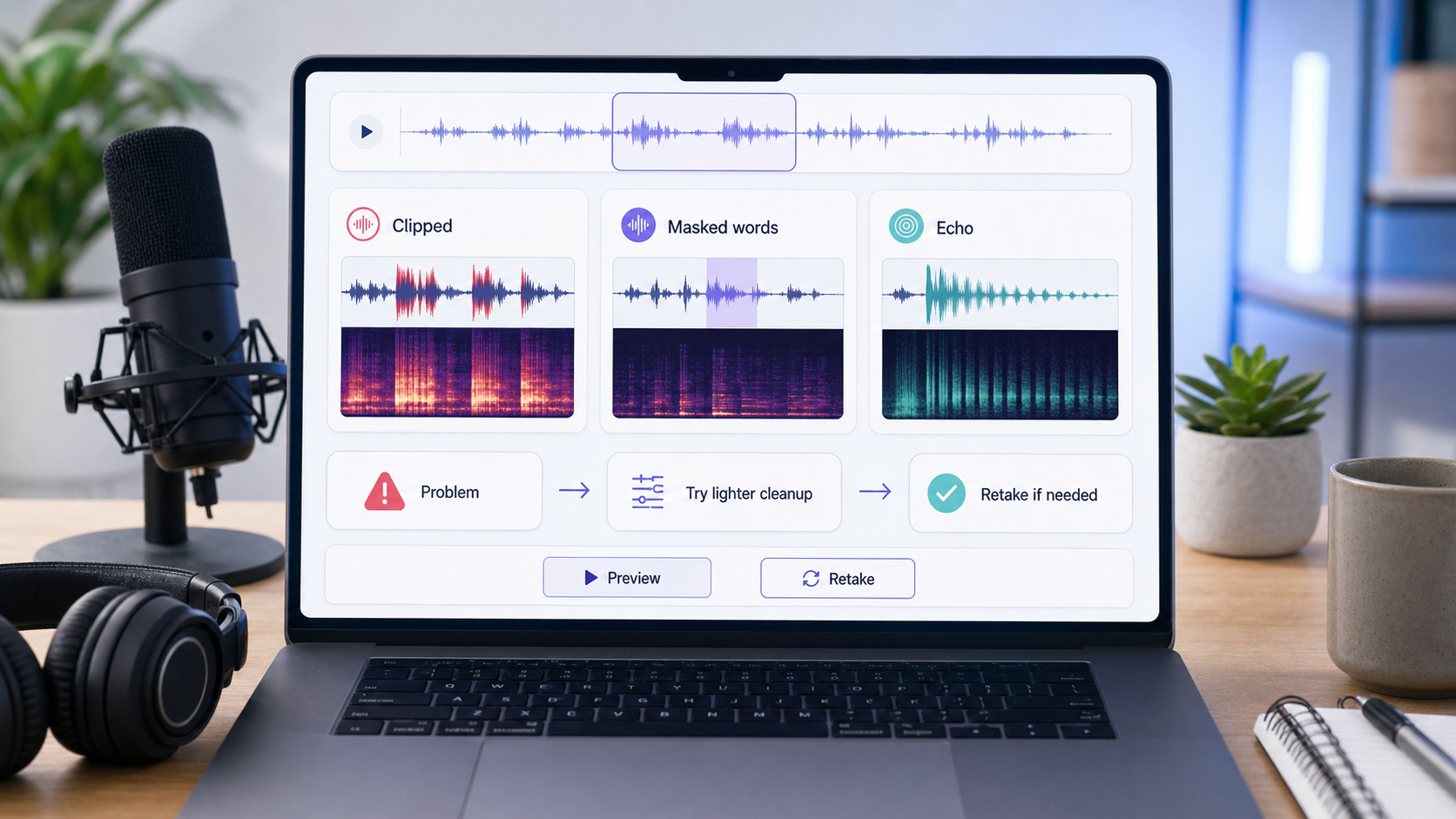
Background noise removal usually fails for one of four reasons: the voice is not much louder than the noise, the noise changes too much, the noise overlaps the same frequencies as the voice, or the recording is already damaged by clipping. In those cases, pushing a stronger cleanup setting can make the file quieter but less useful.
The practical move is not always "more denoise." Sometimes the right next step is a lighter pass, a dedicated echo or wind workflow, a local edit, or a retake. The goal is clearer speech, not a perfectly silent background.
If you have a file already recorded, start with CleanAudio's AI noise remover and preview the result. If the cleaned file sounds natural, use it. If the voice gets thin, metallic, or robotic, the recording is telling you that the problem needs a different path.
The Failure Pattern: The Tool Removes Voice Along With Noise
Noise removal works by deciding what belongs to the wanted signal and what belongs to the unwanted layer. That decision is easy when the speaker is close to the mic and the noise is steady. It is harder when a fan, street, room reflection, or second voice shares space with the speech.
Audacity's manual gives a useful boundary: traditional noise reduction is good for constant sounds such as hum, buzz, hiss, and fan noise, but it is not suitable for irregular background noise such as traffic or an audience [1]. It also warns that satisfactory removal may be impossible when the noise is loud, variable, close to the speech level, or similar in frequency to the speech [1].
That is the core principle behind most failed cleanup. The tool is not just fighting noise. It is trying not to cut into the voice.
The Four Common Reasons Cleanup Fails
| Failure mode | What you hear | Why it happens | Better next move |
|---|---|---|---|
| Weak voice-to-noise ratio | Voice sounds buried even after cleanup | The microphone captured too much room and not enough direct speech | Try AI cleanup, but plan for retake if key words stay hidden |
| Variable noise | Traffic, crowd, keyboard, or wind keeps leaking through | The noise changes too quickly for one stable profile | Use segment-aware cleanup or local edits |
| Shared frequency space | Cleanup makes consonants dull or voice thin | The noise and voice occupy similar areas | Use lighter settings and preserve intelligibility |
| Clipping or distortion | The voice still sounds harsh or broken after cleanup | The signal was clipped during recording, so some voice detail was already lost | Lower the input level next time; retake or replace the line if possible |
This is why a file can become quieter and still sound worse. Noise removal is not a mute button. It is a tradeoff between lowering distraction and preserving speech.
When the Problem Is Steady Noise
Steady noise is the best-case scenario. Hiss, AC, fan noise, refrigerator hum, computer fan noise, and electrical buzz usually sit behind the voice as a persistent layer. Manual tools can sample a noise-only section and reduce the same pattern across the file. Audacity's support documentation describes this workflow: find a section that is only background noise, get a noise profile, then apply noise reduction to the full selection [2].
If you use a manual workflow, keep the reduction modest. Start with enough reduction to make the noise less distracting, then preview a spoken phrase. If the voice starts sounding watery, hollow, or brittle, back off.
CleanAudio is useful here because the user does not have to build that chain by hand. Upload the file, let the model analyze the recording, preview the cleaned result, and download if the voice stays natural.
When the Problem Is Echo, Wind, or Traffic
Echo is not just background noise. It is delayed voice energy bouncing around a room. If you treat echo like hiss, the cleanup may damage the direct voice because the reflection is made from the same speaker.
Wind is also different. A light outdoor bed can be reduced, but microphone buffeting and clipped gusts are much harder. Traffic and crowd noise move through time and frequency, so one global setting rarely handles every moment cleanly.
Use dedicated paths when the problem is specific:
- For hollow rooms, use remove echo from audio.
- For outdoor video wind, use remove wind noise from video.
- For general video noise, use remove background noise from video.
- For audio-only files, use remove background noise from audio.
A Practical Diagnostic Workflow
Before changing tools, diagnose the file in this order.
- Listen to the worst spoken sentence, not the quietest pause.
- Check whether the voice is still understandable before cleanup.
- Identify the main problem: steady bed, echo, wind, clicks, crowd, clipping, or weak microphone placement.
- Try one cleanup pass.
- Compare at the same listening volume.
- Stop if the voice gets less natural.
If the voice is still clear and the noise is behind it, cleanup has a real chance. If key words disappear under noise, the best tool may only make the failure less obvious.
What to Try Next
| Situation | Try next |
|---|---|
| Noise is steady and behind speech | Run AI cleanup or light manual noise reduction |
| Voice sounds robotic after cleanup | Reduce strength or use a lighter pass |
| Room sounds hollow | Use a dereverb/echo workflow rather than generic denoise |
| Wind is hitting the mic | Try wind cleanup, but retake if the mic clipped |
| One click or bump ruins a word | Use local repair or edit around the moment |
| Whole sentence is covered | Retake, voiceover, or caption support |
The hardest part is accepting when the recording is the limiting factor. A cleaner file is useful only if the voice remains trustworthy.
Prevention Usually Beats Repair
The boring fixes still matter. Put the mic closer. Turn off the air conditioner during a short recording if you can. Record away from reflective walls. Use soft furnishings. Watch the input meter so peaks do not clip.
Shure's recording guidance emphasizes microphone choice and placement as part of controlling captured sound [3]. DPA's speech-intelligibility guidance makes the same practical point from another angle: getting the microphone closer to the wanted voice improves clarity before processing starts [4].
That does not mean every recording has to be perfect. It means cleanup works better when the voice arrives strong.
FAQ
Why does noise removal make my voice sound robotic?
Robotic sound usually means the cleanup is cutting into speech detail while trying to reduce noise. Use a lighter setting or a workflow that matches the actual noise type.
Can AI fix badly recorded audio?
AI can reduce distraction, but it cannot reliably recover clipped peaks, missing words, or speech fully covered by another sound.
Should I use noise removal twice?
Usually no. Two heavy passes can create more artifacts than one careful pass. If the first pass is not enough, diagnose why before stacking more cleanup.
Sources and Further Reading
- Audacity Manual - Noise Reduction: https://manual.audacityteam.org/man/noise_reduction.html
- Audacity Support - Noise reduction and removal: https://support.audacityteam.org/repairing-audio/noise-reduction-removal
- Shure - Microphone Techniques for Recording: https://www.shure.com/damfiles/default/global/documents/publications/en/performance-production/microphone_techniques_for_recording_english.pdf-bb0469316afdb6118691d2f3f5e3ff01.pdf
- DPA Microphones - Speech intelligibility and microphone placement: https://www.dpamicrophones.com/mic-university/audio-production/how-to-improve-speech-intelligibility-when-amplifying-the-voice/