Adobe Audition Remove Background Noise: Quick Guide
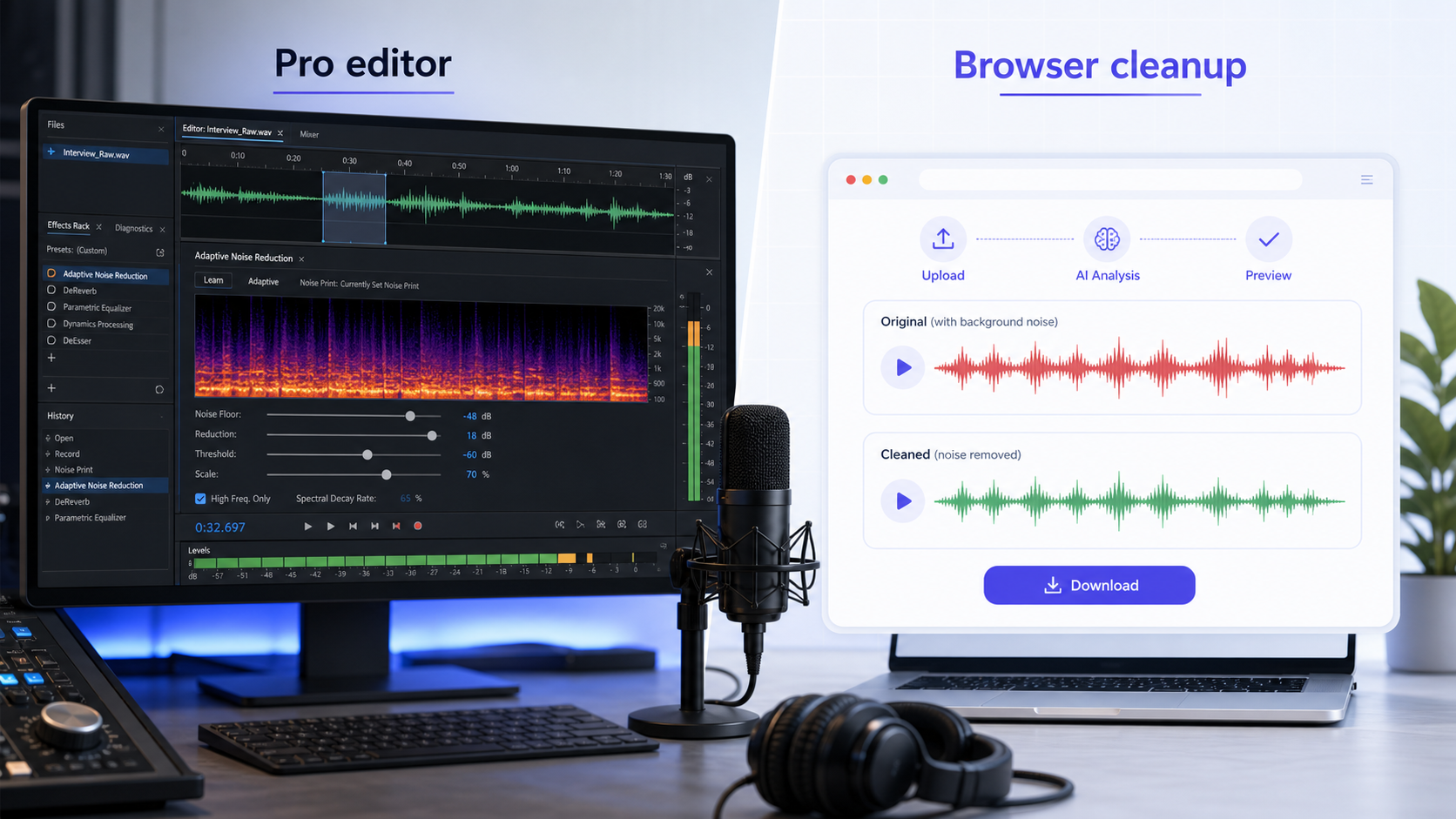
Adobe Audition can remove background noise with professional audio tools, but the right method depends on the noise. Use Noise Reduction when you can capture a noise print from a steady unwanted sound. Use Adaptive Noise Reduction when the background changes and you need the software to react over time. Use a faster AI cleanup workflow when you do not want to build an effect chain.
Audition is powerful for editors who already work inside Adobe tools. It is less efficient when the job is simply "make this voice recording easier to hear." For that, use CleanAudio's audio noise remover: upload the file, preview the cleaned result, and download if the voice sounds clearer.
For related workflows, see Audacity vs AI Noise Remover and noise removal vs noise reduction.
Quick Answer
Use Adobe Audition when you need detailed control, you already edit in Adobe, or the recording needs careful repair.
Use CleanAudio when the file is voice-first, the speaker is understandable, and you want fast audio cleanup without adjusting multiple effects.
The key decision is not Adobe vs AI. It is whether the file needs an editor or a cleanup workflow.
Method 1: Noise Reduction With a Noise Print
Audition's classic Noise Reduction workflow is based on a noise print. The editor captures a sample of the unwanted sound, then uses that sample to reduce similar noise elsewhere in the file. Adobe's documentation describes Noise Reduction and Noise Print workflows for reducing broadband noise [1].
This method fits steady noise: fan hum, hiss, air conditioning, electrical buzz, or a consistent room tone.
It works poorly when the noise changes. A single noise print cannot fully describe keyboard clicks, traffic swells, wind bursts, background speech, or echo. If the sample includes breath or quiet speech, the cleanup may also damage the voice.
Use this method when the file has a clean noise-only section and you want manual control.
Method 2: Adaptive Noise Reduction
Adaptive Noise Reduction is designed for noise that changes over time. Adobe documents Adaptive Noise Reduction as an effect for removing noise that changes over the duration of a waveform or clip [2].
This can be useful when the background is not perfectly constant. A room tone may shift. A fan may ramp up. A location recording may have changing ambience.
The tradeoff is monitoring. Adaptive processing still needs careful listening. If the settings are too strong, the voice can lose texture, sound smeared, or become unnatural. The goal is not maximum subtraction. The goal is clearer speech.
Use this method when the noise changes but the voice remains clear enough to preserve.
Method 3: Manual Repair for Clicks and Pops
Some noise is not a background layer. Clicks, pops, short crackles, and mouth sounds are short events. They may be better handled with targeted repair than with a broad noise reduction pass.
Audition includes restoration-style tools for audio repair, but the decision is the same as in any editor: if a noise happens once, cut or repair it directly. If it repeats under speech, a broader cleanup workflow may be faster.
Do not use one heavy noise reduction pass to solve every problem. A click is not the same as hiss. Echo is not the same as hum. Background speech is not the same as static.
Audition vs CleanAudio
Adobe Audition is an editor. CleanAudio is a productized cleanup workflow.
Audition gives you detailed controls: noise prints, effects, previews, parameter changes, repair tools, and timeline or waveform editing. That is valuable when the file is important, complex, or part of a larger production.
CleanAudio removes setup friction. Upload the file, let the hybrid model analyze the recording, preview the cleaned voice, and download the result if it is better. That is valuable when the user does not want to decide which filter or repair chain fits each section.
The better choice depends on the job:
| Job | Better first workflow |
|---|---|
| Podcast with steady hiss | Audition or CleanAudio |
| Voice memo with mixed room noise | CleanAudio |
| Broadcast edit inside Adobe | Audition |
| One-off interview cleanup | CleanAudio |
| Detailed restoration work | Audition |
| Clipped or buried speech | Retake if possible |
Common Mistakes in Audition
Do not capture speech as part of the noise print. If the noise print contains voice, the reduction can learn the wrong target.
Do not push reduction until the background is silent. Silence can sound unnatural, and aggressive cleanup can make the voice watery or metallic.
Do not use broadband noise reduction for echo. Echo is reflected voice energy. For a dedicated workflow, use remove echo from audio.
Do not forget the original file. Keep an untreated copy so you can compare the cleaned version against the raw capture.
When CleanAudio Is Faster
CleanAudio is faster when the recording is already understandable and you mainly want less distraction. That includes meeting recordings, podcast guest tracks, voiceovers, webinars, tutorials, and voice notes.
The article explains the tools so you can understand the tradeoffs. The product workflow is simpler: upload, AI analysis, preview, download. CleanAudio's hybrid model handles the practical routing across noise types without asking you to build a manual chain.
That does not remove the need to listen. Preview still matters. If the cleaned version sounds thinner or less natural, keep the original or try a lighter workflow.
Common Questions
Can Adobe Audition remove background noise?
Yes. Audition includes noise reduction and restoration tools, including workflows based on a captured noise print and adaptive noise reduction [1][2]. It works best when the noise and voice are still separable.
Is Adobe Audition better than AI cleanup?
It is better for detailed manual editing and professional restoration workflows. AI cleanup is usually faster for everyday voice files where the goal is clearer speech, not detailed parameter control.
Can Audition remove echo?
Audition can process room problems, but echo is harder than steady noise because it contains delayed voice energy. If the recording is very distant or hollow, cleanup may have limits.
What if I do not have a noise-only sample?
Noise print workflows become harder without a clean sample. Try adaptive processing or a productized AI cleanup workflow where the model analyzes the file without requiring a manual sample.
The Practical Takeaway
Adobe Audition is the right tool when the file needs editor-level control. It is not always the fastest path for everyday voice cleanup.
If you already work in Audition, use a noise print for stable noise and adaptive processing for changing noise. If you simply want a clearer voice file, use CleanAudio's audio noise remover, preview the result, and keep it only if the recording is easier to listen to.