How to Remove Background Noise in CapCut

To remove background noise in CapCut, import the video, add it to the timeline, select the clip, open the Audio controls, and enable Noise reduction. On mobile, select the clip and look for Reduce noise or the equivalent control in the bottom editing toolbar or audio menu. Preview the voice before exporting. CapCut changes its interface across desktop, web, mobile, region, and app versions, so the label or location you see may differ from an older tutorial.
Remove Background Noise in CapCut Desktop
CapCut's current official instructions place noise reduction in the audio controls for the selected timeline clip [1]. Use the original video if possible. A downloaded social-media copy has already been compressed and gives any cleanup tool less useful audio to work with.
- Open CapCut and create a project.
- Import the video from your computer or connected storage.
- Drag the video onto the timeline. Play the noisiest spoken section once before changing anything so you know what needs to improve.
- Click the timeline clip that contains the dialogue. Make sure you selected the intended clip if the project has several layers.
- Open Audio in the right-side controls.
- Find Noise reduction and enable it. CapCut's current official page says some interfaces show a slider while others use a switch [1]. If you have a slider, begin conservatively. If you only have a switch, the before-and-after preview is your main quality control.
- Temporarily mute music and sound effects. Listen to a complete sentence from just before the noise becomes obvious through the noisiest moment.
- Turn the music back on and judge the dialogue in the final mix. Lowering music may solve a clarity problem more naturally than applying more noise reduction.
- Export a short test before rendering a long project. Listen to the exported file, because final compression can make processing artifacts easier to hear.
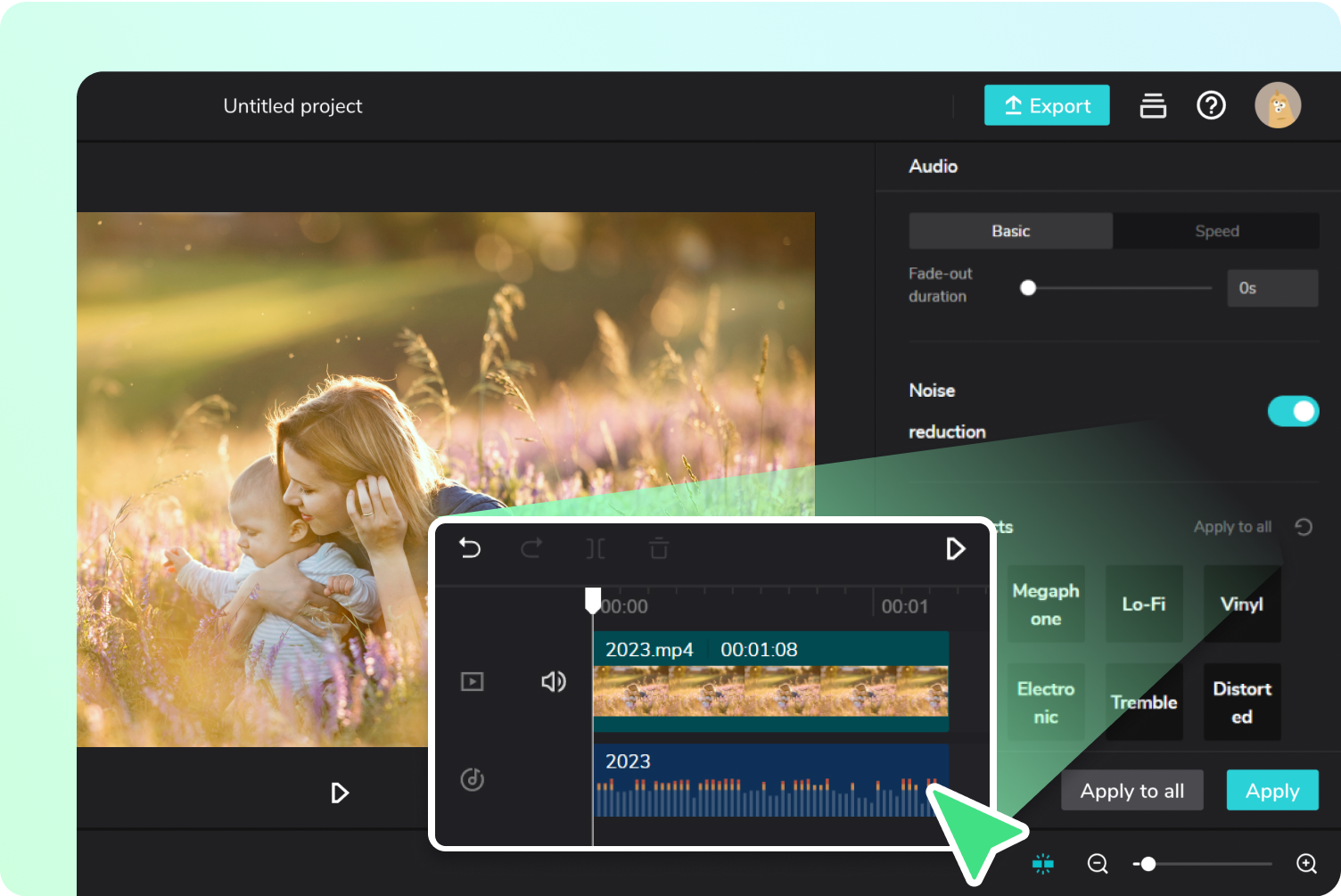
CapCut Audio panel with Noise reduction enabled — From CapCut official website.
Do not judge the result from the waveform alone. A waveform can look tidier while consonants, word endings, or the natural tone of the voice have become less clear.
Remove Background Noise in CapCut Mobile
On CapCut Mobile, you can reduce noise from the video's audio track directly when the control is available, or extract the audio first and clean the separate audio layer. The exact label and menu position can vary by app version, so follow the controls shown in your current interface.
- Open CapCut, tap New project, and add the original video from the device.
- Tap the video clip in the timeline. Scroll the bottom toolbar and look for Reduce noise or the equivalent audio control in your version.
- If that control is not available on the video clip, choose Extract audio. CapCut creates a separate audio layer below the video.
- Tap the extracted audio layer, scroll the bottom audio tools, and select Reduce noise.
- Wait for processing to finish, then preview the first spoken sentence, the noisiest moment, and a quiet pause. These three points reveal whether speech improved and whether the background now pumps in and out.
- If the voice becomes thin or artificial, compare with the original and use the less processed version. Do not stack repeated noise-reduction passes.
- Export a short test and listen through the phone speaker and headphones before committing the whole project.

CapCut Mobile audio tools with Reduce noise — From CapCut official website.
If the control is missing, update CapCut, confirm that the correct clip or extracted audio layer is selected, and inspect the current audio tools for your version. A missing control does not mean the media file is damaged.
Check the Result Before Exporting
The goal is easier-to-understand speech that still sounds like the speaker, not total silence behind the voice. Compare the original and processed versions at similar playback volume. Louder audio often appears clearer even when the cleanup itself is not better.
Listen for these failure signals:
| What you hear | What it usually means | What to do |
|---|---|---|
| Soft or missing consonants | Noise reduction is removing speech detail with the noise | Reduce the strength if possible, or disable the pass |
| Metallic, watery, or robotic tone | The processing is too aggressive for the overlap between voice and noise | Keep more of the original signal or try a different workflow |
| Word endings disappear | Quiet speech detail is being treated as background | Back off and judge intelligibility, not silence |
| Background rises and falls between phrases | The tool is reacting differently when the speaker pauses | Check several sections; do not approve the clip from one clean sentence |
| Wind, traffic, chatter, hum, or echo remains | The recording contains a harder or different problem than one broad pass can solve | Identify the dominant problem before adding more processing |
For a deeper explanation of the tradeoff, see noise removal vs noise reduction. A small amount of stable room tone is often less distracting than damaged dialogue.
What CapCut Handles Well
CapCut makes sense when audio cleanup is one part of a broader edit. You can reduce a mild background layer, then continue with captions, cuts, music, framing, and export without leaving the project.
| Recording condition | Reasonable first action | What to review |
|---|---|---|
| Clear speech with light fan or room noise | Try CapCut first | Check whether the voice becomes thin |
| A short social clip already being edited | Try CapCut first | Judge the voice with and without music |
| Mild street sound behind a close phone mic | Test CapCut | Listen across traffic changes, not one quiet moment |
| Changing traffic, chatter, or gusty wind | Test, then consider focused cleanup | Review several sections because the noise is not stable |
| Strong room reflections | Treat it as an echo/reverb problem | Broad noise reduction may leave the hollow tail |
| Clipped speech or words fully covered by another sound | Retake when possible | Cleanup cannot reliably recreate detail that was not captured |
The underlying distinction matters: background noise removal covers external unwanted sounds, while room echo is reflected speech and may need dedicated echo and reverb removal. Wind that physically buffets a microphone may also need a wind-noise-specific workflow. If you need a browser-based video path before opening an editor, see remove noise from video online free.
When a Dedicated Noise Remover Is More Suitable
Try a dedicated cleanup workflow after the CapCut result tells you that the built-in path is not enough. The clearest signs are changing noise across the clip, several noise types in different sections, distracting residue after processing, or a voice that becomes unnatural before the background is acceptably quiet.
This is a workflow decision, not a claim that CapCut is the wrong editor. CapCut remains the better place for captions, cuts, overlays, music, social formatting, and final delivery. A focused noise remover is more suitable when cleaning the soundtrack is the main task.
CleanAudio gives that task a shorter path: upload the original video, let the hybrid model analyze different sections and route the cleanup, listen to the system-selected preview, and download only if speech is clearer and still natural. It does not ask the user to build a separate filter chain for wind, hum, traffic, and room noise.
Clean the video before editing
CapCut and CleanAudio Workflow
Use both tools when the source needs focused cleanup but the finished video still needs CapCut's creative editing features.
- Keep the original video untouched as the reference.
- Upload that original file to CleanAudio before adding music, captions, transitions, or repeated exports.
- Let the hybrid model analyze the audio and generate the cleanup preview. The preview segment is selected by the system; the user does not manually choose it.
- Compare the preview with the original. Keep the result only when the dialogue is easier to understand and remains natural.
- Download the cleaned video and import it into CapCut.
- Complete cuts, captions, overlays, music, aspect-ratio changes, and final export in CapCut.
- Play the final export once with music and once without it. If the dialogue is only clear with music muted, reduce the music before applying another cleanup pass.
This order isolates the audio decision from the creative edit. It also avoids finishing a timeline around a source clip that may later need replacement.
Common Problems
Reduce Noise Is Missing
First confirm that the timeline clip is selected and that you are looking inside audio controls, not visual background removal. Update the app, reopen the project, and check the current controls for your platform. CapCut changes labels and availability across versions, regions, accounts, and plans. If official documentation for your build does not show the feature, do not keep reinstalling or assume the media is corrupt; use CapCut's current support material or a separate cleanup workflow.
The Voice Sounds Robotic or Thin
Compare at matched playback volume, then listen for consonants and word endings. Reduce the amount if your version provides a slider. If the control is binary, compare the processed and unprocessed clip and keep the one with more intelligible, natural speech. Do not stack repeated cleanup passes to chase silence; repeated heavy processing usually compounds artifacts.
Background Noise Is Still Audible
Play three parts of the clip: a normal sentence, the worst noise, and a pause. If a steady layer remains but speech is clear, that may be the best balance available in the editor. If the noise changes by section, one global setting may not fit the whole recording. Use separate clip sections when you need timeline control, or test a dedicated cleanup workflow before continuing the edit.
Wind, Echo, or Another Voice Still Covers Speech
These are not interchangeable problems. Wind can create low rumble and microphone buffeting; echo is reflected speech; another person's voice overlaps the same speech frequencies as the target speaker. Use the relevant wind or echo workflow when that is the dominant issue. When a gust, clipping, or overlapping voice fully masks words, stop increasing noise reduction and consider a retake, alternate recording, subtitle, or editorial cut. Software cannot reliably reconstruct speech detail that was never captured clearly.
References
[1] CapCut: Remove Background Noise from Audio URL: https://www.capcut.com/tools/remove-background-noise-from-audio
[2] CapCut: Audio Noise Reduction - Eliminate Background Noise URL: https://www.capcut.com/resource/eliminate-background-noise