How to Remove Background Noise in Premiere Pro
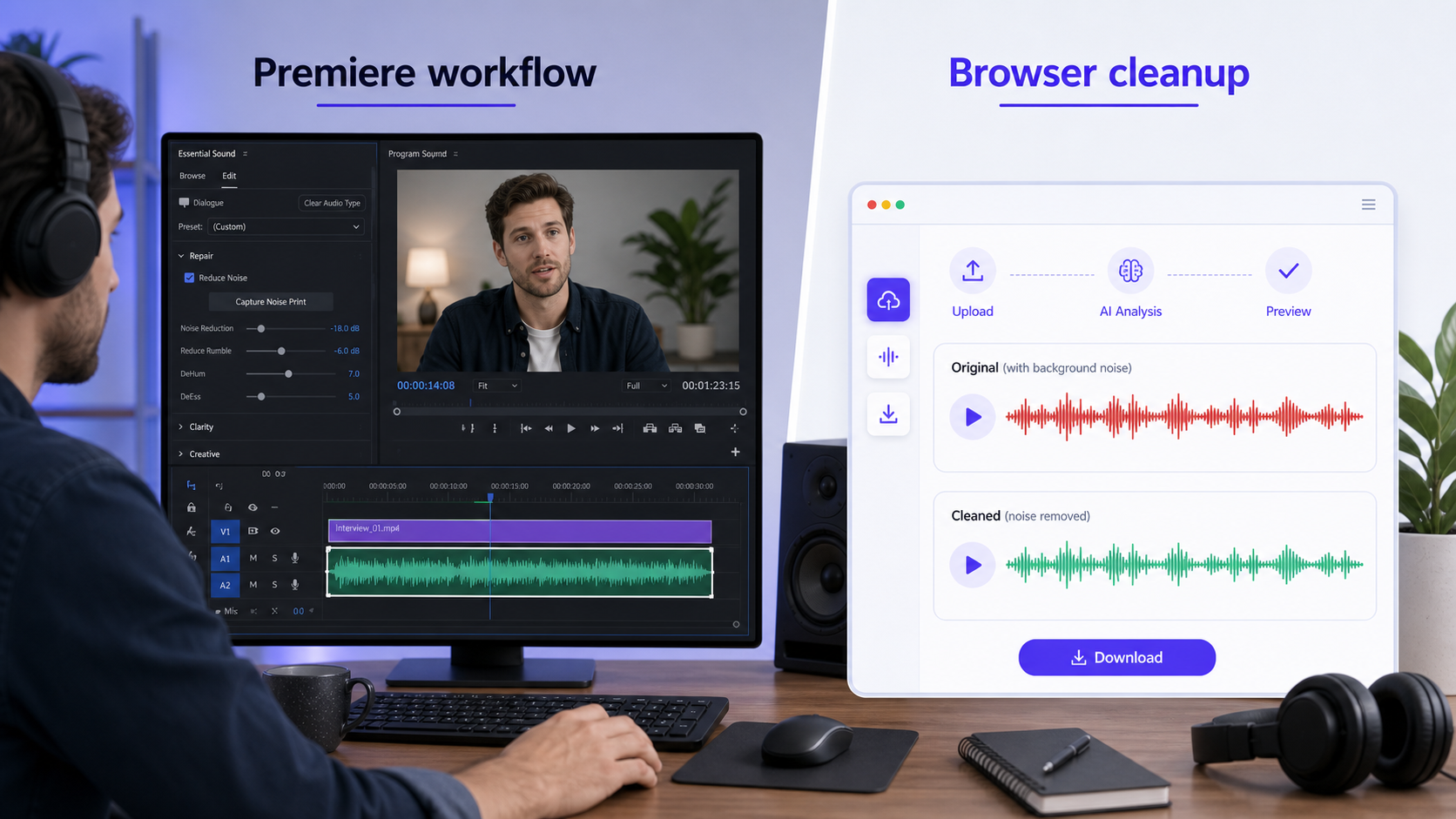
To remove background noise in Premiere Pro, select the dialogue clip, open Window > Essential Sound, classify the clip as Dialogue if required, and open Repair. Choose the control that matches the problem: Reduce Noise for general background noise, Reduce Rumble for very low-frequency vibration, DeHum for electrical hum, or Reduce Reverb for room reflections [1]. Start with a conservative setting, compare at similar loudness, and keep the original if speech loses clarity.
Remove Background Noise with Essential Sound
Essential Sound is the most direct Premiere workflow when the noisy dialogue is already inside a timeline. Adobe's current documentation separates several repair targets instead of treating every unwanted sound as the same problem [1].
Open the sequence and select the clip that contains the dialogue. If linked video and audio make selection unclear, confirm that the intended clip is highlighted before changing settings.
Open Window > Essential Sound if the panel is not visible.
Assign the selected clip as Dialogue when the current interface asks for an audio type. This exposes the dialogue controls described in Adobe's Essential Sound documentation [2].
Open Repair.
Identify the dominant problem before moving a slider:
Control Use it for Do not confuse it with Reduce Noise General background layers, microphone noise, or some clicks Electrical hum, low rumble, or room reflections Reduce Rumble Very low-frequency vibration, including some action-camera or mechanical rumble Broadband hiss or changing traffic DeHum A narrow electrical hum around the regional mains frequency General fan noise or wind DeEss Harsh high-frequency sibilance in speech Background hiss Reduce Reverb Reflected speech and room tail External background noise Enable only the repair control that matches the first problem you are solving. Adobe's current Repair page describes a 0-to-10 adjustment range for these controls [1]. Begin low and move upward while listening to the dialogue.
Play from a sentence before the noisy section through the worst moment. A loop that contains only a pause can make the background sound better without proving that speech survived.
Compare the processed and original clip at similar loudness. Noise and reverb reduction can change the perceived level, and louder is easy to mistake for better.
Stop when the background is less distracting and words remain clear. Do not keep pushing the control until the spaces between words become silent.
Export a short test from the noisiest part of the sequence. Listen to the rendered file before applying the same settings across a long edit.

Premiere Essential Sound Repair controls — From Adobe official website.
This method works well when the problem is reasonably consistent and the clip is already part of a full edit. It also keeps the dialogue in context with music, ambience, and adjacent clips.
Fine-Tune Noise and Reverb in Premiere Pro
If Essential Sound improves the clip but does not reach a natural balance, choose the next step according to the job: use Enhance Speech for a faster voice-focused result, or use advanced DeNoise/DeReverb controls when your Premiere version exposes them and you need more manual control.
Use Enhance Speech for a Faster Voice-Focused Pass
Enhance Speech is separate from Repair > Reduce Noise. It analyzes spoken dialogue and then lets you blend the enhanced result with the original using Mix Amount [4].
- Select the dialogue clip in the timeline.
- Open Essential Sound and confirm that the clip is classified as Dialogue.
- Open Enhance Speech and select Enhance to start the analysis.
- Wait for the background analysis to finish. You can continue working elsewhere in the sequence while Premiere processes the clip.
- Play a complete sentence that includes the worst background noise. Adjust Mix Amount to balance the enhanced signal with the original instead of assuming the maximum value is best.
- Compare the result with Enhance Speech bypassed. Listen for softened consonants, an overly dry voice, or a tone that no longer matches adjacent clips.
- Check the current technical limits before applying it to complex media. Adobe documents support for mono and stereo files, but not multichannel audio or nested sequences; stereo input is output as a mono downmix [5].

Premiere Enhance Speech and Mix Amount controls — From Adobe official website.
Enhance Speech is useful when the main goal is intelligible spoken dialogue and you want a fast first result. Essential Sound Repair remains more suitable when you want to target a specific problem such as hum, rumble, or reverb without applying a broader speech-focused treatment.
Use Advanced DeNoise or DeReverb When Available
Some Premiere versions expose DeNoise or DeReverb in Effect Controls after noise or reverb repair is applied. When those controls are available, select the clip, open Effect Controls, locate the audio effect, and open Edit to adjust processing focus, amount, gain, or a suitable preset [3]. Interface details can vary by Premiere version, so use the controls visible in your installed release.
Use advanced controls in this order:
- Name the problem. Low rumble, electrical hum, broadband hiss, and room reverb should not receive the same treatment.
- Make one small change. Increase the relevant amount gradually and replay a complete spoken phrase.
- Match gain. If processing lowers the clip, restore enough level to make a fair comparison. Do not approve a setting simply because its output is louder.
- Check pauses and consonants. Listen for pumping between phrases, softened
s,t, andksounds, and a metallic or watery texture. - Save presets narrowly. Reuse a preset on clips from the same microphone and recording setup only after checking them. A lavalier, camera mic, and laptop mic can need different treatment in one project.
Check the Result Before Exporting
Judge the voice, not the silence. Play at least four points: a normal sentence, the worst noise, a pause, and a cut between two clips.
| Check | Listen for | Corrective action |
|---|---|---|
| Speech detail | Missing consonants, dull word endings, lost breath | Reduce the relevant repair amount or Mix Amount |
| Processing texture | Metallic, watery, robotic, or phase-like sound | Compare with bypass and remove unnecessary effects |
| Noise behavior | Background pumping up between phrases | Use a lighter setting or process sections separately |
| Reverb behavior | Dialogue becomes unnaturally dry or changes sharply at cuts | Reduce reverb treatment and match adjacent clips |
| Clip consistency | Different microphones react differently to one preset | Tune clips or source groups independently |
| Final mix | Music hides weak dialogue or makes you overprocess | Lower music before adding more repair |
For the underlying tradeoff, see noise removal vs noise reduction. A low, stable noise floor often sounds more natural than dialogue whose speech detail has been removed.
What Premiere Pro Handles Well
Premiere is strongest when cleanup is part of a larger timeline decision. It lets an editor hear repaired dialogue against ambience, music, cuts, and adjacent microphones while retaining detailed control over the final export.
| Recording condition | Better first workflow | What to review |
|---|---|---|
| Mild fan or room noise under dialogue already in a sequence | Essential Sound Repair | Speech detail and clip-to-clip consistency |
| Low mechanical or action-camera rumble | Reduce Rumble, then reassess | Do not remove useful voice body with the low end |
| Electrical mains hum | DeHum | Confirm the problem is narrow hum, not broadband noise |
| Room reflections behind otherwise clear speech | Reduce Reverb or a dedicated dereverb workflow | Check that the room does not become abruptly dry |
| Several edited clips from the same controlled setup | Premiere with carefully tested presets | Verify each microphone/source group |
| One unedited video file whose main problem is mixed noise | Focused cleanup may be faster | Compare setup time and preview quality |
| Clipping or words fully covered by wind/another voice | Retake or edit around the damage | Repair cannot reliably recreate missing speech |
Static and hiss may need more specific diagnosis; see how to remove static from audio. Echo and room tail are better treated as echo and reverb removal, not automatically as broad background noise. The broader background noise removal guide explains why the source determines the workflow.
When a Dedicated Noise Remover Is More Suitable
Move to a focused cleanup workflow when the Premiere route adds more editing work than the job requires. Common examples are a source video that needs cleaning before the creative edit, a batch of voice-first files, or mixed noise that changes across the recording and would otherwise require repeated clip-level decisions.
This does not make Premiere less professional. Premiere provides professional timeline editing and detailed manual control. A dedicated noise remover provides focused professional cleanup with less setup when captions, transitions, color, and timeline mixing are not yet the task.
CleanAudio accepts the original video, uses a hybrid model to analyze different sections and route the cleanup, provides a system-selected preview, and lets the user download only if speech is clearer and remains natural. It does not replace Premiere's timeline, mix, repair effects, or export controls.
Clean the source video before editing
Premiere Pro and CleanAudio Workflow
Use the two tools in sequence when the source needs focused cleanup and the finished project still needs Premiere's editorial control.
- Keep the original media untouched and linked safely in the project.
- Before building the full edit, upload the original source video to CleanAudio.
- Let the hybrid model analyze the soundtrack and generate its system-selected cleanup preview.
- Compare the preview against the original. Download only when dialogue is easier to understand and still sounds natural.
- Import the cleaned video into Premiere and verify picture/audio sync at an early and late spoken line.
- Build the sequence, captions, transitions, music, ambience, and final mix in Premiere.
- Use Essential Sound for clip-to-clip balance or a remaining source-specific issue; do not automatically apply another heavy global denoise pass.
- Review the final export at normal playback volume.
If the timeline is already complete and contains many small edits, staying inside Premiere is usually more practical. The combined workflow is most useful before a project has been cut into many dependent clips.
Common Problems
Essential Sound or Repair Controls Are Missing
Confirm that an audio clip is selected and that the Essential Sound panel is open. Assign the clip as Dialogue when required because the available controls change with the audio type. If the layout differs from the screenshot, look for the current Repair and Enhance Speech groups in your installed desktop version.
Noise Reduction Makes Dialogue Sound Processed
Bypass the repair effect and match playback level before deciding. Then reduce the relevant Repair slider, advanced effect amount, or Enhance Speech Mix Amount. Remove duplicate repair effects if more than one was added. Preserve consonants and natural tone even if a small background layer remains; pushing toward silence can trade noise for more distracting artifacts.
Hum, Rumble, Reverb, and Noise Need Different Controls
Listen before adding another effect. A steady electrical tone points toward DeHum. Very low vibration points toward Reduce Rumble. A lingering copy of the speaker's voice points toward Reduce Reverb. A broad background layer may fit Reduce Noise. If several coexist, address the most obvious problem first and compare after each change. A single aggressive Reduce Noise pass is not a substitute for diagnosis.
Several Clips Need Different Settings
Group clips by microphone and recording condition rather than applying one preset to the entire sequence. Test a representative sentence and the worst section from each group. Save a preset only after it works across that source group. If every clip contains changing combinations of noise and the edit has not started, clean the source files first; if the timeline is already assembled, use Premiere's clip-level control to avoid replacing many edits.
References
[1] Adobe Premiere Help: Repair dialogue URL: https://helpx.adobe.com/premiere/desktop/add-audio-effects/adjust-volume-and-levels/repair-dialogue.html
[2] Adobe Premiere Help: Edit audio with Essential Sound panel URL: https://helpx.adobe.com/premiere/desktop/add-audio-effects/adjust-volume-and-levels/audio-editing-with-essential-sound-panel.html
[3] Adobe Premiere Pro: Advanced noise and reverberation reduction URL: https://helpx.adobe.com/ee/premiere-pro/how-to/advanced-noise-reverberation-reduction.html
[4] Adobe Premiere Help: Enhance speech URL: https://helpx.adobe.com/premiere/desktop/add-audio-effects/adjust-volume-and-levels/enhance-speech.html
[5] Adobe Premiere Help: Enhance Speech technical requirements URL: https://helpx.adobe.com/premiere/desktop/add-audio-effects/adjust-volume-and-levels/enhance-speech-technical-requirements.html