How to Remove Keyboard Noise from Audio and Video
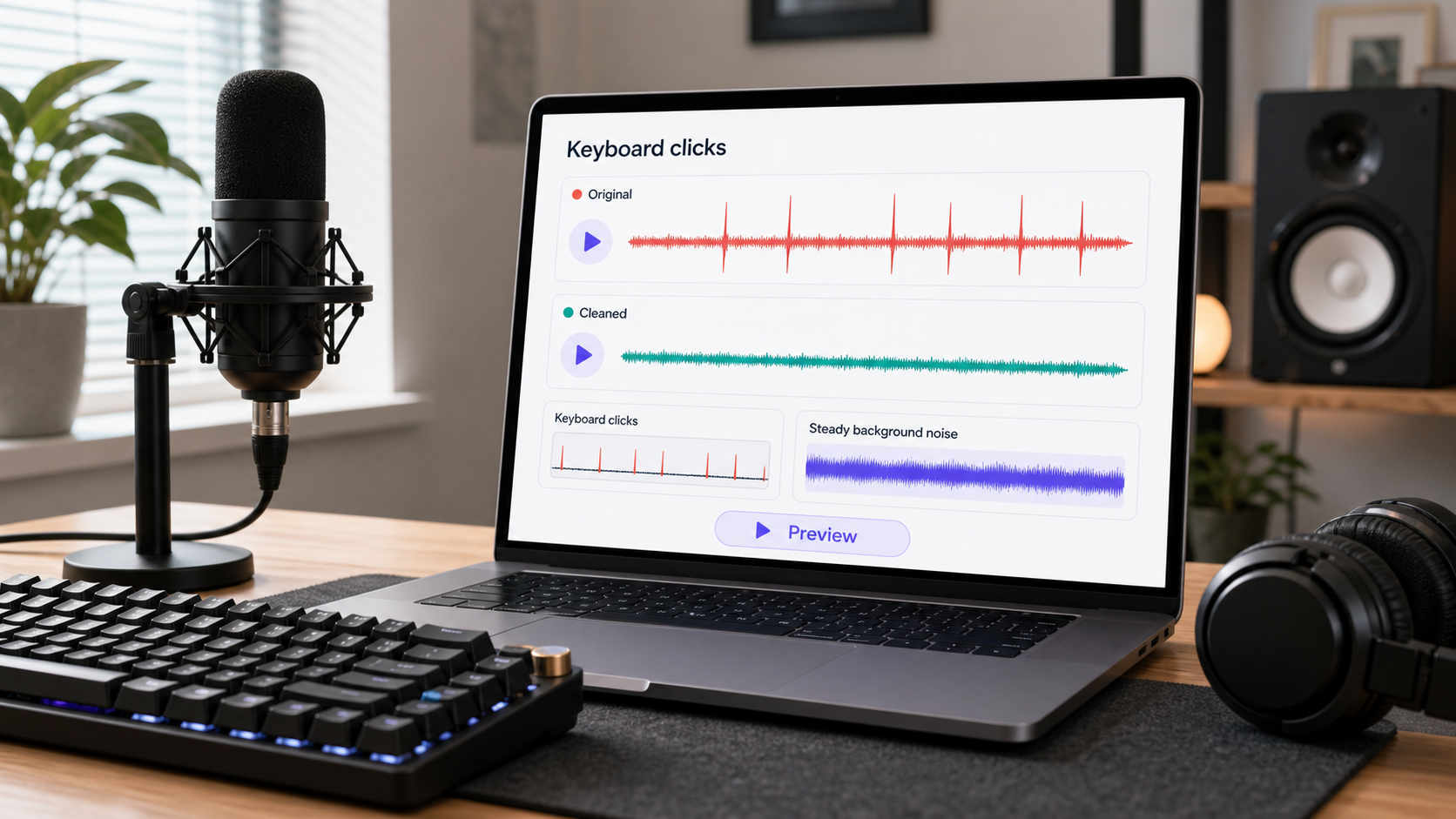
To remove keyboard noise from audio, first decide whether the typing is a repeated background layer, short clicks between words, desk vibration under the microphone, or typing directly over speech. Keyboard noise is tricky because it is usually transient: short sharp hits, not a smooth fan or hum. That means a normal denoise pass may help a little, but it can also damage the voice if you push it too hard.
If the voice is clear and keyboard clicks are the main distraction, CleanAudio's audio noise remover can help by analyzing the recording, reducing distracting noise, and letting you preview the result before download. For video files, start from CleanAudio's video noise remover. If the typing is louder than the speaker or lands on top of important syllables, cleanup can reduce the distraction, but local editing or a retake may still be better.
For related reading, see how to remove background noise from a microphone, noise removal vs noise reduction, and why noise removal can make voice sound robotic.
Keyboard Noise Is Not One Sound
Typing sounds can come from several places. The keycaps click, the switches create sharp attacks, the desk vibrates, the microphone stand picks up impact, and the room reflects the sound back into the mic. A laptop keyboard under a webcam recording behaves differently from a mechanical keyboard next to a podcast mic.
| Keyboard problem | What it sounds like | Best first move | Why it matters |
|---|---|---|---|
| Clicks between phrases | short spikes in quiet gaps | local repair or AI cleanup | easiest case because speech is not masked |
| Clicks under speech | sharp ticks mixed with words | light cleanup and manual edits for worst hits | harder because click and voice overlap |
| Desk vibration | low thumps or dull impact | isolate mic/keyboard and reduce low rumble | often captured through the desk, not the air |
| Mechanical keyboard close to mic | repeated bright hits | move mic, lower gain, clean lightly | source control matters more than heavy cleanup |
| Typing plus fan noise | clicks on top of steady bed | treat steady bed and clicks separately | one process rarely fixes both well |
Audacity's Click Removal documentation is useful because it treats clicks as their own repair target [1]. Audacity's noise-reduction guidance is a separate workflow built around reducing a noise profile, which is better suited to stable background sources [2]. Keyboard noise often needs both ideas: local click thinking plus conservative broad cleanup.
Choose Manual or AI Before You Clean
Keyboard noise cleanup is easier when you choose the workflow before touching the file. Manual editing is best for a few obvious clicks. AI cleanup is usually better when typing runs through a long recording or when keyboard noise is mixed with fan noise, room tone, and speech.
| Situation | Better first workflow | Why |
|---|---|---|
| Five clicks between words | manual local repair | no need to process the whole file |
| Typing under a long tutorial | AI cleanup plus spot fixes | repeated mixed noise is tedious manually |
| Keyboard plus laptop fan | AI cleanup or layered manual workflow | steady and transient noise coexist |
| Loud key hit on one word | manual repair or retake | global cleanup may damage the voice |
| Keyboard louder than speaker | retake if possible | source balance is too poor |
The wrong workflow creates avoidable artifacts. A heavy denoise pass can make speech dull while leaving click attacks behind. Local editing every keystroke in a 30-minute tutorial can waste hours. Choose the path based on the shape of the problem.
A Practical Cleanup Workflow
Start with the cleanest source file you have. If the audio came from a video, clean the audio before final music, compression, and export.
- Save an original copy.
- Listen to a phrase with no typing.
- Listen to a phrase with typing under speech.
- Listen to a gap where only typing happens.
- Decide whether the keyboard noise is mostly local clicks, steady desk rumble, or repeated background tapping.
- Choose manual repair for a few isolated hits, AI cleanup for repeated mixed typing, or a combined workflow for both.
- Apply the lightest cleanup that improves speech.
- Repair the worst individual hits manually if needed.
- Stop when the voice starts sounding thinner, watery, or gated.
If you are cleaning manually, do not use one heavy broadband noise reduction pass to erase every click. Use broad cleanup only for the repeated background layer. For isolated typing hits, reduce or repair the specific hit. For low desk thumps, handle low-frequency vibration before trying general denoise. If a click lands directly on a consonant, full removal may not be realistic without damaging the word.
Manual Editing: When It Is Still Better
Manual editing is better when the keyboard noise is sparse and visible. Zoom into the waveform, find the click or thump, and reduce only that short moment. If the click happens between words, cut or attenuate the region. If it overlaps a word, try a smaller reduction and compare the consonant immediately after it.
Use this sequence:
- Locate the loudest click.
- Reduce only the click region first.
- Listen to the whole word before and after.
- Repeat only for clicks that the listener will notice.
- Leave small background taps alone if removing them hurts the voice.
Audacity's Click Removal documentation is useful because it treats clicks as their own repair target [1]. Audacity's noise-reduction guidance is a separate workflow built around reducing a noise profile, which is better suited to stable background sources [2]. Keyboard noise often needs both ideas: local click thinking plus conservative broad cleanup.
Where CleanAudio Fits
CleanAudio is useful when keyboard noise is part of a mixed recording: typing, fan wash, room tone, and speech in the same file. A manual workflow asks the user to decide what is a transient click, what is steady noise, and what should be left alone. CleanAudio's hybrid model workflow reduces that routing burden by analyzing the audio as a speech-first cleanup problem and giving you a preview.
Use it when the file is long, the typing repeats across many sections, or you need to know quickly whether the recording is publishable. Upload the file, preview a sentence with typing under speech, then preview a quiet gap. If the cleaned version makes typing less noticeable and keeps the speaker natural, use it. If it makes the voice papery, back off or combine a lighter AI pass with manual repair for the worst remaining clicks.
Recording Changes That Prevent Keyboard Noise
The best keyboard noise removal happens before recording. Shure's recording guidance emphasizes microphone placement and source capture because the balance between wanted sound and unwanted sound is set at the microphone [3]. For keyboard noise, that means:
move the microphone closer to your mouth and farther from the keyboard
angle the mic away from the keyboard if the polar pattern allows it
put the keyboard on a softer desk mat
avoid mounting the microphone on the same desk as the keyboard
use a quieter keyboard for voice-heavy work
lower room reflections so clicks do not bounce back into the mic
pause typing during important lines when possible
Live meeting tools can also help during calls. Microsoft Teams documents background noise reduction for meetings [4]. Treat that as a live-call aid, not a guaranteed post-production repair for recorded files.
When Cleanup Is Not Enough
Keyboard cleanup has hard limits. If the keyboard is louder than the speaker, if a click lands exactly on an important consonant, or if desk vibration shakes the microphone stand through the whole take, cleanup becomes compromise rather than repair.
Retake or re-record the line when the important word is unclear. Keep the original if the cleaned version sounds less believable than the noisy one. For short videos, a 20-second retake is often faster than trying to make an overloaded keyboard section sound natural.
FAQ
Can keyboard noise be removed from audio?
It can often be reduced, especially when the speaker is clear and the typing is not louder than the voice. Clicks directly over words are harder than clicks between phrases.
Can I remove keyboard noise from video?
Yes. Clean the audio track before final export. If you use CleanAudio, use the video workflow so the cleaned audio stays aligned with the video.
Why does keyboard noise remain after noise reduction?
Keyboard clicks are short transient events. Many noise-reduction tools are better at stable background layers such as fan noise or hum, so clicks may need local repair or a different cleanup approach.
How do I prevent keyboard noise while recording?
Move the mic closer to your mouth, farther from the keyboard, isolate the mic from the desk, use a desk mat, and avoid typing during important lines.
Can CleanAudio remove mechanical keyboard sounds?
It can reduce distracting keyboard noise when the voice remains clear. If the keyboard is louder than the speaker or hits important syllables, some clicks may still need editing or a retake.
Sources and Further Reading
[1] Audacity Manual: Click Removal
https://manual.audacityteam.org/man/click_removal.html
[2] Audacity Support: Noise reduction and removal
https://support.audacityteam.org/repairing-audio/noise-reduction-removal
[3] Shure: Microphone Techniques for Recording
https://www.shure.com/damfiles/default/global/documents/publications/en/performance-production/microphone_techniques_for_recording_english.pdf-bb0469316afdb6118691d2f3f5e3ff01.pdf
[4] Microsoft Support: Reduce background noise in Microsoft Teams meetings
https://support.microsoft.com/en-us/teams/meetings/reduce-background-noise-in-microsoft-teams-meetings