How to Remove Static from Audio Online

To remove static from audio, first identify what kind of "static" you are hearing. People use the word for hiss, crackle, electrical buzz, clipping, room tone, keyboard noise, and digital glitches. Some are easy to reduce. Some need manual repair. Some mean the recording should be retaken if possible.
If the voice is clear and the static sits behind it, AI audio cleanup is usually the fastest first move. Upload the file to CleanAudio's audio noise remover, preview the cleaned result, and download it if the voice sounds clearer. If the noisy track is inside a video file, use remove background noise from video so audio stays synced.
For broader context, read background noise removal and noise removal vs noise reduction.
Quick Answer
Static is not one audio problem.
If the static is steady hiss or hum, noise reduction can often lower it. If it is crackle, clicks, or pops, targeted repair may work better. If it is clipping, harsh distortion, or a corrupted file, cleanup may improve the sound but cannot reliably rebuild missing detail.
The practical rule is simple: if the voice is still present and understandable, cleanup is worth trying. If the static covers the voice or the file is distorted, treat cleanup as rescue, not restoration.
What People Mean by Static
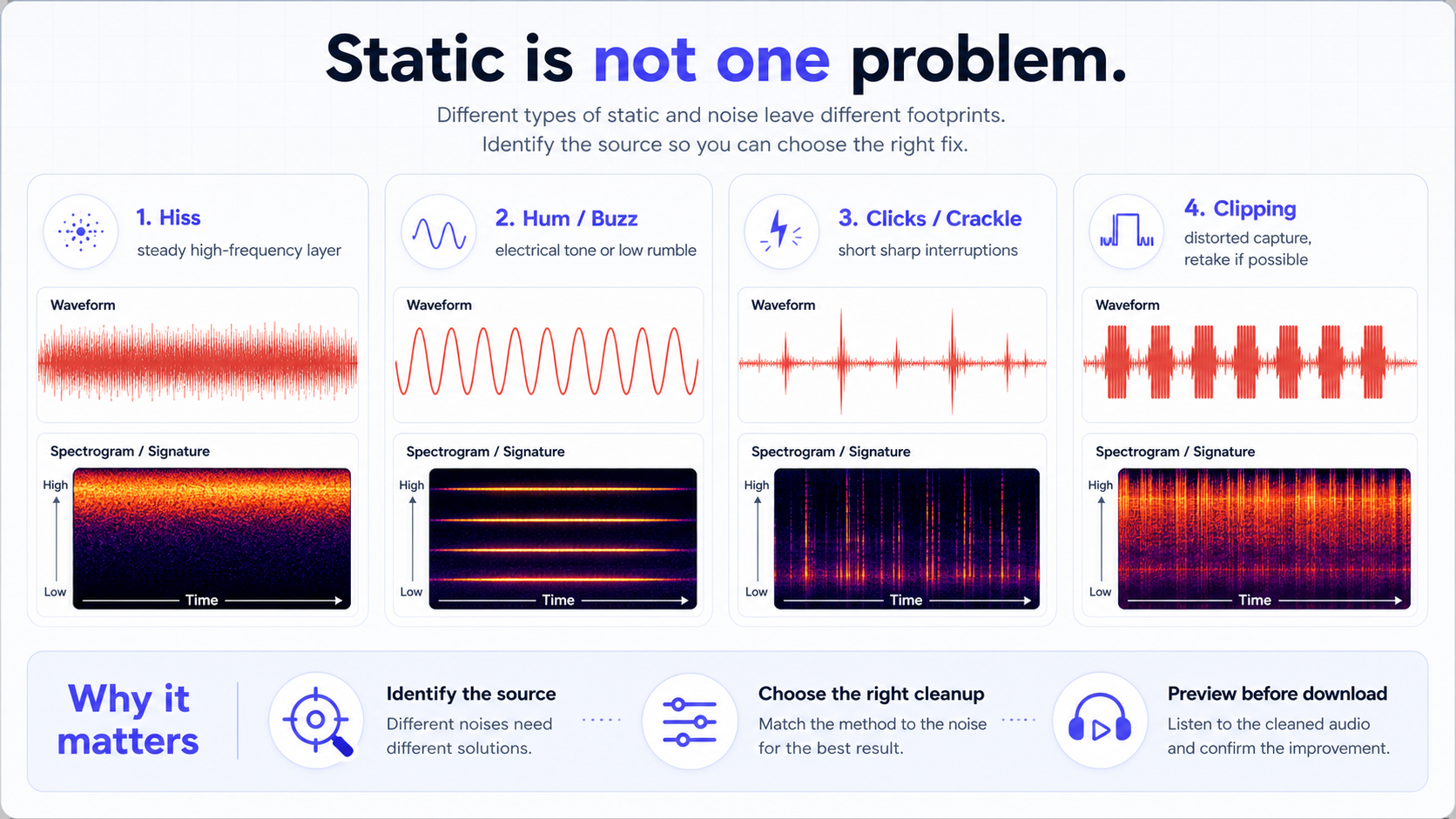
Static can describe several different sounds:
| Static type | What it sounds like | Common cause | Best first move |
|---|---|---|---|
| Hiss | Constant air-like layer | High gain, noisy mic, low recording level | AI cleanup or light noise reduction |
| Hum / buzz | Low tone or electrical texture | Power, cables, nearby equipment | AI cleanup or manual hum reduction |
| Crackle | Small rough bursts | Bad cable, clipping, old recording, digital artifacts | Manual repair or AI cleanup |
| Clicks / pops | Short sharp hits | Mouth noise, plosives, keyboard, glitches | Targeted repair if isolated |
| Clipping | Harsh distorted voice | Input too loud | Retake if possible |
| Room tone | Constant room layer | Distance and reflective space | AI cleanup, better mic placement next time |
That diagnosis matters because one setting will not fix every type of static.
Remove Steady Static: Hiss, Hum, and Buzz
Steady static is the easiest category. Hiss, hum, and buzz usually continue behind the voice in a predictable way. If the voice is louder than the noise, cleanup has a good chance of improving the file.
Manual tools often use a noise profile for this kind of problem. Audacity's official support material describes selecting a noise-only section, getting a noise profile, and applying noise reduction to the larger recording [1].
CleanAudio is useful when you want the same practical outcome without managing samples and settings. Upload the file, let the hybrid model analyze the recording, preview the cleaned version, and keep it if the voice sounds clearer.
Do not aim for total silence. Removing every trace of hiss can make speech sound dull or watery. A quieter background with a natural voice is usually better than a silent file with damaged speech.
Remove Crackle, Clicks, and Pops
Crackle, clicks, and pops are different from steady hiss. They happen in short bursts. A broad noise profile may not catch them cleanly because each event has a different shape.
Audacity separates noise reduction from repair workflows and documents click/crackle repair as a different type of audio repair task [2]. That distinction is useful: a click is not the same as a noise floor.
If there are only a few clicks, manual repair may be best. Cut, repair, or reduce the specific moments. If there are repeated small interruptions under speech, AI cleanup may be faster because editing every click by hand becomes tedious.
The hard case is overlap. A click and a sharp consonant can occupy a similar part of the sound. Push too hard and the voice may lose clarity.
Static from Microphones
Microphone static often comes from gain, distance, cables, USB noise, or a noisy recording chain.
If the gain is too high, the microphone hears more room noise and electronic hiss. If the speaker is too far away, boosting the track later raises the static too. If the cable or connector is bad, crackle may appear when the cable moves.
For future recordings, fix the capture first: move the mic closer, reduce gain, avoid bad cables, and record a short test. For the file you already have, use cleanup only after accepting the capture limits.
If the problem is mostly mic hiss or room tone, CleanAudio's audio noise remover is a good first try. If the problem is clipping, record again if you can.
Static in Video Audio
Static inside video is the same listening problem with one extra constraint: sync.
If you export audio, clean it, and re-import it, you need to keep timing aligned with the picture. That is fine for editors, but it adds friction for creators who only need a cleaner clip.
Use a video workflow when the static is inside a vlog, tutorial, course recording, phone video, or screen recording. For that case, use remove background noise from video. The goal is to clean the audio track without turning the video into a manual sync project.
When Static Removal May Not Work
Static removal has limits when the recording is damaged.
Clipping is the clearest example. If the input level was too high and the waveform distorted, the missing detail is gone. Cleanup may reduce harshness, but it cannot guarantee natural speech.
Corrupted audio is another problem. If the file has dropouts, missing segments, or digital errors, noise removal may not be the right tool.
Heavy overlap is also difficult. If static, crackle, or background speech sits directly on top of important words, cleanup may reduce distraction but not fully restore the sentence.
Common Questions
Can I clean static from an audio file online?
Yes, if the voice is still clear enough to preserve. Online AI cleanup is a good first try for hiss, hum, buzz, room tone, and some repeated static behind speech.
Why does static removal make my voice sound watery?
That usually means the reduction is too aggressive or the tool is removing parts of the voice along with the noise. Use a lighter cleanup, preview carefully, and avoid chasing total silence.
Is static the same as background noise?
Sometimes. Static is often used as a casual word for background noise, but it may also mean clicks, crackle, clipping, or electrical buzz. The exact sound changes the best repair method.
Can CleanAudio remove crackle?
CleanAudio can help when crackle is part of a noisy but understandable voice recording. Isolated clicks may be better handled with manual repair, and clipped or corrupted audio may need a retake or restoration workflow.
The Practical Takeaway
To remove static from audio, do not start with the strongest filter. Start by identifying the static: steady hiss, hum, crackle, clicks, clipping, or room tone.
If the voice is clear and the static is distracting, use CleanAudio's audio noise remover. If the noise is isolated clicks, try manual repair. If the file is clipped or corrupted, cleanup may help a little, but the real fix is a better capture.