How to Clean Up Zoom, Teams, and Google Meet Recordings
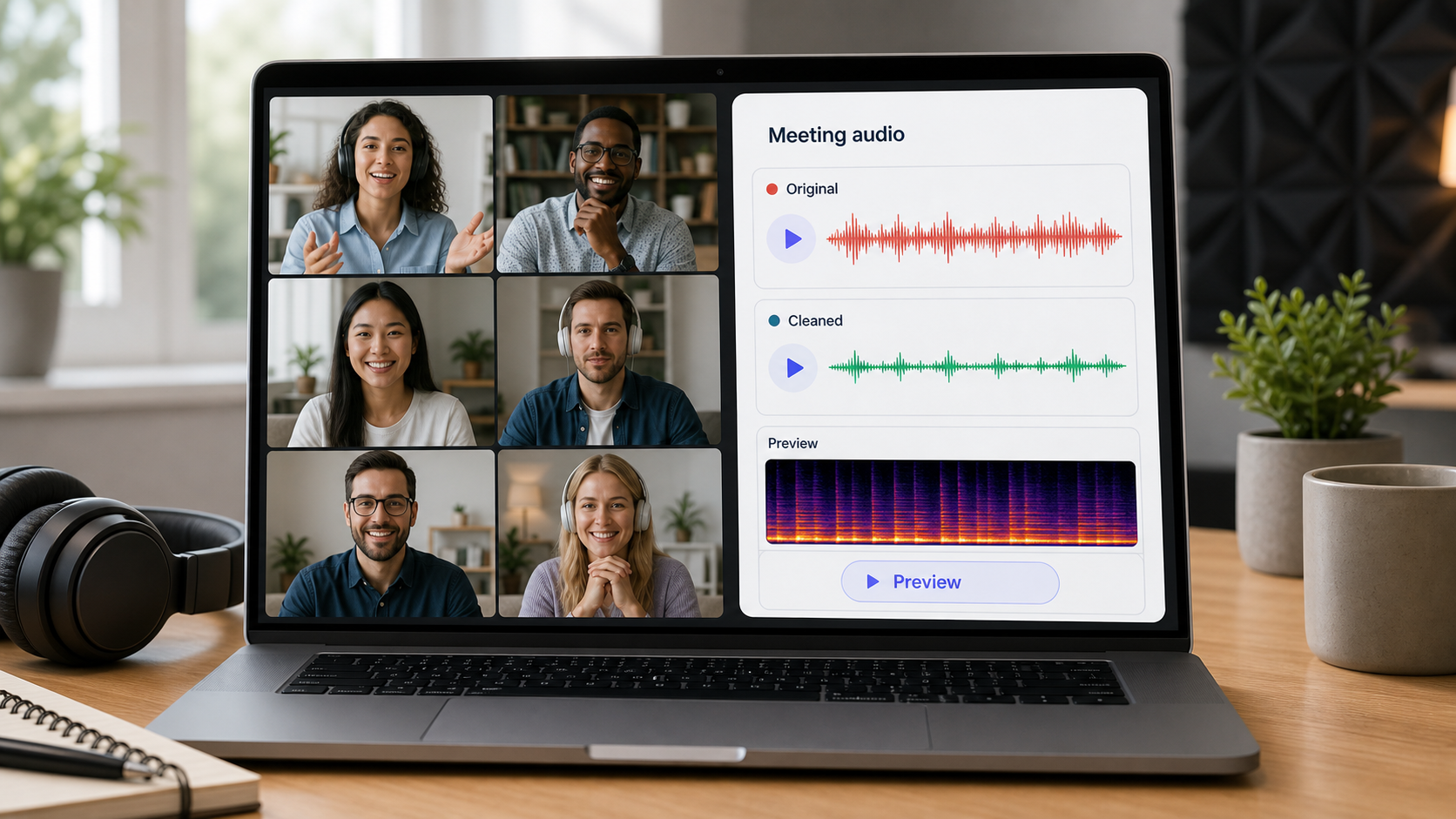
Cleaning up a Zoom, Teams, or Google Meet recording starts with a boring but important question: what did the meeting platform already do to the audio before you downloaded it? Meeting apps often apply noise suppression, echo control, gain changes, and voice-focused processing during the call. That can make live conversation easier, but it also means your recording may already be partly processed before you ever open an editor.
The fastest useful workflow is: listen to each speaker, identify the dominant problem, clean lightly, then preview the result during real speech. If the voice is still present and the background is the main distraction, CleanAudio's audio noise remover can turn the post-call cleanup step into one upload, AI analysis, preview, and download. If the meeting audio is clipped, badly compressed, or full of people talking over each other, cleanup can still reduce distraction, but it should not be treated as a full reconstruction tool.
For broader context, see background noise removal, how to remove room noise from a recording, and why noise removal can make voice sound robotic.
What Makes Meeting Recordings Hard to Clean
Remote meeting audio is not the same as a clean local microphone recording. It is usually a mixture of room sound, laptop microphones, headset differences, network compression, platform noise suppression, automatic gain, and speaker behavior. A guest on a headset may sound close and dry. Another person on a laptop mic may sound distant, reflective, and thin. A third speaker may be clear until they start typing.
That mix matters because one global repair pass rarely fits the whole file. A steady fan behind one speaker behaves differently from room echo on another speaker. Keyboard noise behaves differently from traffic. A clipped laugh behaves differently from a low hum. The cleanup plan has to respect those differences.
| Symptom | Likely cause | First check | Realistic cleanup goal |
|---|---|---|---|
| Constant hiss or fan wash | room fan, laptop fan, HVAC | quiet gaps and active speech | lower the bed without thinning voice |
| Hollow or distant voice | room reflections, laptop mic distance | consonants and phrase endings | improve clarity, not make it studio-dry |
| Pumping or clipped syllables | platform processing or gain changes | sentence starts and loud moments | reduce distraction; do not overprocess |
| Keyboard and mouse hits | local mechanical events | typing section | selective repair or lighter AI cleanup |
| Multiple voices at once | overlap in the meeting | crossed speech | often a content/editing issue, not noise removal |
| Underwater voice after cleanup | excessive reduction | S, T, K sounds | back off or keep original |
Check the Platform Settings Before the Next Recording
You cannot change a past call, but platform settings explain why the file sounds the way it does and help prevent the next one from needing so much repair.
Zoom documents noise removal and background noise suppression controls in its audio settings, including different suppression behavior depending on the microphone mode [1]. Microsoft Teams documents multiple levels of noise suppression for meetings and calls [2]. Google Meet documents noise cancellation for non-speech noises such as typing, door sounds, room echo, and construction sound, while also noting that other voices may not be canceled [3].
Use those settings as capture choices, not as magic fixes.
| Platform | Useful setting to know | What it can help with | What it will not solve |
|---|---|---|---|
| Zoom | Noise removal / background noise suppression | fans, light room noise, some transient noise | bad mic distance, clipping, speaker overlap |
| Teams | Noise suppression levels | paper shuffling, door noise, background distractions | poor source audio or over-compressed speech |
| Google Meet | Noise cancellation | non-speech noises such as typing or door sounds | other voices, music, missing speech |
If the recording is for a podcast, course, customer call highlight, or public video, ask speakers to record in a quiet room, use a headset or external mic, and avoid typing during important answers. Platform noise suppression is useful, but source quality still matters.
A Practical Cleanup Workflow After the Call
Start with the downloaded recording, not an exported version that has already been compressed again. If you have separate tracks for each participant, clean them separately. If you only have one mixed recording, make decisions based on the worst important speaker, not the quietest gap.
Save a copy of the original file. Keep it unchanged so you can compare later.
Listen to the first full sentence from each main speaker. Do not judge only the intro music, pauses, or silence.
Mark three moments: a normal answer, the noisiest useful answer, and a quiet pause.
Decide whether the problem is steady noise, room echo, typing, low rumble, platform pumping, or speaker overlap.
Apply the lightest cleanup pass that improves speech during the normal answer.
Recheck the noisy moment. If speech improves without sounding hollow, keep going.
Recheck the quiet pause last. A silent pause is less important than believable speech.
If you are using a manual cleaning flow, treat the first pass as diagnosis. Use a small amount of noise reduction for constant background, a high-pass or low-cut style move for low rumble, and local edits for isolated clicks or keyboard hits. Do not use one heavy broadband pass to solve every problem. A file with room echo, keyboard hits, and laptop fan noise needs separate decisions.
Where CleanAudio Fits in the Workflow
CleanAudio is useful when you want the productized version of that diagnostic workflow: upload the meeting file, let the hybrid model analyze different parts of the recording, preview the cleaned voice, and download only if the result helps.
That matters for meeting recordings because the noise is often mixed. A single call may contain laptop fan noise during one speaker, room echo during another, and typing under a third. A manual workflow asks the user to decide which effect chain belongs where. CleanAudio's value is reducing that routing burden: it can analyze the recording as a speech-first cleanup problem, apply appropriate noise-removal behavior, and give you a preview so you can judge whether the result is clearer and still natural.
Use it when the words are understandable but distracted by background sound. Be more cautious when the meeting file is already heavily compressed, the speaker is too far from the mic, or multiple people talk over one another.
Manual Cleanup: What to Actually Do
If you are cleaning manually, work from source to symptom.
| Problem | Manual move | How to check it | Stop if |
|---|---|---|---|
| Fan, HVAC, laptop hiss | sample a quiet noise bed if your tool supports it; apply light reduction | voice stays full while background drops | consonants smear or voice turns watery |
| Low rumble | reduce low-frequency buildup before broad cleanup | speech becomes less boomy | voice becomes thin or weak |
| Keyboard hits | cut, attenuate, or repair local hits | only the hit changes | the whole track gets dull |
| Room echo | use gentle dereverb or lighter cleanup | words feel closer and shorter | voice sounds gated or unnatural |
| Platform pumping | avoid aggressive cleanup; edit around worst moments | volume feels steadier | sentence starts disappear |
| Speaker overlap | edit content if possible | message is clearer | cleanup damages both voices |
The principle is simple: fix the repeated layer broadly, fix the one-off problem locally, and leave the voice alone whenever the cure is worse than the noise.
When to Re-record or Ask for a Better Source
Some meeting recordings are not worth pushing hard.
Ask for a new file or a short re-record when the speaker's words are missing, the audio clips during important moments, or two people talk through the same sentence. Ask for a local recording if the public-facing asset matters and the platform recording sounds compressed or unstable. If the meeting is a webinar, course, podcast, or customer story, a five-minute re-record of the intro or key quote may save more time than hours of repair.
The best prevention checklist is short:
Use a headset or external microphone when possible.
Record in the quietest room available.
Keep the microphone close enough that the voice is clearly stronger than the room.
Turn off fans or move away from HVAC vents before the call.
Ask important speakers not to type during answers.
Run a 20-second test recording before the real session.
FAQ
Can I clean Zoom recording audio after the meeting?
Yes, if the speech is still understandable and the background noise is the main distraction. Start with light cleanup and judge the result during active speech, not just in silent gaps.
Should I turn on noise suppression in Zoom, Teams, or Google Meet?
Usually yes for ordinary meetings with distracting non-speech background noise. For music, intentional room sound, or very high-quality recording, check the platform's audio mode options and test before the real call [1][2][3].
Can AI remove another person talking in the background?
Not reliably. Meeting platforms and cleanup tools are better at reducing non-speech noise than separating overlapping human speakers. If another voice covers the speaker, treat it as an editing or retake problem.
Why does my cleaned meeting audio sound robotic?
That usually means the cleanup is too heavy or the original file already lost speech detail through compression, distance, clipping, or platform processing. Use a lighter pass or keep the original if the cleaned version is less believable.
Is CleanAudio better than manual editing for meeting recordings?
CleanAudio is faster when you want a publishability decision without building a manual effects chain. Manual editing is still useful when you need detailed repairs, separate speaker tracks, or local edits for one-off events.
Sources and Further Reading
[1] Zoom Support: Setting up professional audio for Zoom Meetings
https://support.zoom.com/hc/en/article?id=zm_kb&sysparm_article=KB0059985
[2] Microsoft Support: Reduce background noise in Microsoft Teams meetings
https://support.microsoft.com/en-us/teams/meetings/reduce-background-noise-in-microsoft-teams-meetings
[3] Google Meet Help: Filter out noise from your meeting on Google Meet
https://support.google.com/meet/answer/9919960
[4] Audacity Support: Noise reduction and removal
https://support.audacityteam.org/repairing-audio/noise-reduction-removal