How to Remove Background Noise from TikTok Videos
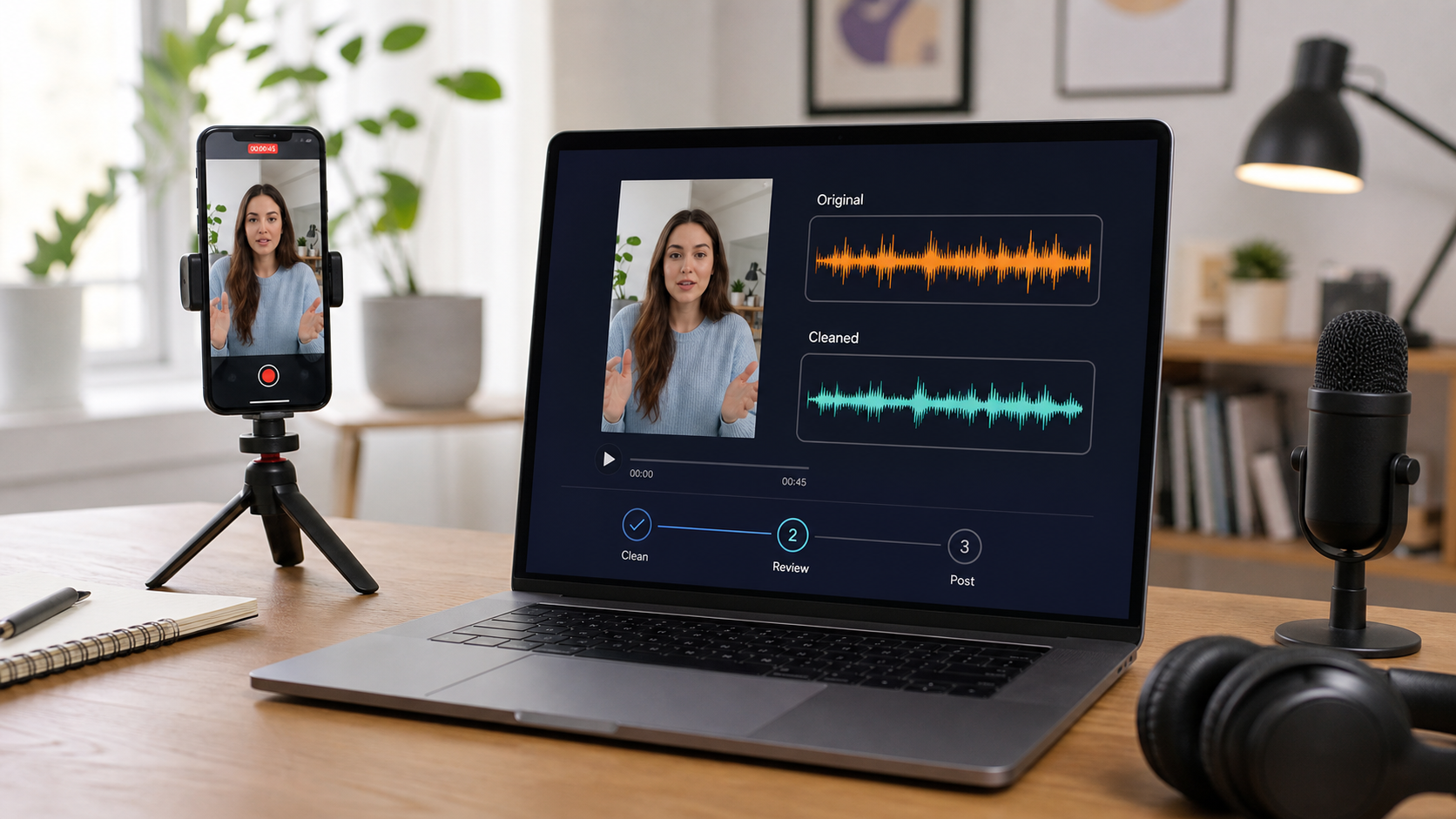
To remove background noise from a TikTok video, clean the camera file before posting, then use TikTok for the final trim, sound balance, captions, cover, and upload. TikTok's public help explains how to upload and edit clips, add sounds, and adjust post elements, but it does not establish one dedicated noise-removal control that is consistent across current app versions [1][2]. Use the tools visible in your app, and do not depend on an undocumented menu for the only copy of your video.
For a fast workflow, keep the original, run a working copy through automated video cleanup, listen to the worst spoken section, download only if the voice stays natural, and then finish the TikTok edit. This is more reliable than trying to hide traffic, wind, or cafe chatter by turning up music.
Clean the Source Before You Open TikTok
Start with the file from the phone, camera, or editor. If the clip is already in a TikTok draft, keep that draft, but also locate the original media in your device library when possible.
Use this order:
- Play the source with headphones and identify the real problem.
- Keep an untouched copy.
- Decide whether the problem is continuous noise, one local event, room echo, clipping, or unwanted background speech.
- Clean or edit the source with the workflow that matches the problem.
- Review the processed file on a phone speaker.
- Import the cleaned version into TikTok.
- Add captions, music, text, effects, and the cover only after the voice is approved.
This sequence avoids rebuilding a full TikTok edit because the audio needed another pass.
Use Automated Cleanup for Noise Under Speech
Automated cleanup is the more efficient first path when the unwanted sound continues beneath useful dialogue: fan noise through a talking-head clip, street noise during a walk, wind across several shots, or changing room noise in a cafe.
Clean the working copy
- Upload the source video to CleanAudio's video noise remover.
- Let the hybrid model analyze the recording by segment and match likely noise conditions with suitable treatment.
- Listen to the system-selected preview.
- Compare the same words against the original at a similar volume.
- Check consonants, word endings, breaths, and pauses.
- Download only if the speech is clearer and still sounds natural.
- Watch the full downloaded video once to confirm audio remains in sync.
The value of this path is not simply fewer controls. TikTok clips often change environment quickly: quiet room, hallway, street, car, cafe. One global noise profile may fit only part of the recording. Segment-aware analysis can make a better first decision, but the preview still decides whether the result is acceptable.
Stop when the signal is damaged
Keep the original or use a lighter result when:
- quiet words disappear;
- s and t sounds become dull;
- the voice sounds watery or metallic;
- the background pumps between phrases;
- wind has completely covered a syllable;
- the microphone clipped on loud words.
Noise removal can reduce distraction. It cannot reconstruct speech information that never survived the recording.
Use Manual Editing for Local Problems
Manual editing is faster when the problem happens once and does not sit under the whole performance.
| Problem | Manual action | Review point |
|---|---|---|
| One handling bump in a pause | Split around it and lower or remove the short region | Make sure the cut does not remove a breath or word onset |
| One car horn between sentences | Cut or mute only that moment | Listen for an abrupt room-tone change |
| Long dead air | Trim the pause | Keep enough space for natural pacing |
| One line is much louder | Reduce that clip or region | Compare with the lines before and after it |
| Music is louder than narration | Lower the music layer, not the voice master | Check on a phone speaker |
| Background speech overlaps the main voice | Keep, replace the take, or add captions | Broad denoising may damage both voices |
Do not build a heavy effects chain for one tap. Likewise, do not cut every half-second of a continuous fan. Choose the workflow from the time pattern of the noise.
Finish the Video in TikTok
After the source audio is approved, open TikTok and tap the Add post button. Record or upload the cleaned video, then continue to the editing screen. TikTok's current help covers clip editing, text, stickers, effects, covers, drafts, and sounds [1][2]. The exact arrangement can vary by app release, so follow the visible labels rather than an old screenshot.
Balance original sound and added music
If you add a TikTok sound, preview the mix through the phone speaker. The music should support the pace without masking the words. A cleaned voice can still become unintelligible if the added sound is too loud.
Check three moments:
- the first spoken line, where viewers decide quickly whether to keep watching;
- the busiest visual cut, where music and sound effects often stack;
- the quietest sentence, where voice masking becomes obvious.
TikTok's help for replacing a removed sound confirms that the app can trim a replacement sound and adjust its volume [3]. Use the controls shown in your post workflow and keep the voice dominant when speech carries the message.
Add captions after audio approval
Captions help comprehension, but they do not turn damaged speech into a clean master. Generate or edit captions after the cleaned track is in place so timing and wording match the final sound. Correct names, technical terms, and any line that noise made difficult to transcribe.
Save a draft and review once more
Save a draft before posting if the video matters. TikTok notes that drafts remain on the device and can be lost if the app is removed or the account moves to another device [1]. Keep the exported clean master outside TikTok as the durable source.
What Different TikTok Noise Problems Need
| What the viewer hears | Likely source | Better first workflow | Limit |
|---|---|---|---|
| Steady fan or AC under speech | Continuous room noise | Automated cleanup | Too much reduction can thin the voice |
| Wind bursts during an outdoor clip | Airflow hitting the mic | Wind-aware video cleanup | Fully masked syllables may be unrecoverable |
| Traffic changing while walking | Mixed broadband and low-frequency noise | Segment-aware cleanup | Horns and voices may overlap narration |
| Cafe chatter | Competing speech | Conservative cleanup plus captions | Background voices share speech frequencies |
| One keyboard tap | Local transient | Manual cut or level edit | Full-track processing is unnecessary |
| Hollow bathroom sound | Room reflections | Echo-aware cleanup | Distant capture cannot become true close-mic audio |
| Flat crackle on loud words | Clipping | Replace the line or retake | Denoising is not declipping |
The outdoor cases deserve special caution. Read the wind noise from video guide when gusts hit the microphone, and the traffic-noise workflow when the background changes with location.
Do Not Use Music as Noise Removal
Turning up a trend sound may make the noise less noticeable on one phone, but it also masks speech and creates a weaker mix. It does not remove wind, room echo, or chatter from the original audio.
Use music as an editorial layer after cleanup:
- clean the voice first;
- choose the sound;
- lower it under speech;
- check the first line and quietest line;
- listen through a phone speaker;
- keep the clean master without licensed platform music.
That clean master can be reused for Shorts, Reels, a portfolio, or a later edit. Platform music rights and availability can change across destinations, while the creator's own cleaned dialogue remains useful.
Common TikTok Audio Problems
The app interface does not show a noise-removal control
Do not force an outdated path. TikTok's documented editor focuses on clip and post editing, sounds, effects, and other creative controls [1][2]. Clean the source in a dedicated tool, then return to TikTok for the final post.
The cleaned video sounds quiet after import
Compare the local file and TikTok preview. Check whether added music or another sound layer is masking the dialogue. Raise the voice only enough to restore a clear balance; avoid pushing a clipped source louder.
Wind is still audible
Review whether the wind is a low rumble behind speech or a gust that overloaded the microphone. The first may improve with another conservative wind-aware workflow. The second may require captions, a voice-over, another take, or a different camera angle.
The voice sounds robotic
Return to the original and use one lighter pass. Do not clean an already cleaned export again. The explanation in why noise removal can sound robotic shows why speech and noise cannot always be separated without tradeoffs.
The post is already live
Keep the live post while you evaluate the source. If the audio is merely imperfect, captions may be enough. If the main message is difficult to understand, produce a corrected master and decide whether reposting is worth resetting the post's engagement.
TikTok Background Noise FAQ
Can TikTok remove background noise from a video?
TikTok's public help documents editing, sounds, effects, text, covers, and other post tools, but it does not provide one stable, universal background-noise-removal path across current versions [1][2]. If your app shows a relevant control, test it. Otherwise clean the source before upload.
Should I clean audio before or after adding TikTok music?
Clean the original dialogue first. Then add music and set the balance. This preserves a reusable clean master and makes it easier to judge whether the music is masking speech.
Can cleanup remove cafe chatter behind my voice?
It may reduce the distraction, but competing voices overlap the same speech range as the main speaker. Use conservative cleanup, review every sentence, and add accurate captions when the background speaker remains audible.
Sources and Further Reading
TikTok Help Center: Editing, posting, and deleting
https://support.tiktok.com/en/using-tiktok/creating-videos/editing-posting-and-deletingTikTok Help Center: Creating videos
https://support.tiktok.com/en/using-tiktok/creating-videosTikTok Help Center: A sound I added to TikTok was removed
https://support.tiktok.com/en/log-in-troubleshoot/troubleshooting/a-sound-i-added-to-tiktok-was-removedCapCut: Remove Background Noise in Video
https://www.capcut.com/resource/remove-background-noise-in-video