How to Remove Hiss from Audio Without Hurting Voice Quality
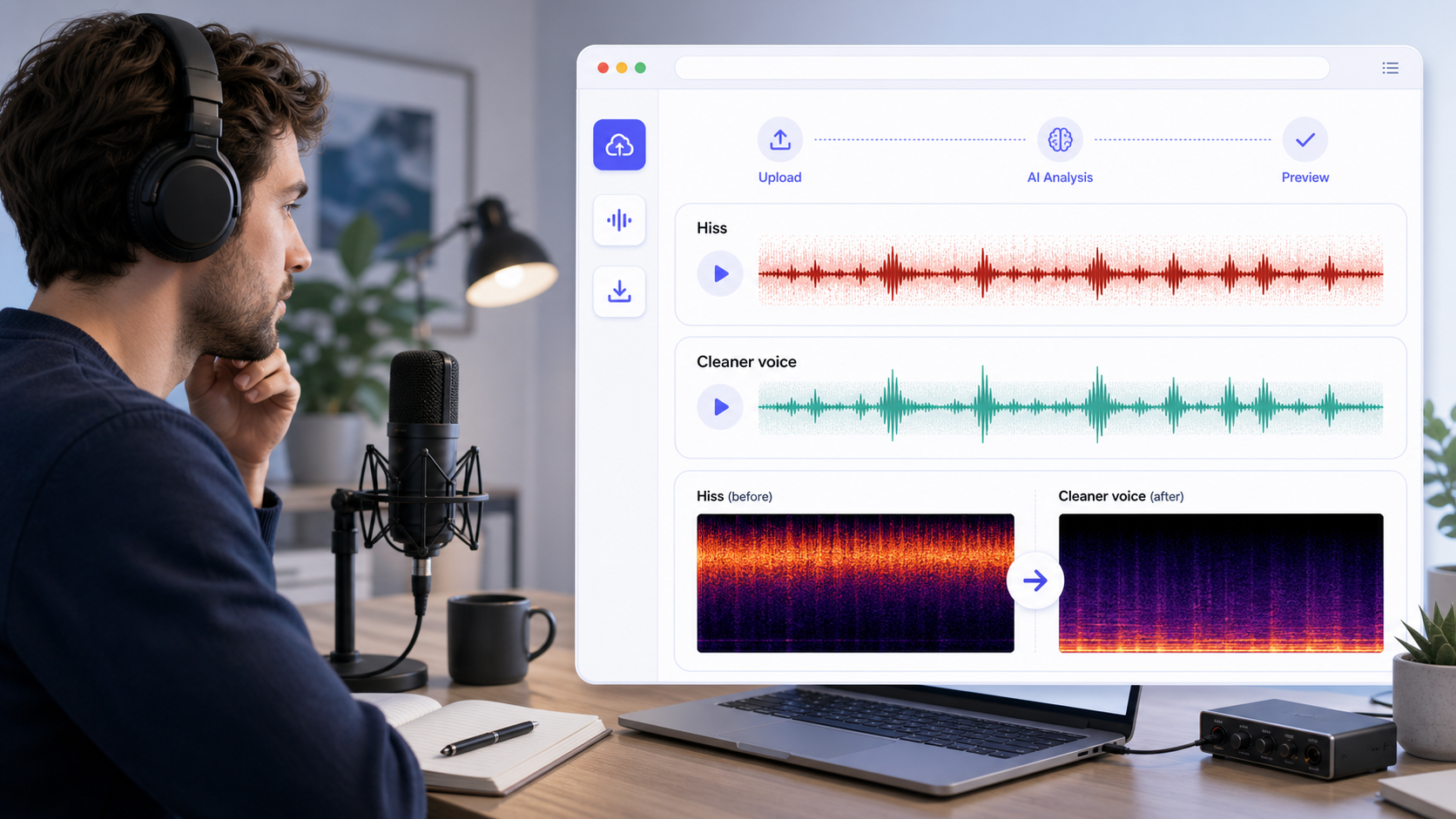
To remove hiss from audio, first confirm that the noise is actually steady hiss and not hum, whine, room echo, or traffic. Then use the lightest tool that matches the problem: a noise-profile reduction for steady broadband hiss, a notch filter for a narrow tone, or a gate only after the main hiss is already under control. The goal is not perfect silence. The goal is a voice that stays natural enough to trust.
That distinction matters because hiss is one of the easiest noise types to overprocess. Audacity's documentation is clear that noise reduction works best on constant noise and that aggressive settings can damage the sound you want to keep [1]. Adobe's restoration guidance makes the same point in a more general way: hiss is a restoration target, but stronger reduction always trades against signal quality [2].
If you want a faster review path before opening a full editor, CleanAudio's audio cleanup workflow is useful when the voice is clear but a steady layer of hiss makes the file feel cheap. For context on related problems, see noise removal vs noise reduction, types of background noise in recordings, and how to remove static from audio online.
Quick Diagnosis: Is It Really Hiss?
Hiss is usually a steady, broadband noise sitting behind the voice. It often comes from microphone self-noise, noisy preamps, boosted gain, or older analog material. It tends to feel like a constant layer rather than a repeating pulse.
That is different from:
- Hum, which is often tied to power frequency and harmonics.
- Whine, which is usually a narrower electronic tone.
- Clicks or pops, which are short events.
- Traffic or crowd noise, which changes over time.
This matters because a constant noise can often be profiled and reduced. A changing noise often cannot be cleaned the same way without obvious damage. Audacity's manual explicitly warns that noise reduction is not suited to irregular noise like traffic or audience sound [1].
Why "Just Denoise It Harder" Usually Fails
The common SERP answer is to run a denoiser until the background disappears. That works only when the hiss is mild and the voice has plenty of separation from the noise floor.
Once the denoiser starts grabbing breath detail, consonants, or room texture that helps the voice sound real, the result turns thin, metallic, or glassy. Audacity's support docs and manual both warn about artifacts when settings are pushed too far or when the noise profile is not representative [1].
A better rule is this: stop when the hiss stops distracting the listener. Do not keep pushing until the background becomes mathematically quiet.
A Practical Workflow for Hiss Removal
If you use a manual editor, treat hiss removal as a controlled profile-and-preview job. The example below follows the documented Audacity sequence, but the decisions also apply to editors that expose a noise print, reduction amount, sensitivity, and removed-signal monitor [1].
- Keep the original and choose the target audio. Duplicate the file or track. Decide whether you are cleaning one spoken passage or the complete recording; do not assume a profile selection is also the audio that will be processed.
- Select a hiss-only sample. Find a short section with the same steady hiss but no voice, breath, handling sound, music, or chair movement. Select only that section and choose the command that captures or learns the noise profile.
- Reselect the audio you actually want to clean. After the profile is captured, select the spoken region or the complete track. This easily missed step is why some attempts appear to process only the short noise sample.
- Open Noise Reduction and preview a conservative setting. Reduction controls how far the identified noise is lowered. Sensitivity controls how readily material is classified as noise. Increase either only when the hiss still distracts during speech, not merely because a pause is audible.
- Listen to the removed signal when the editor offers Residue or Output Noise. A good residue contains mostly hiss. Recognizable consonants, breaths, or syllables mean the profile or sensitivity is taking speech; return to the settings before applying.
- Return to Reduce mode and apply once. Compare the processed section with the untreated duplicate at a similar listening level. Do not stack a second pass by default. Reopen the original and revise the profile or strength if the first pass damaged the voice.
- Check three revealing moments. Listen to bright consonants such as S, T, and F, a sustained vowel, and the end of a sentence. Stop when the hiss is no longer distracting and those details remain stable.
- Export a short test. Render a passage containing active speech and a pause, then play it outside the editor. Only then process or export the complete recording.
If there is no clean hiss-only sample, do not capture a profile from a supposedly silent gap that contains quiet speech or breathing. Use a profile-free or adaptive cleanup path, process only sections with a comparable noise bed, or try automated cleanup on the original file. When the hiss changes with every edit or camera angle, one learned profile is unlikely to fit the whole recording.
CleanAudio removes the manual profile setup. Upload the original file, let the hybrid model analyze changing sections, and listen to the system-selected preview. Download the complete output only if speech is clearer without metallic consonants or unstable vowels. The preview is automatic; use your own noted checkpoints when reviewing the full downloaded file.
Which Tool Fits Which Kind of Hiss?
Use a noise-profile reduction when the hiss is steady from start to finish. That is the clearest match for the official Audacity and Adobe guidance [1][2].
Use a notch filter when the problem is not broad hiss but a narrow tone or whistle. Audacity's docs separate those cases for a reason [1]. If you treat a narrow tone like broadband hiss, you usually do more damage than necessary.
Use a gentle high-cut only when the hiss lives mostly in the extreme top end and the recording can afford a little softness. This is a judgment move, not a universal fix.
Use a retake when the speech is only slightly louder than the hiss, or when the noise changes as the speaker moves. Audacity's manual is direct about the limits here: satisfactory removal may be impossible when the voice is not much louder than the noise [1].
When CleanAudio Is the Faster Option
If your real question is not which plugin to use but whether the file is salvageable, a productized cleanup preview is often faster than building a full manual chain.
CleanAudio is useful when:
- The file is voice-first.
- The hiss is steady enough that you want a quick before and after judgment.
- You need to hear whether the voice stays natural before you invest more editing time.
- The recording also has a small amount of mixed background noise, not only hiss.
The right expectation is still limited. If the mic gain was too high, the voice is thin already, or the speaker sat far from the mic, no cleanup tool should be sold as perfect restoration. The practical workflow is simpler: upload, run cleanup, preview carefully, and keep the original if the cleaned version sounds less believable.
Common Mistakes
- Capturing the wrong noise profile. If the noise-only sample includes breath or consonants, the tool learns the wrong target [1].
- Treating hiss, hum, and whine as the same problem.
- Reapplying the same reduction because the first pass left a little hiss. Return to the original and revise the profile or amount instead of accumulating artifacts.
- Judging quality only in silent gaps instead of inside spoken words.
- Gating first, which can make the file sound abrupt and still leave hiss under the words [1].
- Chasing complete silence even after the voice starts sounding brittle.
What Usually Improves Future Recordings More Than Cleanup
If hiss keeps coming back, the permanent fix is often upstream:
- Move the speaker closer to the mic.
- Lower the amount of make-up gain you need later.
- Check whether the microphone or interface is the noisy part of the chain.
- Record a room sample so you can judge what the raw noise floor really is.
- Avoid stacking unnecessary processing before the main cleanup.
These steps are not glamorous, but they usually improve the next recording more than another round of post-processing.
Sources and Further Reading
[1] Audacity Manual: Noise Reduction
URL: https://manual.audacityteam.org/man/noise_reduction.html
[2] Adobe Audition Help: Reduce noise and restore audio
URL: https://helpx.adobe.com/audition/desktop/effects-reference/noise-reduction-restoration-effects.html