Types of Background Noise in Recordings and How to Fix Them
The most useful way to fix a noisy recording is to identify the noise before choosing a tool. A fan hum, a burst of wind, a hollow room, keyboard clicks, and another person talking in the background are not the same problem. They behave differently in the waveform, and they fail differently when you try to clean them.
The main types of background noise in recordings are steady noise, broadband hiss, wind and handling noise, room echo, transient clicks, mechanical noise, and unwanted speech. Some are good candidates for AI noise removal. Some are better handled with manual editing. Some are signs that the recording should be retaken if that is still possible.
If you need the broader decision framework first, start with background noise removal. This article focuses on diagnosis: what kind of noise you are hearing, why it happens, and which cleanup path makes sense.
Clean noisy recordings after you identify the problem
The sections below break down noise types so you can understand what went wrong in the recording, not because you need to manually choose filters, build an effects chain, or repair every file by hand. In CleanAudio, you upload the noisy audio or video, the AI analyzes the signal and reduces distracting background noise while trying to keep the voice clear, then you preview the cleaned result before downloading. Use the technical breakdown as a guide for setting expectations; use CleanAudio when you want the practical version of that workflow in one browser step.

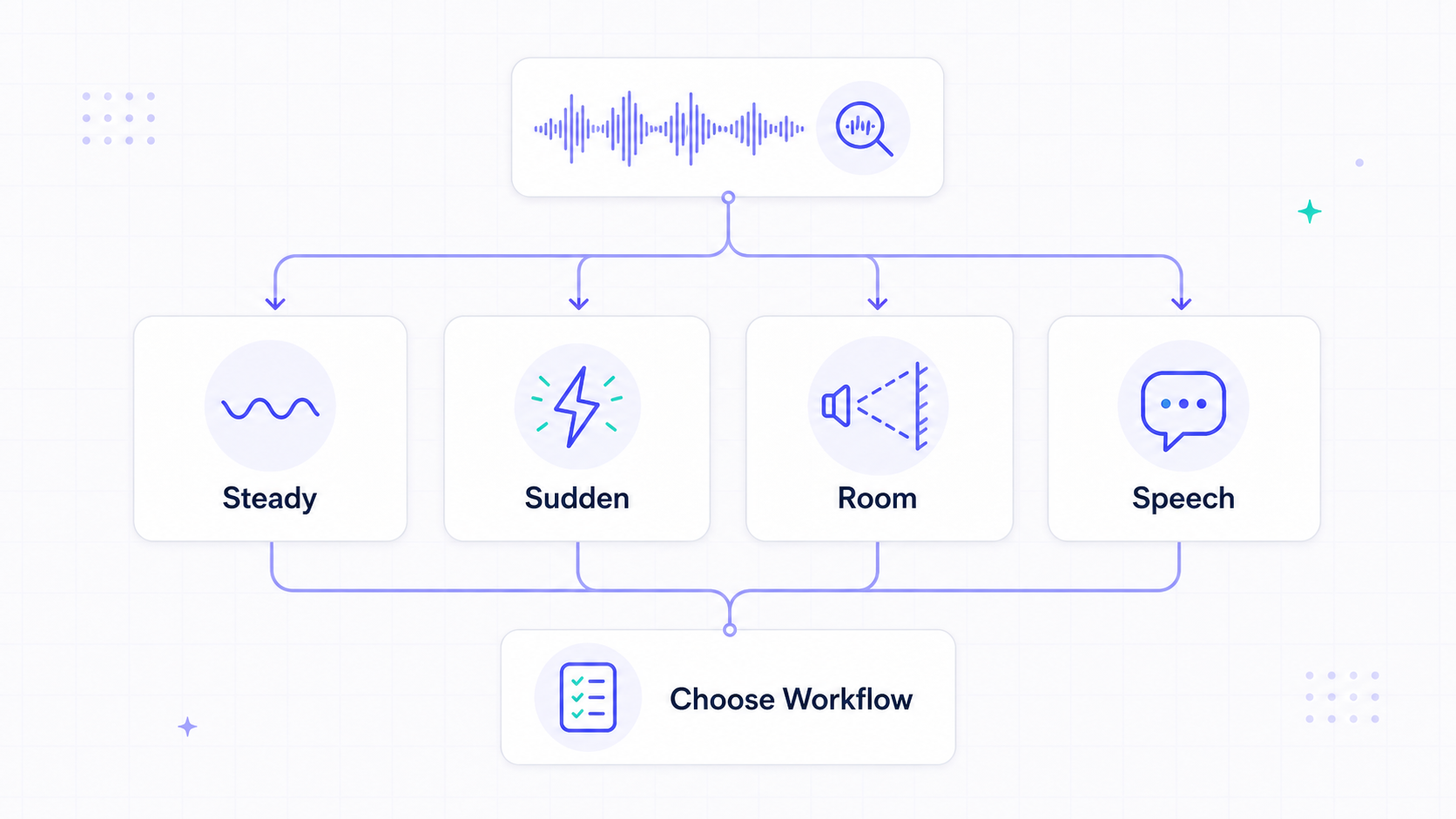
The Fast Diagnostic: Is the Noise Steady, Sudden, Room-Based, or Speech?
Before opening a cleanup tool, listen for the shape of the noise.
Steady noise stays almost the same across the recording. Fan hum, HVAC, electrical buzz, microphone hiss, and computer noise usually fall here. These are often the easiest to reduce because the unwanted sound has a predictable pattern. Audacity's noise reduction workflow, for example, is built around sampling a section of noise and applying that profile to the rest of the file [1].
Sudden noise arrives in bursts. Keyboard taps, mouse clicks, door knocks, coughs, and short bumps are not stable enough to behave like a constant noise floor. They may need targeted repair, manual editing, or a speech-aware cleanup model that can leave the voice intact while suppressing the interruption.
Room-based noise is part environment, part recording setup. Echo and reverb happen when the voice bounces off walls, glass, floors, or empty rooms before reaching the microphone. That makes them harder than a fan hum because the unwanted sound contains pieces of the voice itself.
Speech noise is the hardest category. If a partner talks in the background, a second speaker overlaps the main speaker, or chatter sits close to the microphone, a noise remover may treat that speech as something important. At that point the problem is not just background noise; it may require speaker separation, editing, or a retake.
Steady Hum and Buzz
Hum is usually a low, constant tone. In recordings, it often comes from electrical interference, ground loops, power supplies, fluorescent lights, or nearby equipment. Buzz is similar, but it often has a sharper, more textured sound.
This type of recording noise is usually a good cleanup candidate because it is predictable. If the voice is clearly louder than the hum, both manual noise reduction and AI noise removal can help. Manual tools may use a noise profile, a notch filter, or a hum-removal effect.
The failure mode is overlap. If the hum is loud enough to mask the lower part of the voice, reducing it too aggressively can make the voice thinner. The fix is not always "remove more." Sometimes the better result is a smaller reduction that leaves the voice natural.
Best fit: AI noise removal for quick cleanup, manual editing when you need precise control over a recurring hum. For a deeper workflow, see how to remove hum from audio.
Hiss and Microphone Noise
Hiss sounds like a constant layer of air or static. It can come from cheap microphones, noisy preamps, high gain settings, compressed audio, or a recording made too quietly and boosted later.
Hiss is often easier than wind or echo because it usually sits behind the voice as a steady broadband layer. If the speech was captured well, audio cleanup can lower the hiss without changing the speaker too much.
The common mistake is over-processing. Removing every trace of hiss can produce a dull or watery voice. A light noise floor is often less distracting than a damaged voice. This is especially true for podcasts and interviews where listeners care more about speech clarity than perfect silence.
Best fit: reduce hiss enough that the voice is comfortable to hear, not so much that the recording loses texture.
Fan, HVAC, and Computer Noise
Fans and HVAC systems create a mix of low rumble and mid-range whir. Laptop fans can change during the recording, especially during screen recording, video rendering, livestreaming, or long calls.
If the noise is constant, it behaves like steady background noise. If the fan ramps up and down, it becomes more difficult because the noise profile changes over time. A cleanup tool may still help, but the result depends on how much louder the voice is than the fan.
For future recordings, prevention is simple: move the microphone closer to the speaker and farther from the machine. Turning down gain and speaking closer to the mic usually beats trying to repair a distant voice surrounded by fan noise.
Best fit: AI cleanup for quick voice-first recordings; manual noise reduction when the fan is stable and you have a clean noise-only section. For a focused workflow, see how to remove fan noise from audio.
Wind and Mic Buffeting
Wind noise is not just "air in the background." It often hits the microphone capsule directly, creating low-frequency rumble, thumps, and distorted bursts. That is why wind can ruin an outdoor recording even when the speaker was close to the camera.
Light wind is a decent cleanup candidate. The voice is still present, and the unwanted rumble can often be reduced. Heavy wind is different. If the microphone clipped or the wind fully covered the voice, no cleanup workflow can rebuild missing syllables with certainty.
For videos, wind cleanup has one extra requirement: the cleaned audio must stay aligned with the picture. If the noisy file is video, use a workflow built for video audio cleanup rather than exporting and re-importing audio by hand. For a dedicated page, use remove wind noise from video.
Best fit: AI video noise removal when speech is still understandable; retake or record a separate voiceover when wind buried the voice.
Room Echo and Reverb
Echo and reverb are caused by reflections. The voice leaves the speaker, bounces around the room, and reaches the microphone more than once. The result can sound hollow, distant, or bathroom-like.
This is harder than removing hiss because the unwanted sound is not separate from the voice. It is the voice arriving late. A fixed filter can reduce some room tone, but aggressive processing can make speech unnatural.
Echo cleanup works best when the direct voice is still strong and the room reflection sits behind it. It works poorly when the speaker was far from the microphone in a hard, empty room. If the recording is mostly room and only a little direct voice, moving the microphone closer would have mattered more than any post-production tool.
For a dedicated workflow, use remove echo from audio.
Best fit: AI dereverb-style cleanup when the direct voice is clear; retake when the recording sounds mostly like the room.
Clicks, Pops, and Mouth Noise
Clicks and pops are short events. They may come from mouth sounds, plosives, cable movement, digital glitches, keyboard taps, or small handling bumps. They do not behave like a steady noise floor.
Short clicks can sometimes be repaired with targeted editing. A single loud pop may be easier to cut or reduce manually than to process the whole file. Repeated clicks, such as keyboard typing under narration, are better candidates for speech-aware cleanup because the tool has to keep consonants while reducing similar high-frequency interruptions.
The hard case is overlap. A keyboard click and a sharp consonant can live in a similar part of the spectrum. If you push too hard, speech loses crispness. The right goal is fewer distractions, not a perfectly scrubbed waveform.
Best fit: manual repair for isolated clicks; AI cleanup for repeated small interruptions behind speech.
Traffic, Sirens, and Outdoor Ambience
Traffic is mixed noise. A distant road may behave like steady rumble. A passing truck, horn, or siren is sudden and non-stationary. Street ambience also includes reflections, footsteps, chatter, and changing wind.
This is why generic advice often fails. Sampling a few seconds of traffic may not represent the rest of the clip. A quiet road section and a passing motorcycle are not the same background noise.
If the speaker is close to the microphone, AI noise removal can often push the voice forward and reduce the ambience. If the speaker is far away, the tool has less clean voice to preserve. For video creators, this is common in street interviews, travel vlogs, product demos outside, and event footage.
Best fit: AI cleanup when the voice is close; record closer or use a lavalier next time if the street is louder than the speaker.
Crowd Chatter and Overlapping Speech
Crowd chatter sits in the most difficult category because it is made of speech. A noise remover can often reduce the feeling of a crowd when the main speaker is close and clearly dominant. It may struggle when background voices are loud, close, or overlapping with the main voice.
This is not a weakness of one tool so much as a definition problem. Speech is usually the thing cleanup tools are trying to preserve. If unwanted speech looks too much like wanted speech, the tool may not know which one you meant.
For interviews, meetings, and events, prevention matters more than cleanup. Use a closer microphone, reduce distance, move away from the crowd if possible, and record a short test before the real take.
Best fit: cleanup for low-level chatter behind a clear speaker; editing, speaker separation, or retake when voices overlap heavily.
Mechanical and Device Noise
Mechanical noise comes from the recording device or the setup: camera autofocus motors, desk vibrations, microphone stand bumps, clothing rustle, action camera housing resonance, drone rotor sound, or cable contact.
Some mechanical noise is steady and fixable. A constant rotor-like tone may be reduced if the voice remains clear. Some is physical impact noise, which is harder because it briefly overwhelms the microphone.
The device matters. A phone held in the hand captures finger movement. An action camera in a housing can muffle the voice and add resonance. A desk microphone can pick up keyboard and mouse vibrations. A camera-mounted mic can capture lens noise. The cleanup path depends on what the microphone actually captured, not just the file type.
Best fit: cleanup when the voice is dominant; recording-side fixes when the device is physically transmitting the noise.
Which Types of Background Noise Are Easiest to Fix?
The easiest types of background noise in recordings share two traits: the noise is predictable, and the voice is clearly stronger than the noise.
| Noise type | Usually easier when | Usually harder when | Best first move |
|---|---|---|---|
| Hum / buzz | Constant and below the voice | Loud enough to mask low voice tones | AI cleanup or manual hum reduction |
| Hiss | Steady behind clear speech | Voice was recorded too quietly | Light noise reduction |
| Fan / HVAC | Stable across the take | Ramps up and down | AI cleanup or noise profile |
| Wind | Light to moderate | Mic clipped or voice buried | AI cleanup, then retake if needed |
| Echo / reverb | Direct voice is strong | Speaker is far from mic | Echo cleanup or retake |
| Clicks / pops | Isolated or behind speech | Overlap with consonants | Manual repair or AI cleanup |
| Chatter | Quiet behind a close speaker | Multiple voices overlap | Cleanup only if main voice dominates |
The pattern is simple: cleanup works on what is separable. When the unwanted sound is separate from the voice, you have options. When the unwanted sound becomes part of the voice, the result has limits.
Audio File or Video File: Choose the Workflow Last
Do not start by asking whether the file is MP3, WAV, MP4, or MOV. Start by asking what kind of noise is in it.
If the file is audio-only, use an audio cleanup workflow. That is the cleanest path for podcasts, interviews, voice notes, meetings, and narration. If you need a dedicated tool page, use remove background noise from audio.
If the file is video, use a video workflow that keeps the cleaned audio in sync with the picture. That matters for vlogs, course recordings, YouTube videos, webinars, phone footage, and screen recordings. If that is your case, use remove background noise from video.
The diagnosis comes first. The file workflow comes second.
How to Record Less Background Noise Next Time
The best cleanup happens before the recording starts.
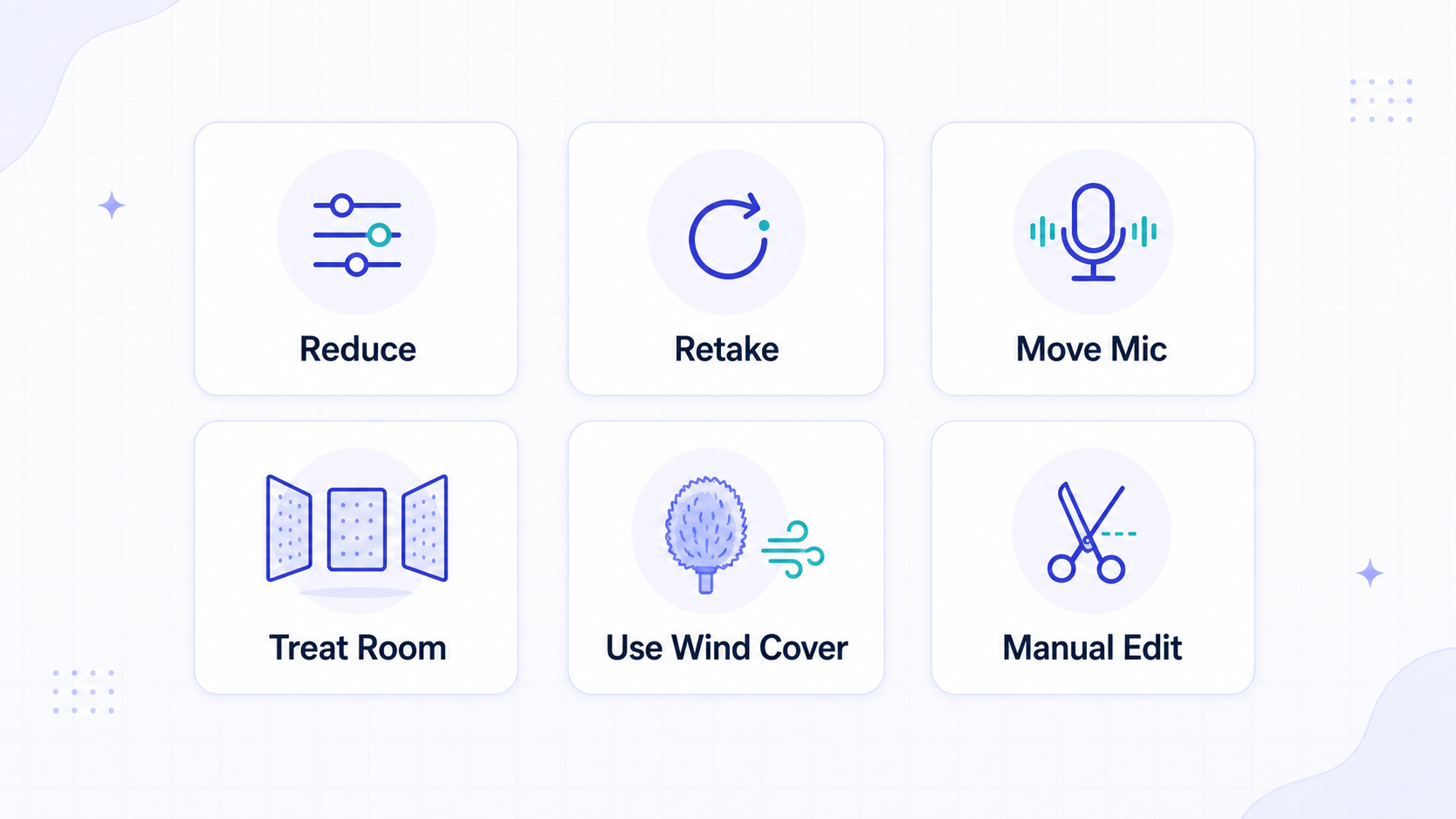
Move the microphone closer to the speaker. This one change improves almost every noise problem because it makes the voice louder relative to the room, street, fan, or crowd.
Turn off obvious noise sources when you can. Fans, HVAC, refrigerators, open windows, and laptop fans are easier to avoid than remove.
Use wind protection outdoors. A basic foam windscreen or furry wind cover can save a take that would otherwise be dominated by mic buffeting.
Soften reflective rooms. Curtains, rugs, furniture, and closer mic placement reduce echo more reliably than trying to remove a hard room later.
Record a short test. Listen through the same headphones or speakers you will use for editing. Most recording problems announce themselves in the first thirty seconds.
The Practical Rule
If the noise is steady and the voice is clear, cleanup is usually worth trying.
If the noise is sudden but does not cover the words, cleanup may still help.
If the recording is clipped, the voice is buried, or multiple speakers overlap, treat cleanup as a rescue attempt, not a guarantee.
That is the real value of learning the types of background noise in recordings. You stop treating every noisy file as the same problem, and you set better expectations before cleanup starts.
For most creator, podcast, interview, meeting, and video recordings, the practical next step is still simple: upload the file to CleanAudio, preview the AI-cleaned result, and download it if the voice sounds clearer. The technical diagnosis helps you understand the limits. CleanAudio turns the cleanup step into one browser workflow.