How to Remove Hum from Audio Recordings
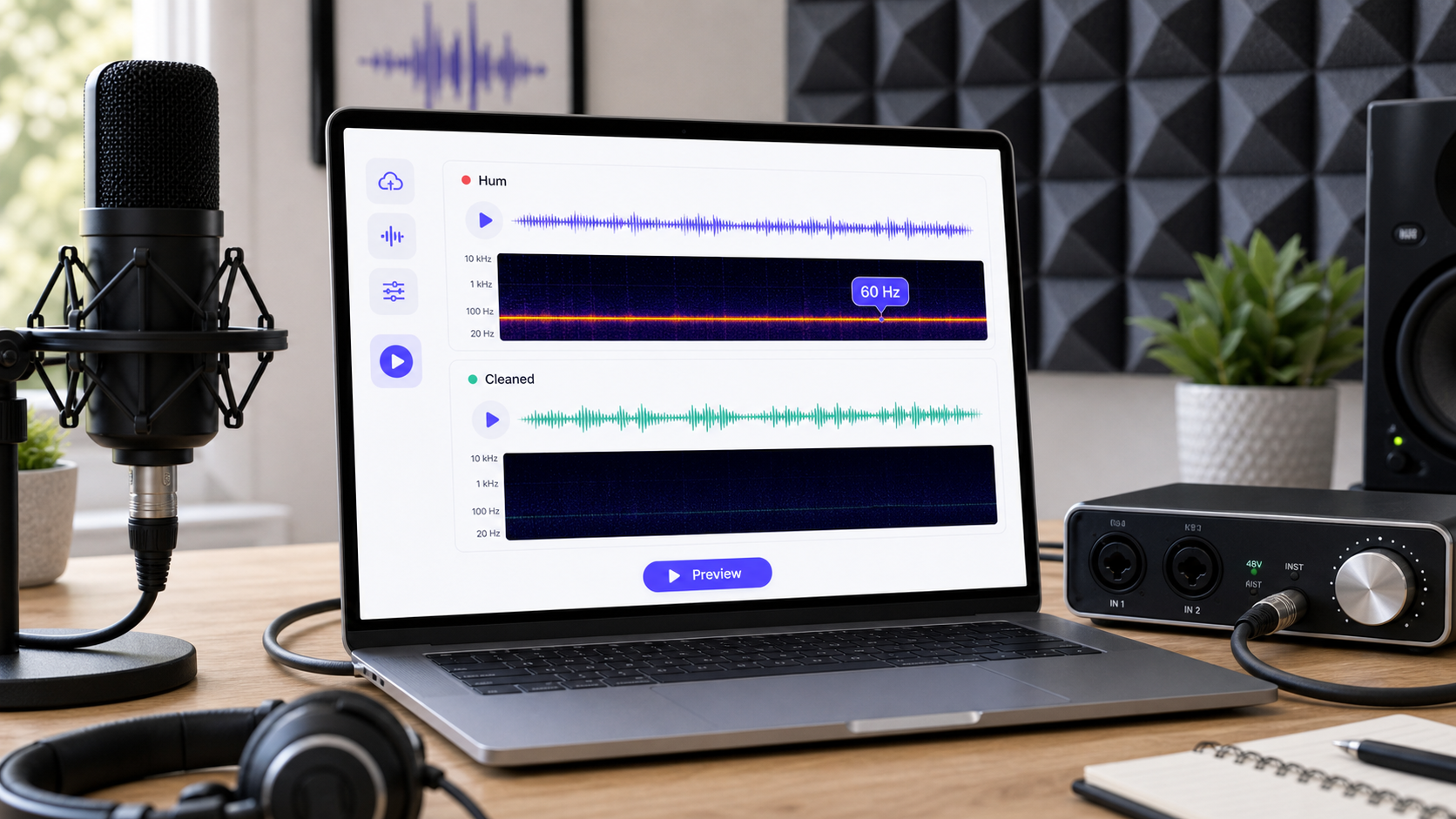 To remove hum from audio, first decide whether the hum is a steady electrical tone, cable buzz, ground-loop noise, low-frequency room vibration, or a mixed problem under speech. A steady 50 Hz or 60 Hz hum can often be reduced with targeted cleanup. If the hum is mixed with hiss, room noise, handling noise, or echo, a broader cleanup workflow may be faster.
If you need a quick first pass, use CleanAudio's audio noise remover. Upload the file, let the hybrid model analyze the recording, preview the cleaned result, and download if the voice is clearer. For video clips with hum, use remove background noise from video. For related diagnosis, see types of background noise in recordings and remove static from audio.
Hum is different from random hiss. Hiss is broad and noisy. Hum is often tonal: one main frequency plus harmonics. In many places that main frequency is tied to electrical power frequency, commonly 50 Hz or 60 Hz depending on region and equipment. That shape makes hum easier to identify, but not always easy to remove without affecting the body of the voice.
What Hum Usually Sounds Like
Hum often feels like a steady low note under the recording. Sometimes it is more of a buzz because harmonics stack above the main tone. It may come from a power adapter, unbalanced cable, nearby electrical device, lighting dimmer, audio interface problem, guitar pickup, or ground-loop issue.
| Hum type | What it sounds like | Common cause | Cleanup difficulty |
|---|---|---|---|
| low steady hum | deep tone under speech | power or ground issue | manageable if voice is clear |
| buzz with harmonics | harsher electrical texture | cable, adapter, light dimmer | moderate |
| hum plus hiss | tone plus broadband noise | noisy signal path | mixed workflow needed |
| hum plus echo | electrical tone in a reflective room | multiple problems | harder |
| hum under quiet speech | hum competes with voice body | poor source balance | risky to overprocess |
The best fix is source control, but source control is not always available after the recording is done. That is where cleanup choices matter.
Diagnose Before You Process
Listen to a section with no speech. If you hear a steady tone, hum is likely present. If you see a spectrogram, hum often appears as a horizontal line, sometimes with parallel lines above it. Those additional lines are harmonics. A notch-style process can reduce a narrow tone, but it can also thin the voice if pushed too far.
Use this diagnosis table:
| Question | If yes | What it means |
|---|---|---|
| Does the noise stay steady? | likely hum or fan bed | targeted cleanup may work |
| Does it buzz more than hum? | harmonics may be present | one narrow cut may not be enough |
| Does it change when cables move? | signal path issue | fix cable/interface before re-recording |
| Does it get worse near power adapters? | electrical coupling possible | separate audio and power paths |
| Does it disappear in another outlet? | possible ground loop | source fix beats software |
Professional audio tools often expose restoration or noise-reduction effects for this kind of problem [1]. Audacity's public guidance explains noise-reduction workflows and why careful sampling matters [2]. The principle is the same: identify the noise before deciding how much to reduce.
If You Use a Manual Cleanup Workflow
Manual hum removal should be narrow and conservative. Do not start with a heavy broadband denoise pass. Hum is usually tonal, so begin with the tonal problem.
- Save an untouched copy of the original file.
- Find a section where hum is audible without speech.
- Identify whether the hum is low and steady, buzzy with harmonics, or mixed with hiss.
- Try a narrow hum reduction or notch-style move first.
- If harmonics remain, reduce them lightly instead of making deep cuts everywhere.
- Listen to the speaker's chest tone and vowels before and after.
- Use light broad cleanup only if there is hiss or room noise in addition to hum.
- Stop when the voice starts to sound thin.
The voice has useful energy in low and low-mid frequencies. If you remove too much around the hum area, the voice can lose weight. The goal is not to erase every trace of electrical sound. The goal is to make it stop distracting the listener.
Where CleanAudio Fits
CleanAudio is useful when the hum is part of a mixed recording rather than a clean textbook tone. Many real files have hum plus hiss, room tone, echo, fan noise, or compression. A manual workflow asks the user to decide which layer to treat first and how much to reduce each one. CleanAudio's hybrid model workflow reduces that routing burden by analyzing the audio as a speech-first cleanup problem and giving you a preview.
Use CleanAudio first when:
- the recording has hum plus other background noise
- you do not know whether the problem is hum, hiss, or room tone
- the file is long enough that manual repair would be slow
- you want to compare the cleaned result before downloading
- the speaker is still clearly present in the original
Use manual repair first when the hum is a single narrow tone and you want exact control. Use a retake when the hum is so loud that it masks the speaker's lower voice.
Fix the Source Before the Next Recording
Software helps after the fact, but hum often starts in the signal chain. Before the next take, test the recording with headphones and change one thing at a time.
| Source fix | What to try | Why it helps |
|---|---|---|
| cable path | separate audio cables from power cables | reduces electrical coupling |
| connection | reseat or replace noisy cables | damaged cables can buzz |
| power | test a different outlet or power setup | can reveal ground problems |
| gain | avoid boosting a weak mic signal too much | raises noise with voice |
| distance | keep mic close to the voice | improves voice-to-noise ratio |
| environment | turn off suspect lights or devices | dimmers and adapters can add buzz |
Shure's recording guidance emphasizes microphone placement and clean source capture because software works with whatever the mic captured [3]. DPA's speech-intelligibility guidance also points back to the relationship between voice level and background noise [4]. Hum removal is easier when the voice is strong before cleanup begins.
When Hum Removal Is Not Enough
Hum removal has limits. If the recording was captured with very low voice level and high electrical noise, cleanup may reduce the hum but leave the voice weak. If the hum overlaps the body of a warm voice, aggressive reduction can make the voice feel smaller. If the audio is clipped, hum cleanup does not repair clipping.
A good result sounds less distracting and still natural. A bad result sounds technically quieter but emotionally worse: thin, phasey, hollow, or unstable. Keep the original and compare before publishing.
Practical Decision Framework
| Recording condition | Best first move |
|---|---|
| narrow steady hum only | manual tonal cleanup or CleanAudio preview |
| hum plus hiss | CleanAudio or layered manual cleanup |
| hum plus echo | CleanAudio echo/noise cleanup workflow |
| cable buzz changes over time | source fix and retake if possible |
| hum under clear speech | light cleanup and preview |
| hum louder than voice | retake if possible |
The cleanest path is often two-step: test a quick AI cleanup preview, then decide whether the file needs detailed manual work. If the preview solves the problem without harming the voice, you saved time. If it does not, you now know the recording needs more careful repair or a source fix.
FAQ
Can hum be removed from audio?
Hum can often be reduced, especially when it is steady and the voice is clear. If the hum is louder than the speaker or mixed with clipping, results are more limited.
What causes 60 Hz hum in audio?
It is often related to electrical power, grounding, cables, adapters, or nearby devices. The exact cause depends on the recording setup and region.
Is hum the same as hiss?
No. Hum is usually tonal and steady. Hiss is broader and more random. They need different cleanup decisions.
Can CleanAudio remove electrical hum?
CleanAudio can help reduce distracting hum when the voice remains clear, especially when the hum is mixed with other background noise. Preview the cleaned result before downloading.
Sources and Further Reading
[1] Adobe Audition: Noise Reduction / Restoration effects https://helpx.adobe.com/audition/desktop/effects-reference/noise-reduction-restoration-effects.html
[2] Audacity Support: Noise reduction and removal https://support.audacityteam.org/repairing-audio/noise-reduction-removal
[3] Shure: Microphone Techniques for Recording https://www.shure.com/damfiles/default/global/documents/publications/en/performance-production/microphone_techniques_for_recording_english.pdf-bb0469316afdb6118691d2f3f5e3ff01.pdf
[4] DPA Microphones: How to Improve Speech Intelligibility When Amplifying the Voice https://www.dpamicrophones.com/mic-university/audio-production/how-to-improve-speech-intelligibility-when-amplifying-the-voice/