How to Clean Voice Recordings Online
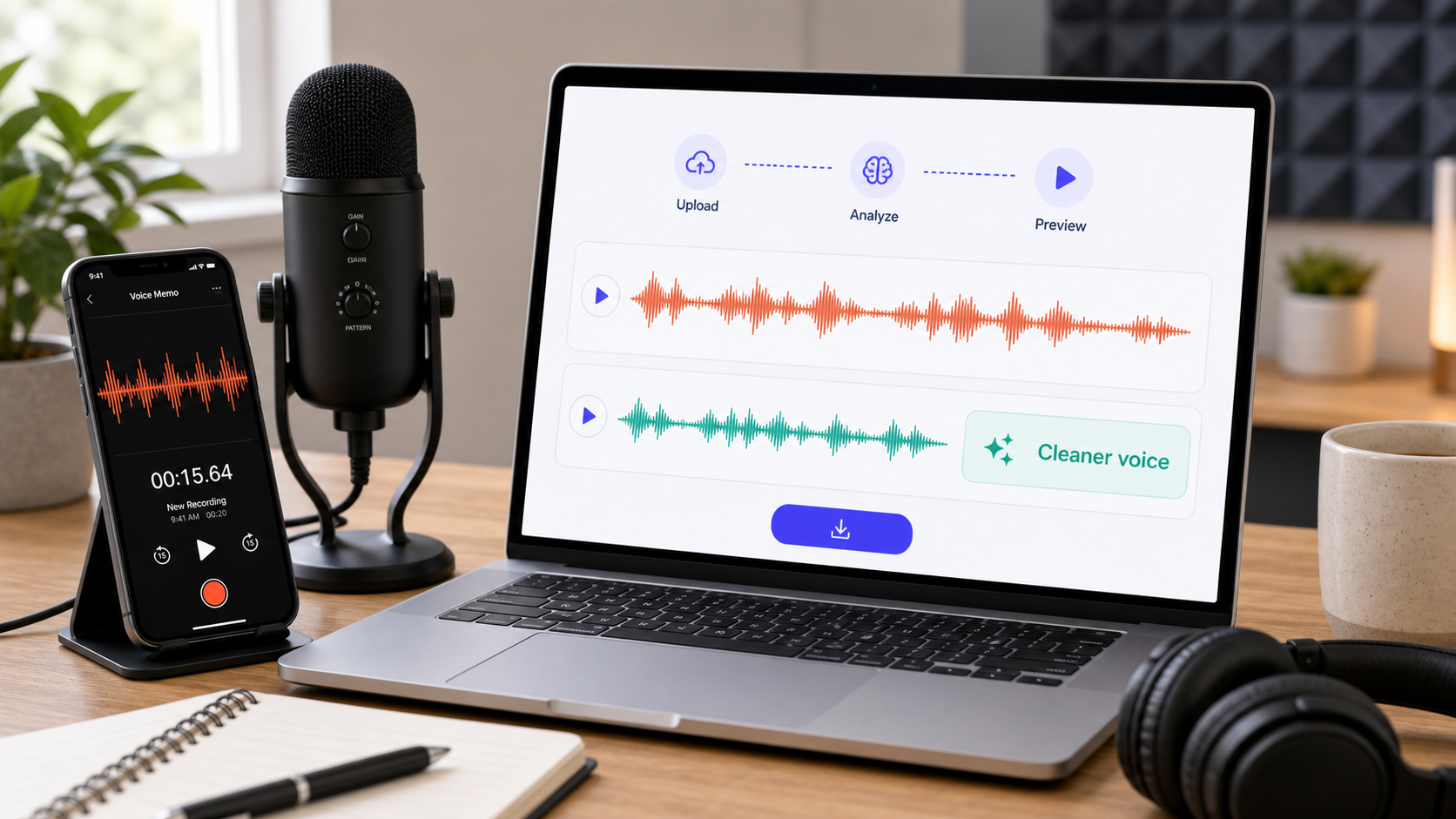 To clean a voice recording online, upload the file, preview cleanup on the worst sentence, and check whether the voice sounds clearer without becoming thin, watery, or robotic. The best workflow depends on the problem: steady hiss, hum, fan noise, room echo, mouth clicks, background chatter, or clipped speech. Do not chase silence. Chase a voice that is easier to understand and still natural.
Start with CleanAudio's audio noise remover. If the recording is inside a video, use remove background noise from video. For deeper troubleshooting, read background noise removal, remove hum from audio, and remove fan noise from audio.
Voice recordings come from phones, podcasts, interviews, Zoom calls, webinars, screen recordings, lectures, voice notes, and social videos. They rarely have just one issue. A phone memo can have room echo and handling noise. A podcast guest can have fan noise and mouth clicks. A meeting recording can have compression, keyboard sounds, and background chatter. Cleaning the voice starts with naming the problem.
Diagnose the Recording First
Before choosing a tool, listen to three sections: the first normal sentence, the worst noisy sentence, and a gap with no speech. Those moments tell you what the cleanup has to preserve and what it should reduce.
| What you hear | Likely problem | Better first move |
|---|---|---|
| steady hiss | broadband noise | light cleanup or AI preview |
| low buzz or tone | hum | hum-aware cleanup |
| air wash | fan or HVAC | fan-noise workflow |
| hollow room sound | echo/reverb | echo cleanup |
| short ticks | clicks or mouth noise | local repair or AI cleanup |
| other voices | background chatter | conservative preview |
| distorted loud words | clipping | retake if possible |
This diagnostic step prevents the common mistake: treating every problem as generic noise. Echo is not hiss. Hum is not fan noise. Chatter is not room tone. The more specific your diagnosis, the less likely you are to damage the voice.
A Practical Online Workflow
For an online workflow, keep it simple and preview-driven.
- Upload the original file.
- Let the tool analyze the recording.
- Preview the cleaned version on the worst sentence.
- Compare the original and cleaned file at the same volume.
- Check whether consonants, breaths, and tone still feel natural.
- Download only if the voice is clearer and believable.
- Keep the original file in case you need a lighter cleanup later.
CleanAudio is built around this kind of productized workflow: upload, hybrid model analysis, preview, download. That is useful when the file has mixed noise and you do not want to build a manual chain of noise profiles, filters, repair tools, and export steps.
When Manual Repair Still Makes Sense
Online AI cleanup is not always the first tool. Manual repair is better when the problem is small and visible: one click, one cough between phrases, one handling bump, one short plosive, or one gap with noise. Processing the whole file for one defect can create more harm than good.
| Problem | Online AI cleanup | Manual repair |
|---|---|---|
| long noisy voice memo | good first test | slow |
| one loud click | may help | usually better |
| fan plus room tone | good first test | possible but slower |
| clipped word | limited | retake if possible |
| echo-heavy room | needs echo-aware cleanup | difficult manually |
| video voice track | useful if sync matters | extra export/re-sync |
Audacity's guidance around noise reduction and click repair shows why cleanup methods differ by defect type [1][2]. Professional restoration tools also separate broad noise, clicks, and repair-style effects rather than treating all problems as one switch [3].
What CleanAudio Is Best For
CleanAudio is a strong fit for voice recordings that are understandable but distracted by background noise. That includes interviews, voice memos, podcast guest tracks, meeting recordings, screen recordings, narration, and creator videos. The productized value is not only that it reduces noise. It reduces the number of setup decisions before you hear a usable preview.
Use CleanAudio when:
- you want to clean a voice recording online
- the voice is still clear enough to preserve
- the noise is mixed or changing
- you want to avoid manual settings
- you need audio or video cleanup
- you want to preview before downloading
Do not use any cleanup tool as a substitute for missing speech. If a word is clipped, buried, or spoken over by another person, cleanup can reduce distraction but may not recover the word.
How to Judge the Result
Use the listener test, not the waveform test. A waveform that looks cleaner can still sound worse.
| Check | Good result | Bad result |
|---|---|---|
| clarity | words are easier to follow | voice is quieter but not clearer |
| tone | speaker still sounds natural | voice sounds metallic or watery |
| consonants | s, t, k, f remain crisp | speech gets smeared |
| noise | less distracting | replaced by artifacts |
| context | room still feels believable | background vanishes unnaturally |
If the cleaned version feels more publishable and the voice still sounds human, you have probably gone far enough.
Recording Tips for Next Time
The best cleanup starts before upload. Move the microphone closer to the speaker. Record away from fans, laptops, and reflective walls. Use a pop filter for voiceover. Test for hum before the full take. Ask people nearby to pause during important lines. Record 10 seconds and listen with headphones.
Shure and DPA both emphasize source capture and speech intelligibility principles: the clearer the voice is at the microphone, the more useful signal any cleanup workflow has to preserve [4][5].
FAQ
Can I clean a voice recording online?
Yes. Upload the file, preview the cleaned result, and download only if the voice is clearer and still natural. CleanAudio is designed for this kind of browser workflow.
What is the best way to clean a voice memo?
Start by identifying the problem: hiss, hum, fan noise, echo, mouth clicks, or chatter. Then use AI cleanup for mixed noise or manual repair for a few isolated defects.
Can AI make a bad voice recording sound professional?
It can reduce distraction, but it cannot fully restore clipped, buried, or missing speech. A clear source recording still matters.
Should I remove all background sound?
No. A small amount of natural room sound can be better than a damaged voice. The goal is clearer speech, not mathematical silence.
Sources and Further Reading
[1] Audacity Support: Noise reduction and removal https://support.audacityteam.org/repairing-audio/noise-reduction-removal
[2] Audacity Manual: Click Removal https://manual.audacityteam.org/man/click_removal.html
[3] Adobe Audition: Noise Reduction / Restoration effects https://helpx.adobe.com/audition/desktop/effects-reference/noise-reduction-restoration-effects.html
[4] Shure: Microphone Techniques for Recording https://www.shure.com/damfiles/default/global/documents/publications/en/performance-production/microphone_techniques_for_recording_english.pdf-bb0469316afdb6118691d2f3f5e3ff01.pdf
[5] DPA Microphones: How to Improve Speech Intelligibility When Amplifying the Voice https://www.dpamicrophones.com/mic-university/audio-production/how-to-improve-speech-intelligibility-when-amplifying-the-voice/