How to Clean Audio from iPhone Videos
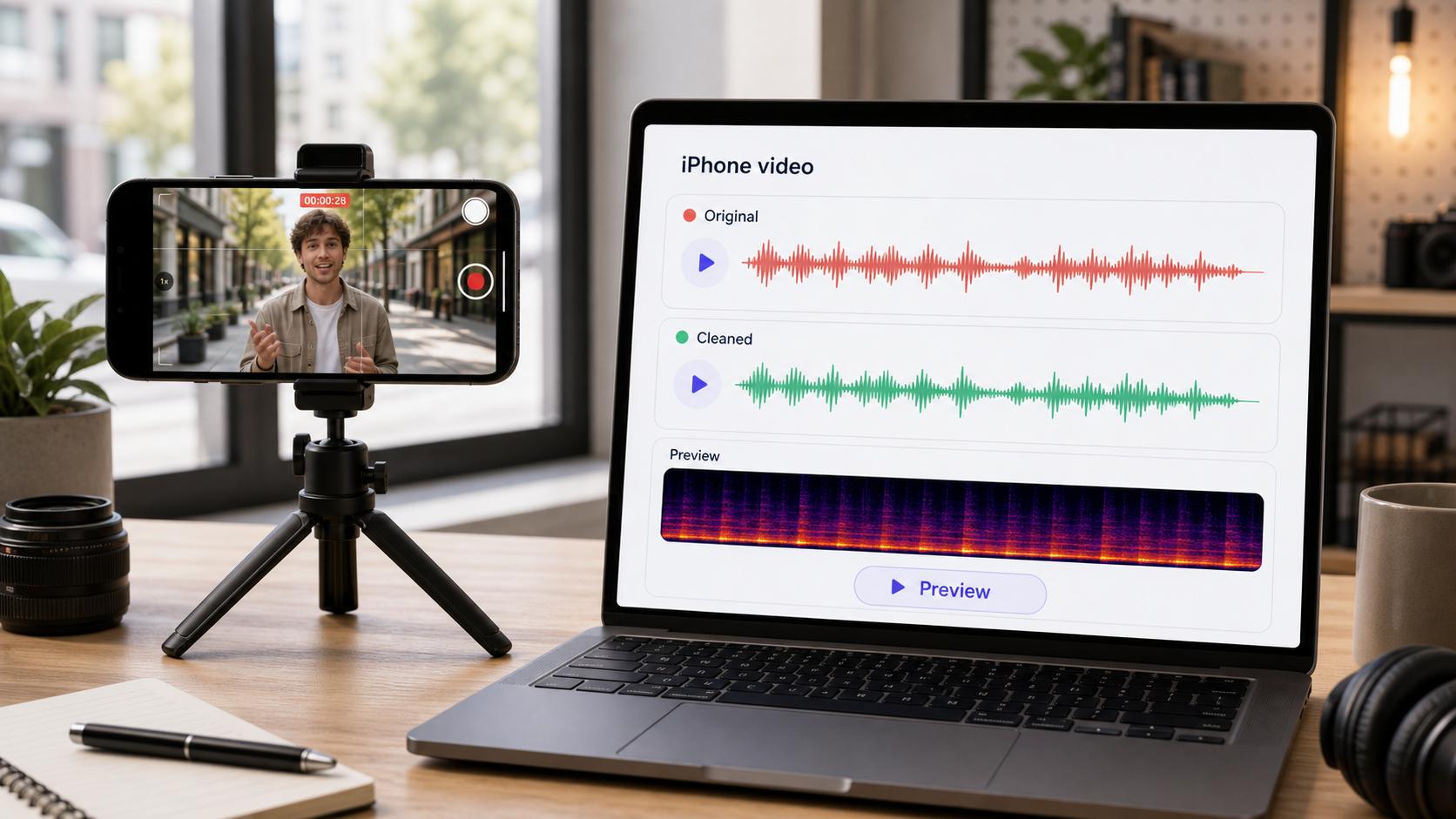
To clean audio from iPhone videos, first decide what the phone actually captured: wind, street noise, room echo, handling noise, loud music, or a voice that was simply too far from the microphone. Then clean the lightest layer that blocks speech and preview the result during real words, not in silent gaps. iPhone footage is often visually good enough to publish while the sound is the weak link, so the right cleanup decision can save a clip that would otherwise feel amateur.
If the voice is still understandable and the background is the main distraction, CleanAudio's video noise remover is a fast way to upload the iPhone video, let the hybrid model analyze the audio track, preview a cleaner version, and download if speech becomes easier to follow. If the phone was far away, the mic clipped, or wind completely covered words, cleanup may still reduce distraction, but it cannot recreate speech detail that was never captured.
For broader context, see video audio cleanup workflow, background noise removal, and how to remove wind noise from video.
Why iPhone Video Audio Fails Even When the Picture Looks Good
Modern iPhones make video capture feel effortless. Apple's own camera guide focuses on how easy it is to record and adjust video settings [1]. The audio side is less forgiving because the microphone is still bound by physics: distance, wind, handling noise, room reflections, and background voices all compete with speech before the file ever reaches an editor.
That is why iPhone video cleanup is not one problem. A selfie on a sidewalk, a cooking tutorial in a kitchen, a classroom clip, and a travel vlog all fail in different ways.
| Recording situation | What usually goes wrong | What cleanup can do | What cleanup cannot do |
|---|---|---|---|
| Outdoor selfie | wind rumble, traffic, passing voices | reduce the background so speech is less buried | restore words fully covered by gusts |
| Indoor tutorial | refrigerator, HVAC, room echo | lower steady noise and shorten room wash | make a distant phone sound like a close mic |
| Event or cafe clip | crowd chatter, music, clinking | reduce overall distraction if the speaker is forward | separate every background voice |
| Handheld vlog | finger taps, case rub, movement noise | reduce some repeated noise; local hits may need edits | remove a hard bump without touching the rest |
| Screen-facing lesson | desk vibration, keyboard, fan | clean steady layers and some short events | fix clipped speech or bad mic placement |
The key is to diagnose the dominant problem before choosing a tool.
Quick Diagnosis Before You Clean
Use the same 60-second check on every iPhone clip.
Listen to the first full sentence with headphones.
Jump to the noisiest usable moment.
Listen to one quiet pause.
Ask whether the voice is still clearly present.
Decide whether the noise is steady, changing, reflective, or local.
Steady noise includes fans, HVAC, refrigerators, and some room tone. Changing noise includes traffic, crowds, wind, and movement. Reflective noise is room echo: the voice bouncing back from walls. Local noise includes taps, bumps, cable hits, and sudden handling sound.
This matters because a steady layer can often be reduced across the clip. A sudden bump may need a local edit. Room echo needs a different expectation because it is reflected speech, not a separate background bed.
A Practical Cleanup Workflow for iPhone Videos
Start with the original iPhone file if you still have it. Avoid cleaning a clip that has already been compressed through several social apps, because each export can make artifacts harder to separate from the voice.
- Keep a copy of the original file.
- Clean before adding music, captions, or loudness processing.
- Preview normal speech first.
- Check the worst noisy moment second.
- Compare the cleaned file against the original at the same volume.
- Keep the cleaned version only if speech is easier to follow and still sounds natural.
If you use a manual workflow, treat the first pass as diagnosis rather than repair. Split the clip into problem types and make one conservative move at a time.
| iPhone audio problem | Manual move | How to do it in practice | Stop if |
|---|---|---|---|
| Stable fan, fridge, or HVAC | light noise reduction | sample a quiet section if your editor supports it, then apply a low reduction amount and preview speech | S, T, and K sounds smear or the voice gets watery |
| Outdoor rumble or handling low-end | low-frequency cleanup first | reduce low rumble before broad denoise; judge whether the voice becomes clearer, not just thinner | the speaker loses body or sounds distant |
| One tap, case rub, or bump | local repair | cut, reduce, or repair only that moment instead of processing the whole clip | the surrounding sentence starts sounding edited |
| Room echo in an indoor iPhone clip | gentle echo cleanup | shorten the room sound just enough for words to feel closer | the voice becomes gated, hollow, or artificial |
| Wind and traffic changing every few seconds | segment-based cleanup | treat the worst sections separately; do not force one setting across the whole video | quiet sections sound overprocessed while loud sections still fail |
A practical order is: remove low rumble first, reduce the stable background layer second, repair isolated taps third, then preview the whole spoken section. Do not chase total silence. iPhone videos usually sound more natural when a little room or street texture remains under a clear voice.
Where CleanAudio Fits
CleanAudio is useful when the iPhone video has mixed but intelligible speech. A phone clip may contain wind in one section, traffic in another, and room tone when the speaker walks indoors. A manual workflow asks the editor to notice those changes and choose different treatments. CleanAudio's hybrid model workflow reduces that burden by analyzing the audio track as a speech-first cleanup problem and giving you a preview before download.
Use it when you want to know quickly whether the clip can be published. Upload the iPhone video, preview the cleaned voice, and compare it against the original. If the cleaned version makes the speaker easier to understand without making the voice thin or strange, it is doing the job.
iMovie, Phone Settings, and Dedicated Cleanup
iMovie is useful for ordinary edits, trimming, arranging clips, and preparing a mobile video project [3]. It is not the same thing as a dedicated speech-cleanup workflow. Playback EQ settings on a phone can change how audio sounds to the listener, but they do not remove noise from the recorded file itself [2].
That distinction matters. If you only need a quick social edit, a video editor may be enough. If the problem is that the audience cannot comfortably hear the speaker, treat audio cleanup as its own step before final editing.
When to Retake Instead of Repair
Retake if you can when the speaker is far from the phone, the voice clips during key words, wind covers entire phrases, or multiple people talk over the speaker. Cleanup is best when there is a voice to preserve. It is weaker when the voice is missing, distorted, or competing with another voice at the same level.
For the next shoot, keep the phone closer, shield it from direct wind, avoid touching the case while speaking, and record a five-second test before the real take. Small capture decisions usually beat heroic cleanup later.
FAQ
Can I remove background noise from an iPhone video after recording?
Yes, if the speech is still understandable. Cleanup can reduce wind, traffic, HVAC, room tone, and other distractions, but it cannot perfectly restore words that were fully covered or clipped.
Is iMovie enough to clean iPhone video audio?
iMovie is useful for video editing, but dedicated cleanup is usually better when the main issue is noisy speech. Use iMovie for editing the story; use audio cleanup when speech clarity is the problem.
Can CleanAudio remove wind noise from iPhone video?
It can reduce wind noise when the voice is still present behind the wind. If a gust overloads the microphone and hides the words, treat the result as damage control rather than guaranteed restoration.
Should I clean audio before or after editing the iPhone video?
Clean before final music, loudness, and export work. That makes it easier to judge whether the spoken line is actually clearer.
Sources and Further Reading
[1] Apple Support: Record videos with your iPhone camera
https://support.apple.com/guide/iphone/record-videos-iph61f49e4bb/ios
[2] Apple Support: Change the way music sounds on iPhone
https://support.apple.com/guide/iphone/change-the-way-music-sounds-iph5643d2c85/ios
[3] Apple Support: iMovie User Guide for iPhone
https://support.apple.com/guide/imovie-iphone/welcome/ios
[4] Audacity Support: Noise reduction and removal
https://support.audacityteam.org/repairing-audio/noise-reduction-removal