How to Remove Background Noise in Descript
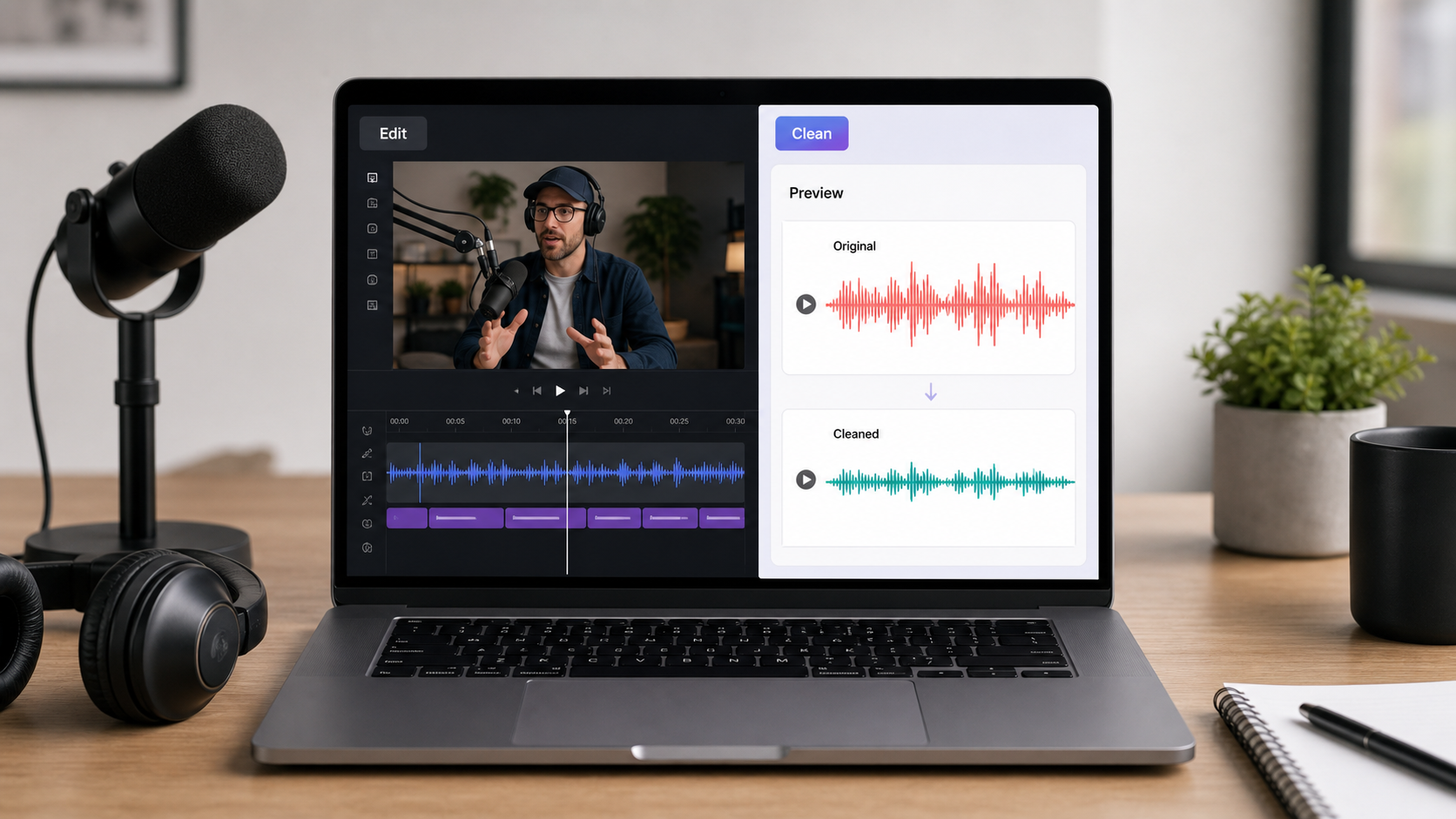
To remove background noise in Descript, import your recording, apply Descript's speech cleanup feature, preview the worst part of the file, and adjust the strength if the voice starts sounding processed. For simple podcast, video, or voiceover files, that may be enough. For mixed noise, changing environments, or files you want to judge before editing, a dedicated cleanup pass can be faster.
This article is not a tour of every Descript feature. It focuses on one practical question: when should you clean audio inside the editor, and when should you clean the recording first with a tool like CleanAudio's audio noise remover?
The Descript Studio Sound Workflow
Use this workflow when the recording is already in Descript and you want to clean the audio without leaving the edit.
1. Select the right audio object before turning anything on
Descript's official Studio Sound help separates the workflow by where the audio lives [1]. In a normal composition, select the script layer first. Then open the Properties panel in the right-hand sidebar and look under Audio effects for Studio Sound. In a multitrack sequence, open the Sequence Editor, select the specific track you want to process, then use that track's Properties panel.
That selection step is not cosmetic. If you select the wrong layer or track, you may process a different source than the one you meant to clean. The safe check is simple: click the layer or track, confirm the Properties panel is describing the correct audio, then enable Studio Sound.
This also matters because Studio Sound is applied at the file level. Descript says that once Studio Sound is enabled on a file, it affects every instance of that file across the project [1]. Before you turn it on, decide whether you want the whole source cleaned or only one section.
2. Apply Studio Sound, then wait for processing
After Studio Sound is enabled, let Descript process the file before judging the result. The official help notes that Studio Sound requires an internet connection and may take longer on very large files [1]. For a short creator clip, that may be a small pause. For a several-hour recording or a large video file, it can be slow enough that splitting the project into shorter pieces becomes more practical.
Do not keep editing aggressively while you are still unsure whether the audio is usable. First confirm that the cleaned speech is actually better.
3. Use the Intensity slider as a quality control, not a vanity knob
Descript's help says the Intensity slider controls how much Studio Sound is applied to the file [1]. Treat it as a tradeoff control. More intensity can reduce more background distraction, but it can also make speech feel less natural when the original recording is noisy or when the voice and background overlap.
Use this listening order:
- Play the noisiest sentence first, because that is where the cleanup decision matters.
- Then play a normal sentence, because aggressive cleanup can sound fine in a bad section but unnatural in a clean section.
- Lower the intensity if consonants smear, the voice becomes hollow, or the waveform looks unusually flat.
- If the voice is still hard to understand at a lower intensity, do not keep pushing the slider upward by habit. That is a sign the source may need a different cleanup workflow or a retake.
- Toggle or compare against the original before exporting.
Descript's troubleshooting guidance is useful here: if the waveform appears flat or silent after enabling Studio Sound, the recording may have very loud background noise, and the suggested fix is to reduce the Intensity slider or disable Studio Sound for that file [1]. That is a good rule even when the file is not fully silent after processing. A cleaner waveform is not useful if the voice loses its natural texture.
4. If only one section needs cleanup, isolate it first
This is the part many tutorials skip. Descript's official workflow for applying Studio Sound to only part of a file is not simply "select a few seconds and toggle it." Their help recommends duplicating the audio section into a new composition, using Flatten tracks to turn it into a new project file, applying Studio Sound to that new file, then replacing the section in the original project [1].
In practical terms, use that partial-file path when one section is much worse than the rest of the project: a noisy intro, one guest answer, a clip recorded in a different room, or a sentence with a sudden background layer. It is more work than a one-click cleanup, but it prevents a common problem: applying strong processing to a whole source file when only one noisy section needed it.
5. Export only after checking the edited context
Once the cleaned audio sounds acceptable, check it inside the actual edit. Listen across cuts, music, captions, and transitions. A setting that sounds fine on one isolated sentence may expose tone changes after you remove filler words or rearrange sections.
That is the Descript-native path: select the right layer or track, enable Studio Sound, adjust intensity, isolate sections when needed, then export only after a real before/after listen.
What Descript Is Good At
Descript is strongest when cleanup is part of a broader editing workflow. You may already be cutting filler, rearranging speech, editing video, adding captions, or publishing a podcast. If the recording has light background noise and the speaker is clear, cleaning inside the editor keeps the work in one place.
That is the natural advantage: fewer tools, fewer exports, less friction.
Use Descript first when:
- The voice is close and understandable.
- The background noise is moderate.
- The recording is already inside a Descript project.
- You need text-based editing, captions, or a quick social/video workflow.
- The cleanup preview sounds natural at moderate strength.
That last point matters most. The right result is not silent background. It is speech that remains easy to listen to.
When a Dedicated Cleanup Pass Fits Better
There are cases where it is cleaner to process the original file before you spend time editing:
| Recording problem | Why it is harder inside an editor | Better first move |
|---|---|---|
| Noise changes across sections | One broad setting may under-clean some parts and over-clean others | Preview a dedicated cleanup result first |
| Multiple noise types | Hum, hiss, room tone, and chatter may need different treatment | Use an AI cleanup workflow that routes by segment |
| Important voiceover | You need to judge quality before cutting the project | Clean and compare before editing |
| Long source file | Editing a bad file wastes time | Test cleanup on the source first |
| Robotic artifacts | Strong processing may hide problems until later | Reduce strength or switch workflow |
CleanAudio fits here because it is not trying to be your editor. It is a productized cleanup workflow: upload the file, let the hybrid model analyze the recording, preview the cleaned voice, and download only if the result is clearly better. For a deeper comparison, see Audacity vs AI noise remover and best AI audio cleanup tools.
Best Checks Before You Commit in Descript
The practical review is still an editor's review, not a feature checklist.
| Check | What to listen for | What to do |
|---|---|---|
| Worst noisy sentence | Can you understand the words more easily? | Keep the setting only if speech improves |
| Soft consonants | Are S, T, F, and K sounds smeared? | Lower intensity if they blur |
| Cut boundaries | Does the room tone jump between edits? | Recheck sections after text edits |
| Quiet speaker | Did cleanup suppress a softer voice? | Reduce intensity or process sections separately |
| Export sample | Does the file still sound right outside Descript? | Export a short test before final output |
This is the same reason manual tools ask you to preview. Audacity's noise-reduction workflow separates noise profiling from reduction because the tool needs a reference for what to reduce [2]. Adobe Audition's restoration tools also warn indirectly through workflow design: cleanup choices can introduce artifacts when pushed too hard [3]. Different tools use different controls, but the editorial habit is the same. Preview before trusting the result.
If Descript handles the source cleanly, keep the work there. If Studio Sound suppresses speech, struggles with a very noisy file, or forces too much processing across a whole source, clean the original file before editing and bring the usable version back into the project.
Descript vs CleanAudio
This is not a winner-takes-all decision. The tools sit in different parts of the workflow.
| Need | Better fit |
|---|---|
| Text-based editing, captions, publishing workflow | Descript |
| Quick source-file cleanup preview | CleanAudio |
| Light noise inside an existing project | Descript |
| Mixed background noise before editing | CleanAudio |
| Detailed timeline and transcript work | Descript |
| Browser cleanup without building an effects chain | CleanAudio |
The cleanest workflow for many creators is sequential: clean the source when audio quality is uncertain, then edit the usable file. If the recording is already good enough, clean lightly inside the editor and move on.
Common Mistakes
| Mistake | What happens | Better move |
|---|---|---|
| Applying maximum cleanup by default | The background drops, but the voice can become thin or artificial | Start moderate and compare |
| Judging only the first sentence | Later sections may have worse noise | Preview the worst section |
| Cleaning after a full edit | Bad audio decisions become expensive to undo | Test source quality early |
| Treating echo like ordinary noise | Room reflections overlap the voice | Use echo cleanup or retake in a better room |
| Ignoring the original file | You lose the best reference | Keep a raw copy |
FAQ
Can Descript remove background noise?
Descript offers speech cleanup through Studio Sound, which is designed for clearer spoken recordings [1]. The result depends on the source file and how much the noise overlaps the voice.
Should I clean audio before or after editing in Descript?
If the recording quality is uncertain, test cleanup before editing. If the file is already usable and you only need light cleanup, doing it inside Descript can be convenient.
When should I use CleanAudio instead?
Use CleanAudio when you want to clean the original audio or video file quickly, preview the result, and avoid tuning an editor effects chain by hand.
Can background noise removal make the voice sound robotic?
Yes, if processing is too aggressive or the voice and noise overlap heavily. See why noise removal can sound robotic for the technical explanation.