Best Noise Removal Tools for Video Creators
The best noise removal tool for a video creator depends on where audio cleanup belongs in the production. CleanAudio is a strong fit for fast browser-based cleanup of recorded audio or video with changing background noise. Premiere Pro fits creators who want dialogue repair inside an established timeline. DaVinci Resolve's Fairlight page provides deeper audio-post control. CapCut suits lightweight social editing. Descript fits transcript-led spoken video.
This is not a claim that one tool produces the best result on every file. Without controlled test recordings, that ranking would be invented. The useful comparison is workflow fit: sync, control depth, mixed-noise handling, review time, and what else the project still needs after cleanup.
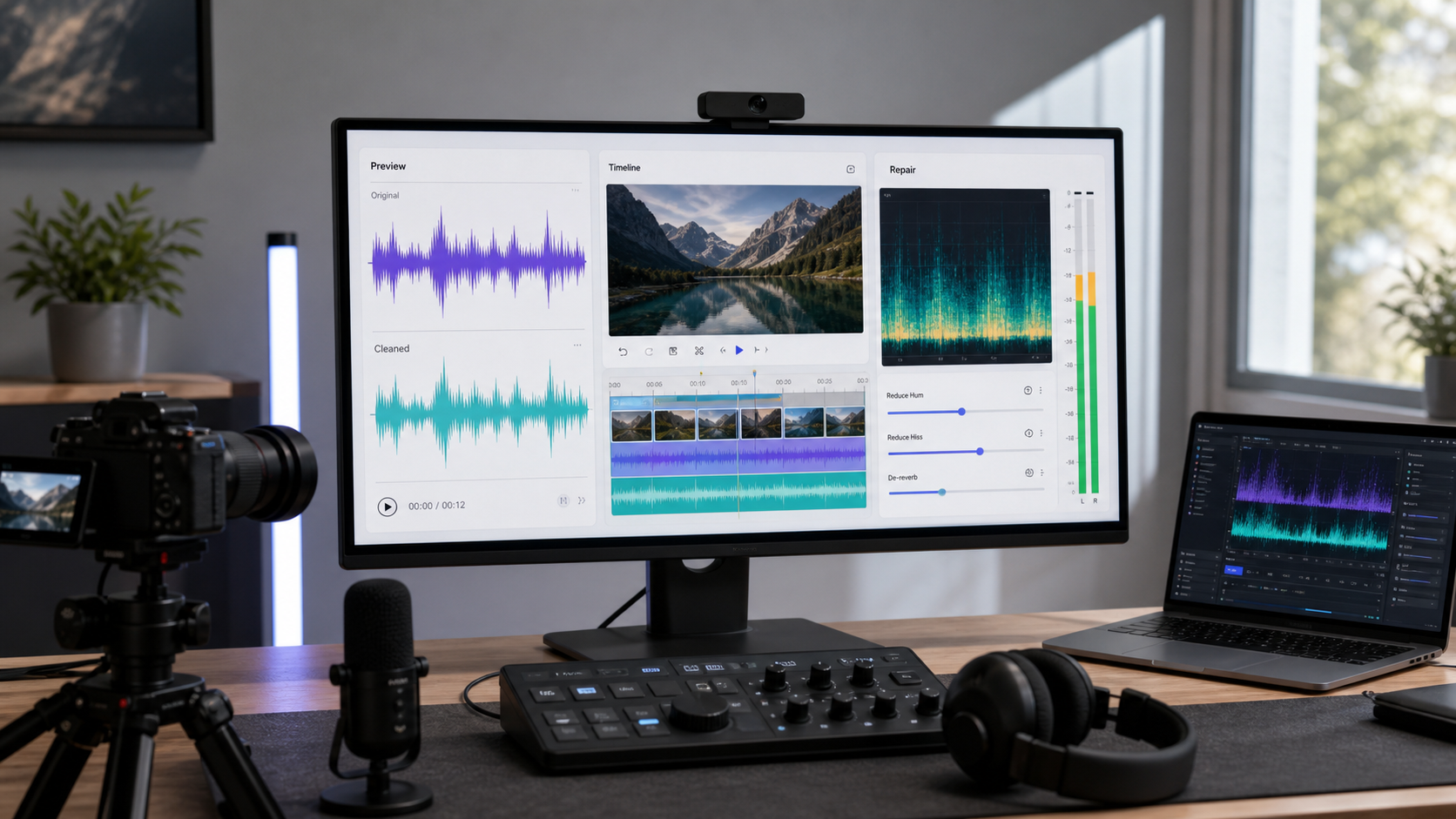
Video creators can clean before the edit, inside the timeline, or in a dedicated audio-post environment.
Start With the Production Stage
Noise removal can happen in three places:
- Before the main edit. Clean the source file, then cut, caption, grade, and mix.
- Inside the video timeline. Apply repair directly to selected clips while editing picture.
- In audio post. Send dialogue into a deeper repair and mixing environment after the picture is stable.
The first route reduces setup and keeps the creative edit focused. The second keeps changes attached to each clip. The third provides the most control but asks the creator to understand more of the signal chain.
A Shortlist by Creator Workflow
| Tool | Best fit | Useful strength | Main tradeoff |
|---|---|---|---|
| CleanAudio | Fast cleanup before or between editing stages | Browser upload, hybrid-model analysis, system-selected preview, audio and video paths | Fewer manual repair controls than a full editor |
| Adobe Premiere Pro | Dialogue repair inside an existing Premiere timeline | Essential Sound repair and clip-level editing remain with the video project | More setup and clip review than a dedicated upload-preview workflow |
| DaVinci Resolve / Fairlight | Detailed editing, mixing, and repair in one post-production system | Noise reduction, de-hum, effects, track processing, meters, automation | More audio-post depth than many creator jobs require |
| CapCut | Quick social and short-form editing | Noise reduction sits beside captions, cuts, effects, and export | Less suited to detailed restoration decisions |
| Descript | Transcript-led interviews, explainers, and repurposing | Studio Sound lives within a spoken-content editing workflow | Best fit depends on wanting the wider transcript workflow |
The table compares documented scope, not output quality. A short phone clip and a paid documentary interview should not use the same decision standard.
CleanAudio: Best Fit for Fast Recorded Cleanup
CleanAudio is useful when the voice remains clear but noise changes across a recording: traffic during one section, fan noise indoors, room tone between answers, or multiple clips from different locations.
Its hybrid model analyzes sections, identifies likely noise conditions, and routes suitable cleanup before presenting a selected before-and-after preview. The creator uploads an audio or video file, listens, and downloads only when speech is clearer and still natural. No effects chain has to be built first.
That makes the video noise remover a practical front-end to an existing editing workflow. Clean the source, then return to the preferred editor for cuts, captions, music, graphics, and color. Audio-only voiceovers can use the audio noise remover.
Best fit: creators processing recorded dialogue who value speed and consistent review more than parameter-level control.
Weak point: one isolated click, complex multitrack mixing, and exact spectral repair still belong in a manual editor.
Premiere Pro: Best Fit Inside an Existing Timeline
Premiere's Essential Sound panel groups dialogue tasks such as loudness matching, speech processing, repair, clarity, and reverb. Adobe's current repair documentation lists controls for noise, rumble, hum, sibilance, and reverb, each adjusted separately [1].
For a creator already editing in Premiere, this avoids a round trip. Select dialogue clips, classify them appropriately, apply the repair that matches the fault, and review the change against music and picture. Clip-level control is valuable when one camera angle is noisy and another is clean.
Best fit: YouTube, documentary, course, and client editors whose project already lives in Premiere and who want cleanup attached to specific timeline clips.
Weak point: mixed noise across many clips creates repeated setup and review. The editor must decide which process and amount each clip needs. The Premiere Pro noise-removal guide covers the operating sequence in detail.
DaVinci Resolve and Fairlight: Best Fit for Deeper Audio Post
Fairlight is a full audio-post environment inside Resolve. Blackmagic's documentation describes noise reduction that can automatically detect a selected noise or learn it from a sample, along with de-hummer and other Fairlight effects that can be applied to clips or mixer channels [2]. Resolve also provides sample-accurate editing, track processing, automation, and mixing tools.
That depth is useful when cleanup is one part of a larger dialogue edit: selecting alternate takes, smoothing ambience between cuts, managing several microphones, automating levels, and delivering a final mix. It is not merely a stronger denoise button; it is a different production environment.
Best fit: creators and small teams willing to use professional audio-post tools inside their color and editing system.
Weak point: a single noisy creator clip may not justify the routing, monitoring, and learning involved. The extra control earns its place only when the project needs it.
CapCut: Best Fit for Fast Social Editing
CapCut puts noise reduction alongside a broader lightweight creation workflow. Its official audio-noise page instructs users to select a timeline clip, open the Audio panel, and use Noise reduction before preview and export [3]. Interface details can change by platform and version, but the product direction is clear: cleanup is one quick step within social editing.
Best fit: short-form creators who need cuts, captions, effects, music, and basic cleanup in one approachable editor.
Weak point: complex wind, overlapping chatter, changing traffic, or several recording environments may need a more noise-focused workflow. Use the CapCut background-noise guide for the current desktop and mobile paths.
Descript: Best Fit for Transcript-Led Video
Descript treats spoken media as editable text and offers Studio Sound inside that workflow. Its help documentation shows Studio Sound in the Properties panel and provides an intensity control for reducing processing when the result needs adjustment [4].
This is a strong fit for interviews, screen-based explainers, podcast video, and clips repurposed from long conversations. The editorial advantage is not only denoising; it is keeping transcript edits, scene changes, and spoken-content assembly together.
Best fit: creators whose main editing object is speech and transcript structure.
Weak point: creators who only need to clean a finished video may not need the surrounding editor.
Choose by Noise, Not Only by Brand
| Recording problem | Better starting workflow |
|---|---|
| Mixed, changing noise beneath clear dialogue | Dedicated automated cleanup and preview |
| One local click, bump, or bad cut | Timeline or spectral editor |
| Stable hum or hiss with a clean noise sample | Manual noise profile, de-hum, or dedicated cleanup |
| Room reflection washing over speech | Controlled dereverberation; compare naturalness |
| Several microphones and ambience tracks | Full timeline or Fairlight-style audio post |
| Clipped or fully covered words | Search for another source; noise removal cannot recreate missing information |
This distinction matters more than the number of AI labels on a product page. The background noise removal guide explains why noise type, signal overlap, and voice preservation change the appropriate workflow.
Run a Fair Evaluation on Your Own Footage
Use the same source section in each candidate tool. Include normal speech, the worst noise event, and a quiet transition. Then:
- match playback volume before comparing;
- check consonants and word endings;
- listen for watery or metallic tails;
- check whether noise pumps between phrases;
- confirm lip sync at the beginning and end;
- count how many decisions and exports the workflow required;
- keep the original and reject a cleaner result that changes the speaker's identity.
Do not choose from a polished vendor demo alone. A field interview, indoor tutorial, and short social clip ask different questions of the same tool.
Verdicts by Creator Type
Solo creator with mixed recorded noise: Start with CleanAudio, then finish in the existing editor.
Premiere-based editor: Use Essential Sound for clip-specific repair; use a dedicated cleanup pass when many clips share changing noise and manual routing becomes repetitive.
Resolve editor or small post team: Use Fairlight when the project needs multitrack control, ambience work, automation, and detailed repair.
Short-form mobile creator: Use CapCut when basic noise reduction and social editing belong in one quick workflow.
Interview and transcript-led creator: Use Descript when text-based editing is part of the production, not merely an extra feature.
For a complete sequence rather than a tool comparison, see the video audio cleanup workflow for vlogs, interviews, and tutorials.